For Salesforce Admins and developers, managing Field-Level Security (FLS) across multiple objects and profiles can quickly become a time-intensive task. Updating field permissions using Salesforce’s standard setup often requires opening each profile individually and adjusting access field by field — a process that becomes even more complex in large or growing orgs.
To simplify this, the Bulk Object Field Creator (BOFC) AppExchange solution enables teams to update field permission in bulk for single or multiple objects, across multiple profiles, directly within the same Salesforce org — all in just a few clicks.
With BOFC, admins can streamline permission management through an intuitive interface, including Excel-based updates and a simple drag-and-drop experience.
Key Benefits of BOFC
-
Supports both Standard and Custom Objects
-
Bulk update field permission across multiple objects and profiles instantly
-
User-friendly drag & drop UI designed for faster admin workflows
To avail this feature, kindly make sure you have installed the latest version of the application. You can upgrade your package using either of two ways:
- In Salesforce, go to “BOFC Home > Settings > App Version > Click to Upgrade” — or —
- Refer the below button to quickly upgrade your package to the latest version and explore its complete benefits:
Few Simple Steps to Update Field Permissions actions:
1. Open the BOFC Home > Goto Field Permissions Section
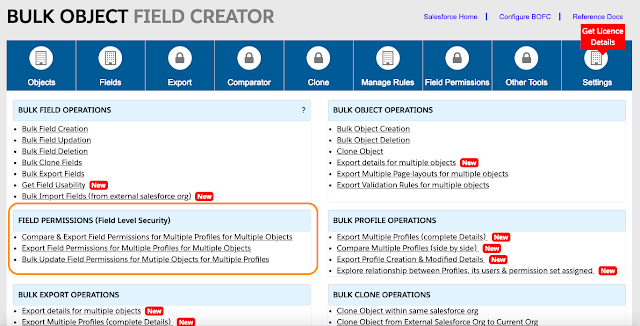
2. It will open below screen for Field Permissions

3. Once Profile is selected, it will show below screen:
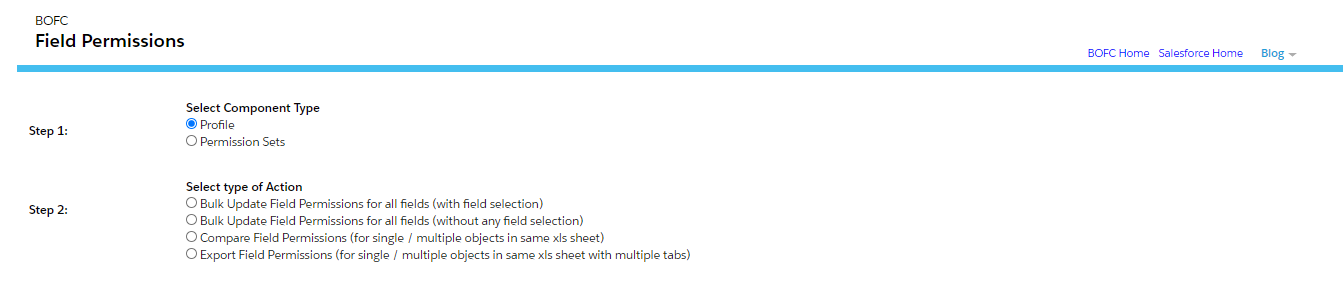
4. Once update is selected, it will show below screen:
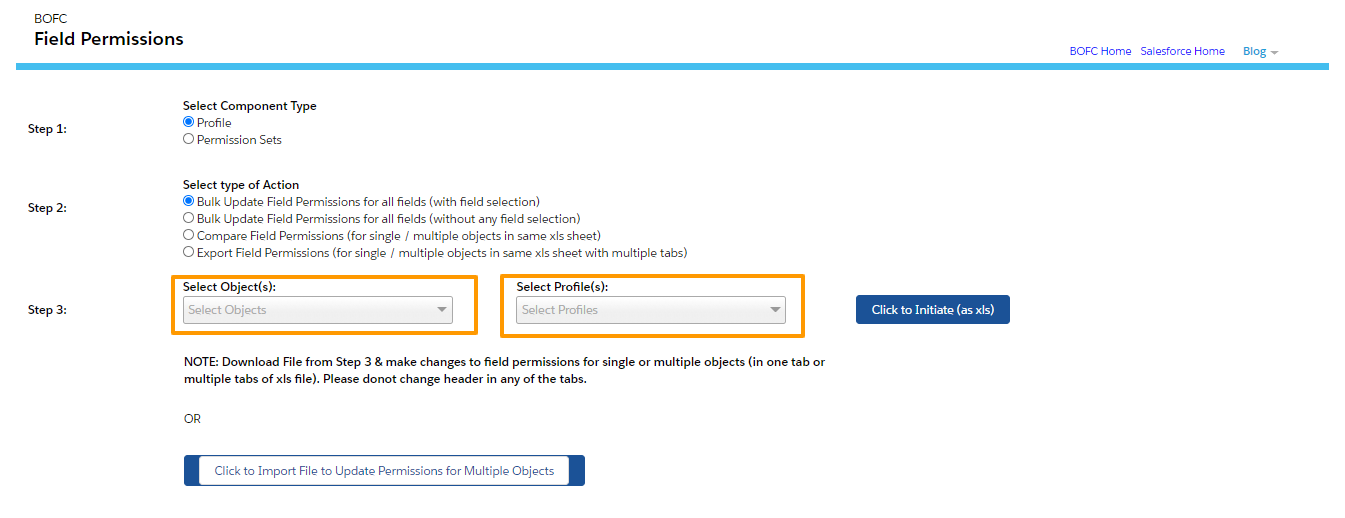
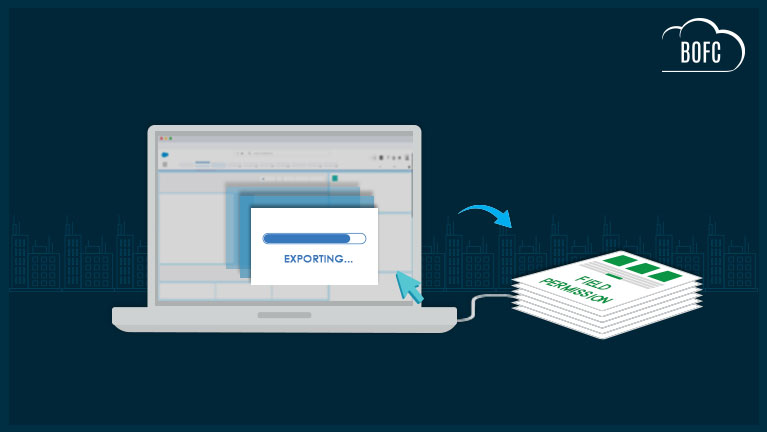
Please select single or multiple objects, and select single or multiple profiles. Once done then click on “Click to Initiate Export (as xls)” button.
5. Please don’t refresh your page, until status is changed to “Completed”.
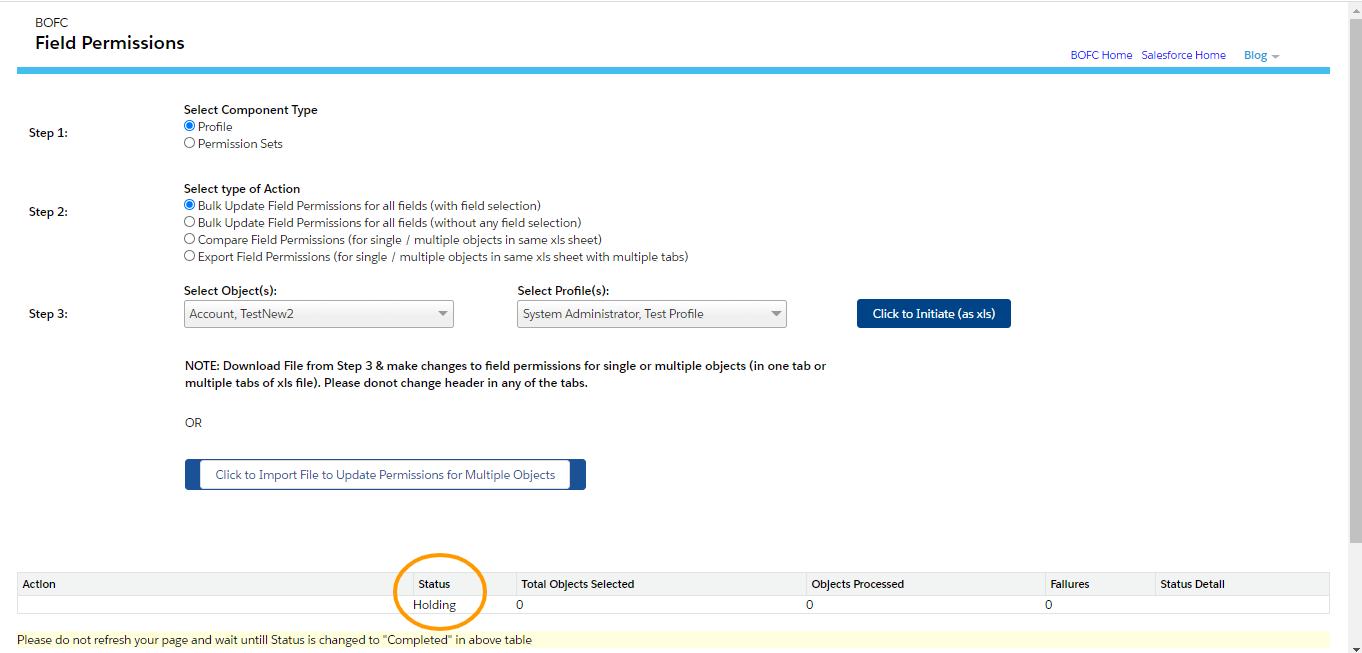
Once it is completed, it will show below screen
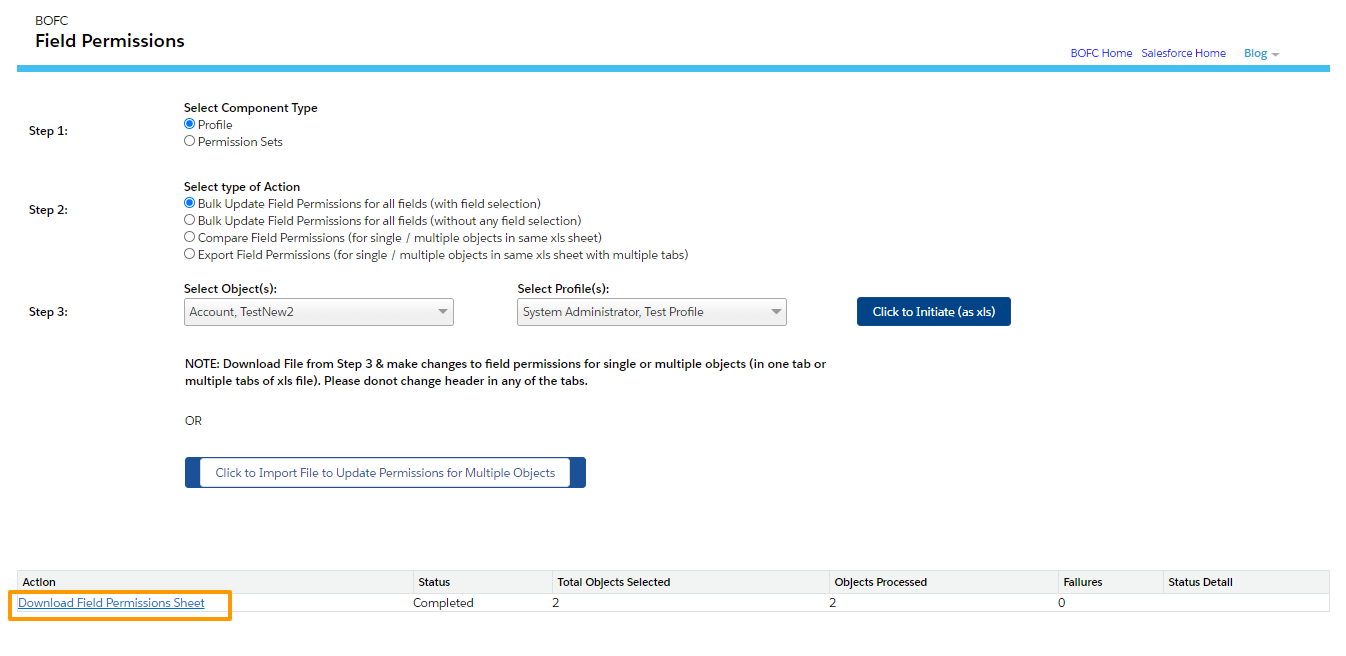
Click on Download link as per above image and your file for field permissions is ready for download for multiple objects.
6. So we are done till Step 5. Now only update part is left. User can open the file which is exported in last step.
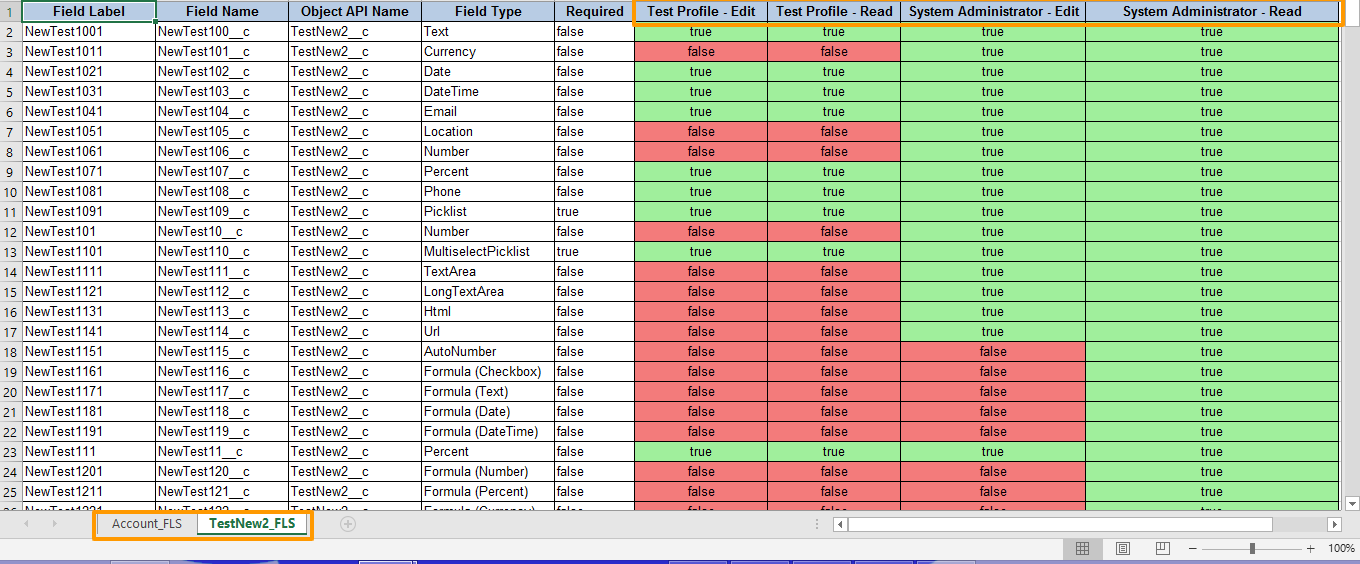
Few pointers to note down:
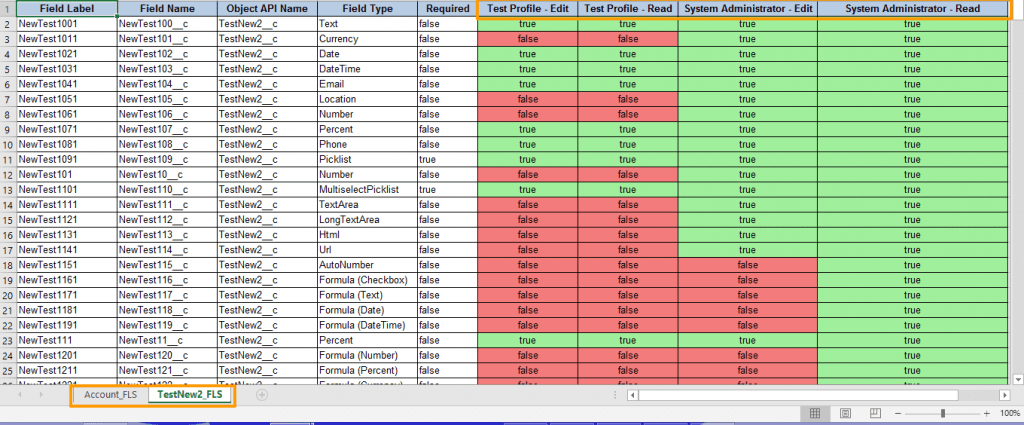
- Each Object has its own tab in same excel sheet
- Each Profile has two columns. One for Edit and One for Read
- GREEN colour represents TRUE and ORANGE colour represents FALSE
User can modify the field permissions in the same file and can save it.
7. Now Upload your updated file on BOFC Field Permission page as highlighted in STEP 5
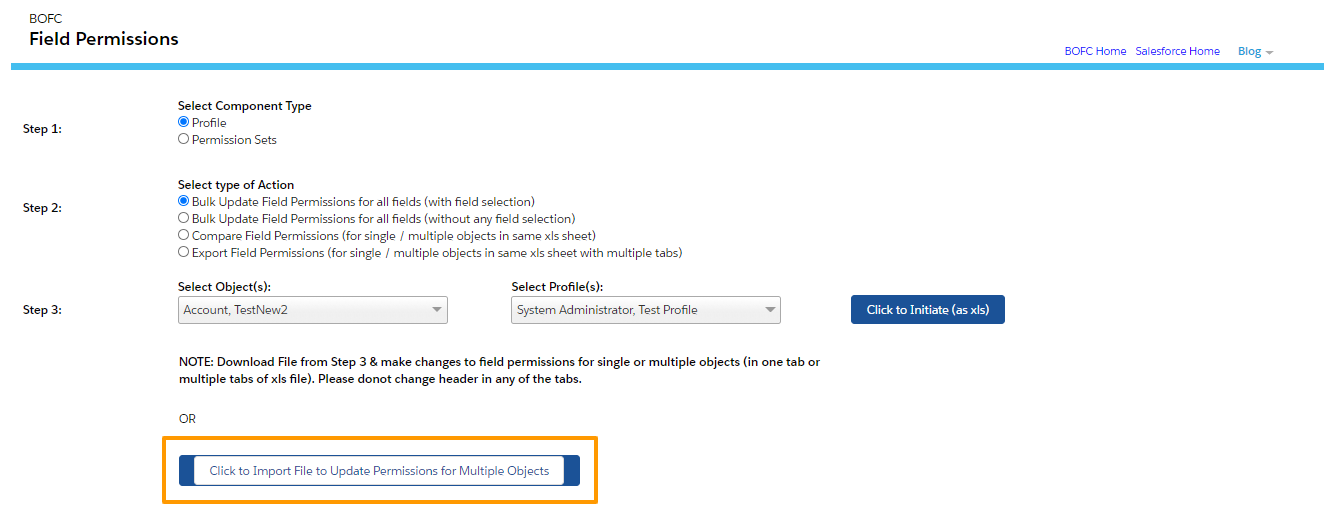
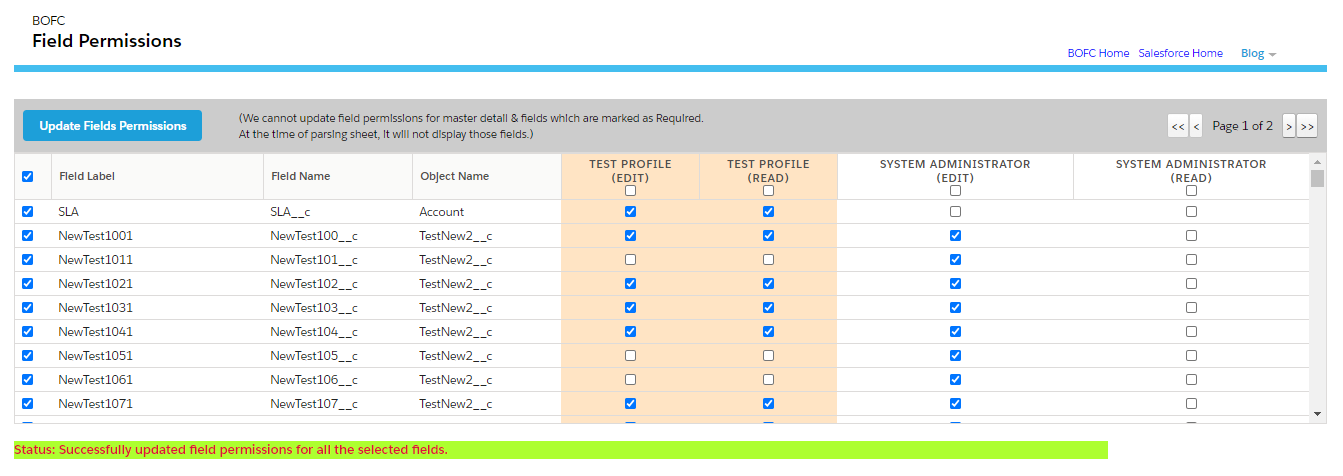
On upload, it will show below screen, Now select your field row (single or multiple) and click “Update Field Permissions”.
******************************************************************************
Have you started using BOFC yet? Thousands of BOFC users have been able to save time & boost productivity using our Salesforce Metadata app. Click here to install the latest version of BOFC application in your Salesforce instance & explore its complete benefits for you.
For any queries or suggestions, you can contact us at https://www.bofc.io/#contact or mail us: support@bofcapp.io. Our BOFC Expert will help you get the best out of it.