How to Clone a Dashboard with Reports in Salesforce?
Published: Nov 17 2025
Last Updated: Jun 15 2026
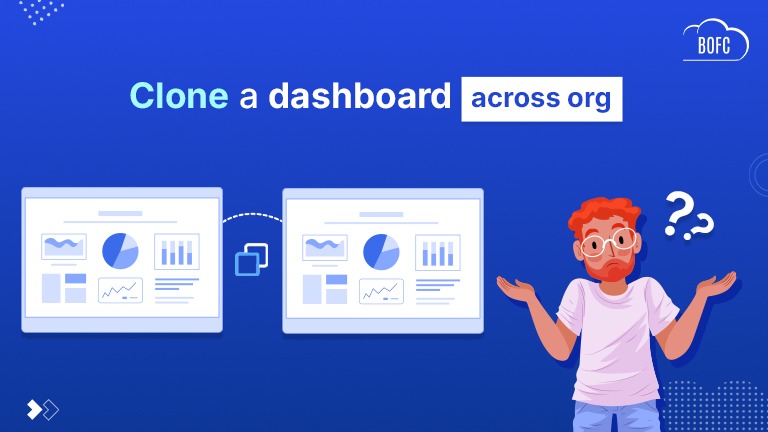
Salesforce dashboards help teams monitor performance, track KPIs, and make data-driven decisions. But when organizations need to replicate dashboards for different teams, regions, or environments, cloning dashboards along with their reports can become a repetitive and time-consuming task.
In this guide, we’ll explore how dashboard cloning works in Salesforce, the typical challenges involved, and practical ways to streamline the process.
Why Do Teams Need to Clone Dashboards with Reports?
Cloning dashboards is a common administrative task in Salesforce environments. Organizations often reuse dashboards as templates to maintain consistency across departments or business units.
Here are some typical scenarios where cloning dashboards with reports is required:
- Creating dashboards for multiple teams or regions
- Migrating dashboards from Sandbox to Production
- Standardizing reporting structures
- Reusing dashboard templates
- Testing new dashboard configurations
- Deploying dashboards across multiple Salesforce orgs
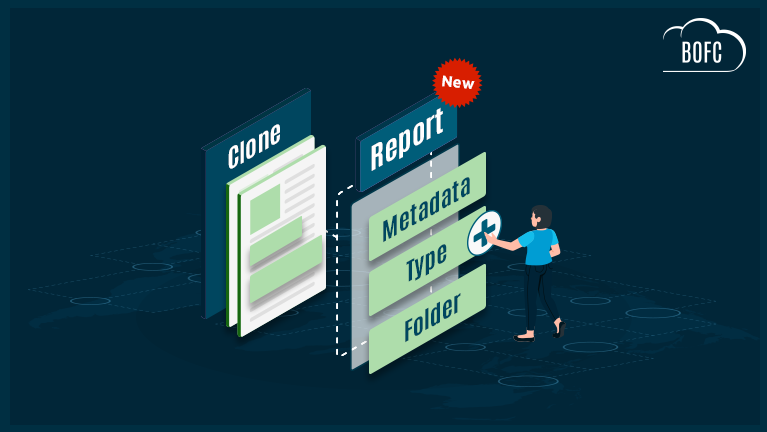
In many organizations, dashboards are closely tied to reports. When a dashboard is copied, the associated reports often need to be duplicated as well to ensure data accuracy and independence.
Understanding the Relationship Between Dashboards and Reports
A Salesforce dashboard is built using components that pull data from reports. Each component in the dashboard relies on a specific report as its data source.
This means:
- Dashboards do not store data directly
- Reports act as the data providers
- Cloning a dashboard alone does not duplicate its reports
As a result, administrators must manage both dashboards and reports during the cloning process.
How BOFC Help with Dashboard and Report Cloning?
Bulk Object Field Creator (BOFC) is a Salesforce metadata management tool designed to simplify administrative tasks, including cloning and managing components.
With BOFC, teams can:
- Clone dashboards and related components more efficiently
- Perform bulk metadata operations
- Reduce manual configuration steps
- Improve deployment speed
- Support scalable Salesforce administration
Instead of repeating manual steps for every dashboard and report, administrators can streamline workflows and focus on higher-value tasks.
Step‑by‑Step: How to Clone Salesforce Dashboards Using BOFC?
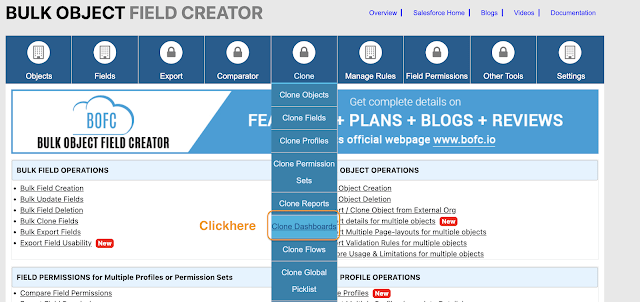
Step 1: Open BOFC Home → Click “Clone Dashboards”
Navigate to the BOFC home screen and select Clone Dashboards under the Clone category.
Step 2: Open the Clone Dashboards Screen & Select the Source Org
Choose where the dashboards should be cloned from.
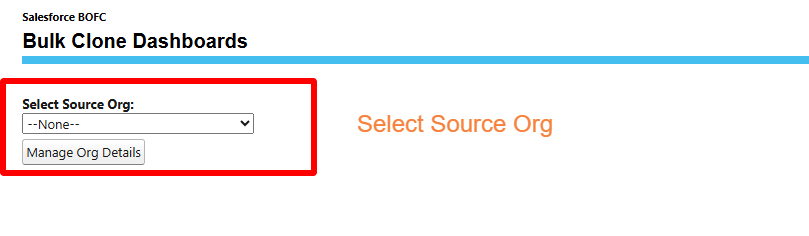
User can clone the dashboards from different type of source orgs:
- Can clone from “Current Salesforce Org” in which BOFC is installed
- Can clone from “External Salesforce org” (Salesforce org which are linked / non-linked to current org in which BOFC is installed)
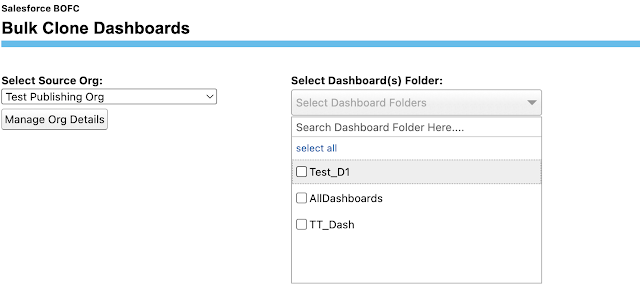
Step 3: Select the Dashboard Folder(s)
BOFC displays all dashboard folders from the selected org. Choose one or multiple folders containing dashboards you wish to clone.
Step 4: Choose How to Handle Existing Metadata
Select how BOFC should treat existing:
- Report Types
- Report Folders
- Reports
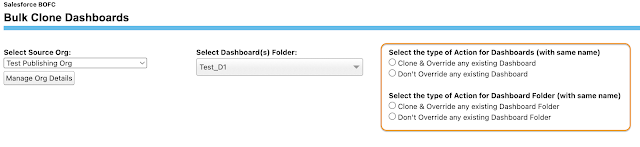
Available Actions
- Clone & Override – overwrite existing items
- Clone & No-Override – skip existing items and create only missing ones
Note – BOFC automatically creates any components that do not exist in the target org.
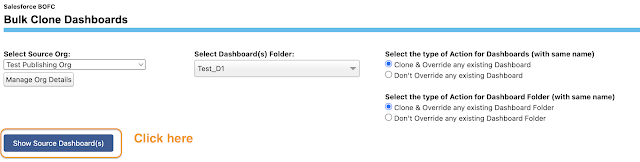
Step 5: Fetch Dashboards from the Source Org
Click the blue action button to load all dashboards from the selected folders.
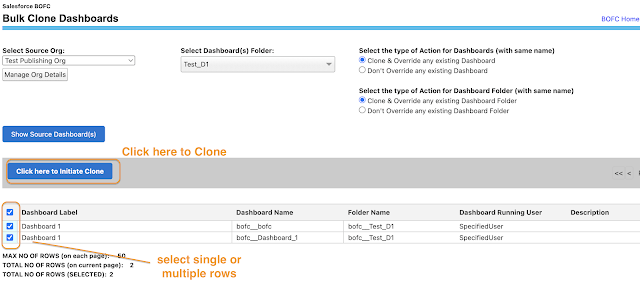
Step 6: Select Dashboards to Clone
BOFC displays a list of dashboards in a table. Select one or multiple dashboards and click: “Click here to Initiate Clone”
Step 7: Follow Final Instructions & Click “Clone”
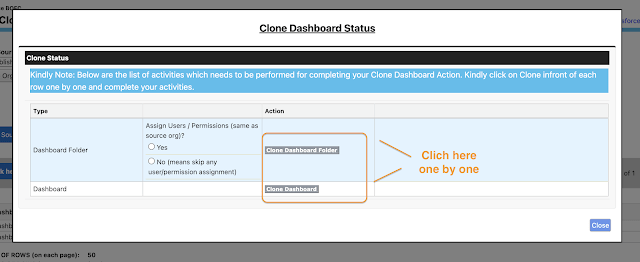
A popup will appear with instructions. For each dashboard row, click Clone to begin the operation.
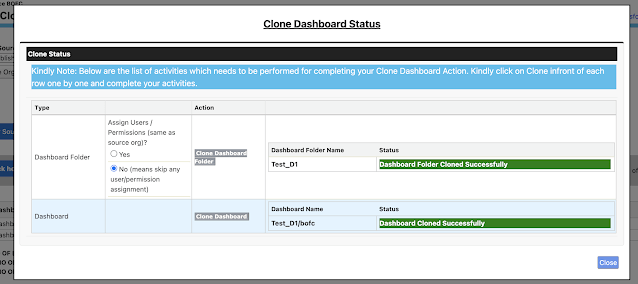
BOFC displays real-time status updates for each cloned item. Once all rows show “Success” the cloning is complete.
Benefits of Cloning Dashboards with Reports Using BOFC
-
Save Significant Administrative Time: Instead of manually cloning each report and reconnecting components, admins can complete the process in a single operation.
-
Reduce Manual Errors: Automation ensures dependencies are handled consistently, reducing the risk of configuration mistakes.
-
Maintain Dashboard Consistency: Cloned dashboards preserve the original structure and behavior.
-
Support Large‑Scale Operations: BOFC is particularly useful for organizations managing multiple dashboards across teams or environments.
-
Enable Faster Deployment: New dashboards can be created quickly without rebuilding reports from scratch.
Conclusion
Cloning dashboards is a routine task for Salesforce administrators, but the process can become complex when dashboards depend on multiple reports and related components.
Native cloning tools provide basic functionality, but they often require significant manual effort to replicate underlying reports and dependencies.
By automating dashboard cloning — including associated reports — admins can streamline operations, improve accuracy, and deploy dashboards more efficiently across teams and environments.