Managing field permissions is a routine yet critical responsibility for every Salesforce Admin and Developer. As organizations scale, the number of objects, fields, and permission sets grows significantly—making permission management more complex and time-consuming.
For many teams, updating field permissions across multiple objects and permission sets becomes a repetitive administrative task that increases the risk of configuration errors and deployment delays.
In this guide, we’ll explore:
- Manual vs automated methods for updating field permissions
- Limitations of the standard Salesforce approach
- A comparison of popular tools—including Bulk Object Field Creator (BOFC)
Bulk Field Creation & Permission Updates: Manual vs Tool-Based Methods
Manual Method (Standard Salesforce)
Using the native Salesforce interface, admins typically:
- Navigate to Setup
- Open a specific Permission Set
- Locate the required object
- Select fields individually
- Configure field-level security
- Repeat the process for each permission set and object
Challenges of the Manual Approach
- Time-consuming for large organizations
- Requires repetitive configuration
- Difficult to maintain consistency
- Higher chance of human error
- Limited bulk update capabilities
Tool-Based Method (Automated)
Automation tools allow admins to:
- Update field permissions in bulk
- Apply changes across multiple objects
- Manage multiple permission sets simultaneously
- Export and compare permission configurations
- Reduce manual workload significantly
This approach is especially valuable in organizations with complex security models or frequent permission updates.
Limitations of the Standard Salesforce Process
While Salesforce provides strong security controls, its native interface has limitations when managing permissions at scale.
Key Limitations
1. No Native Bulk Permission Updates
Admins must configure permissions individually for each field and permission set.
2. Time-Intensive Configuration
Updating permissions across dozens of objects can take hours.
3. Limited Visibility Across Permission Sets
Comparing permissions between multiple sets is not straightforward.
4. Higher Risk of Misconfiguration
Manual updates increase the chances of missing required permissions.
Tools Comparison for Updating Field Permissions in Salesforce
| Feature | Standard Salesforce | Data Loader | XL-Connector | BOFC |
|---|---|---|---|---|
| Bulk Field Permission Updates | Limited | No | Partial | Yes |
| Multi-Object Support | Manual | No | Partial | Yes |
| Permission Set Management | Manual | No | Partial | Yes |
| Compare Permissions | No | No | Limited | Yes |
| Export Permissions | Manual | Yes | Yes | Yes |
| Ease of Use | Moderate | Technical | Moderate | Easy |
Using BOFC to Update Field Permissions in Bulk
For any Salesforce Admin or developer, the need to update field permissions across multiple objects and permission sets is a common yet time-consuming task.
Using the standard Salesforce process, users often have to open each permission set and configure field-level access one by one—making it inefficient and prone to errors.
But with Bulk Object Field Creator (BOFC), you can:
Benefits of Using BOFC to Update Field Permissions
- Supports both Standard and Custom Objects
- Update field permissions for single or multiple objects instantly
- Manage permissions across multiple permission sets simultaneously
- Easy-to-use drag-and-drop interface
- Eliminates manual effort and reduces configuration errors
- Compare and export permissions within the same Salesforce org
To avail this feature, kindly make sure you have installed the latest version of the application. You can upgrade your package using either of two ways:
- In Salesforce, go to “BOFC Home > Settings > App Version > Click to Upgrade” — or —
- Refer the below button to quickly upgrade your package to the latest version and explore its complete benefits:
Few Simple Steps to Update Field Permissions actions:
1) Open the BOFC Home >Goto Field Permissions Section
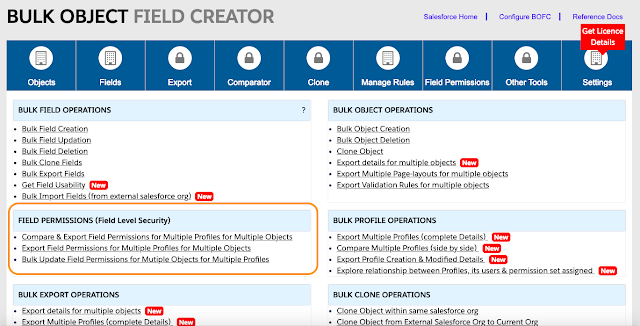
2) It will open below screen for Field Permissions

3) Once Permission Set is selected, it will show below screen:
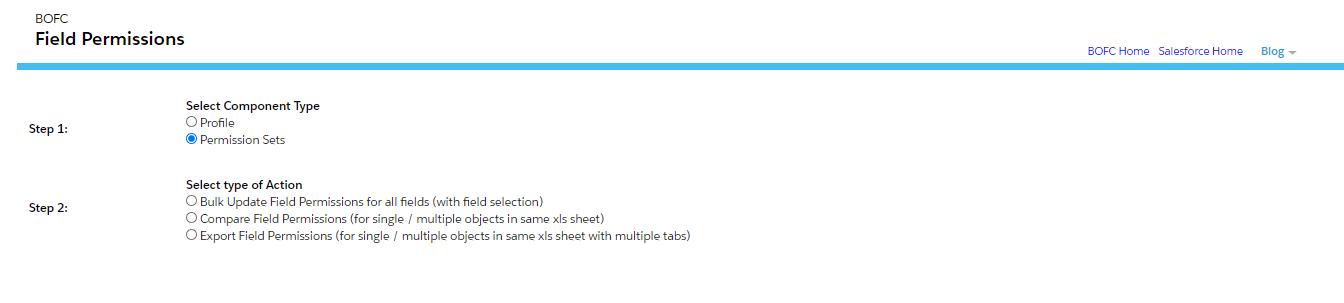
4.Once update is selected, it will show below screen:
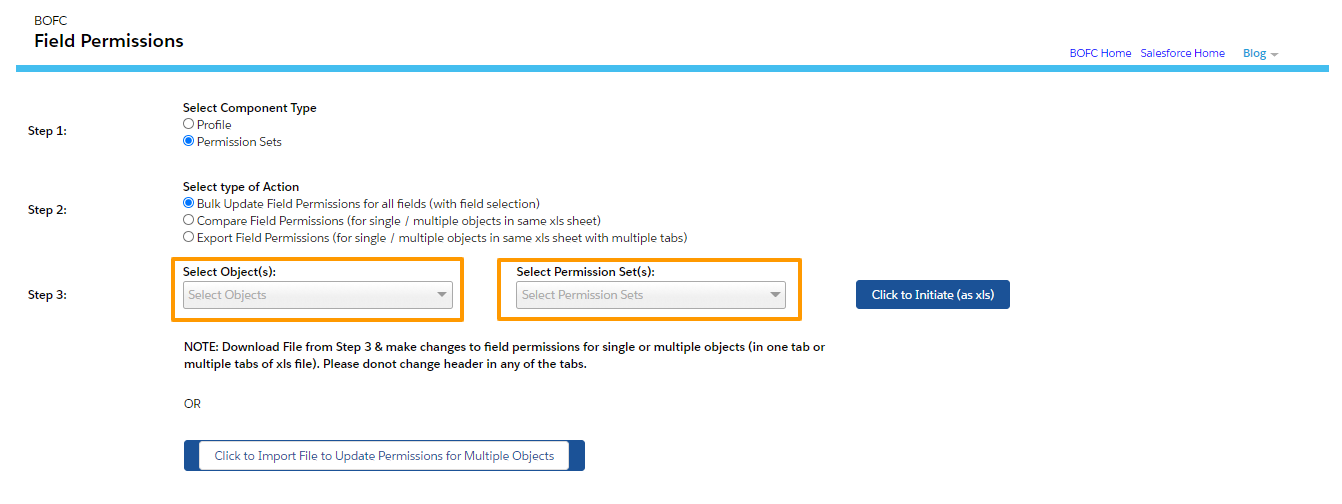
Please select single or multiple objects, and select single or multiple permission sets. Once done then click on “Click to Initiate Export (as xls)” button.
5) Please don’t refresh your page, until status is changed to “Completed”.
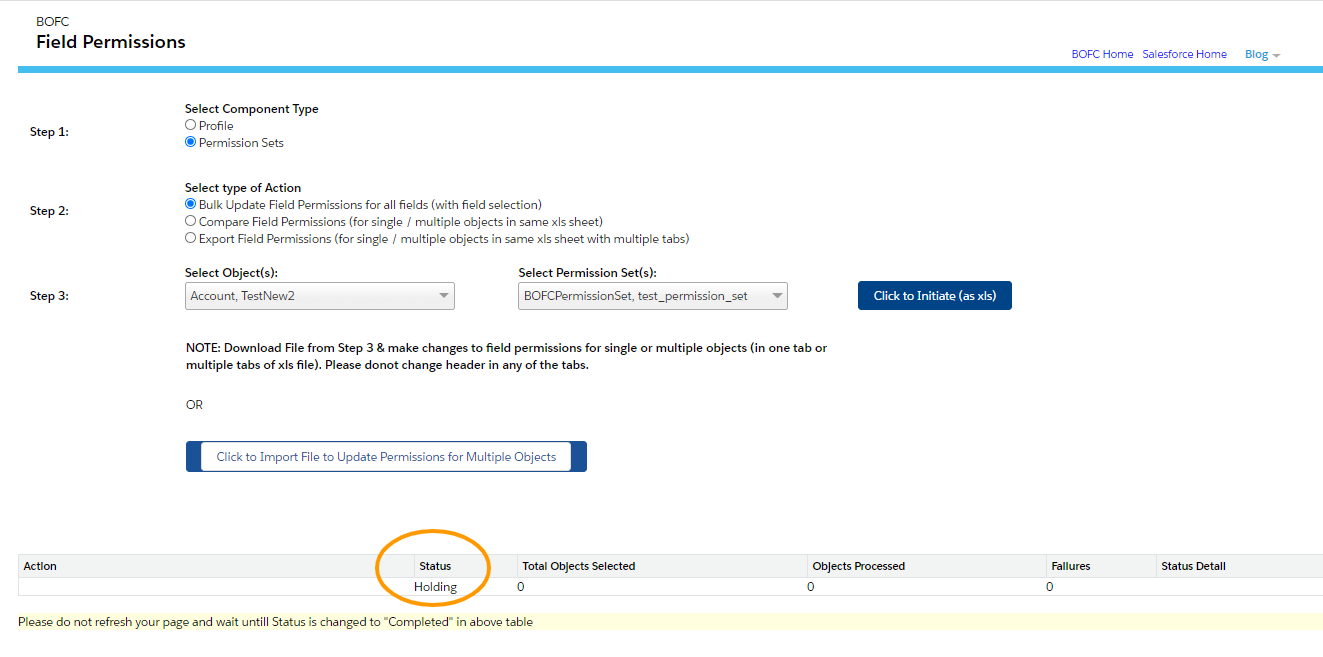
Once it is completed, it will show below screen
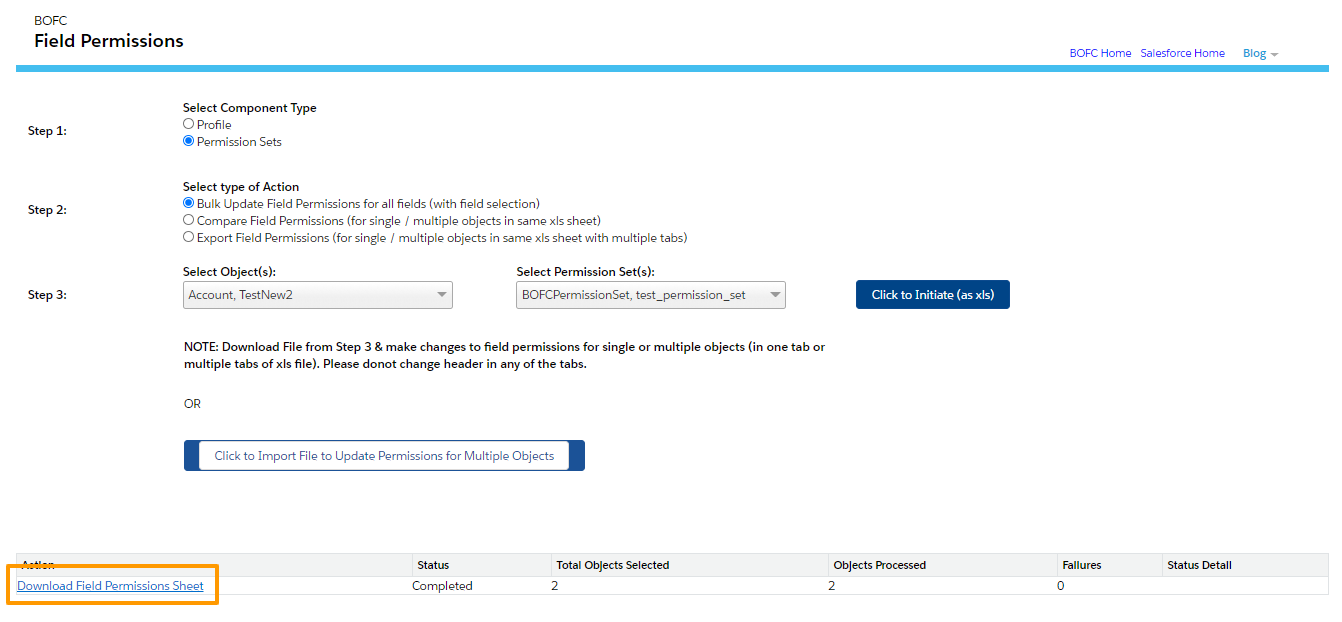
Click on Download link as per above image and your file for field permissions is ready for download for multiple objects.
6) So we are done till Step 5. Now only update part is left. User can open the file which is exported in last step.
Few pointers to note down:
-
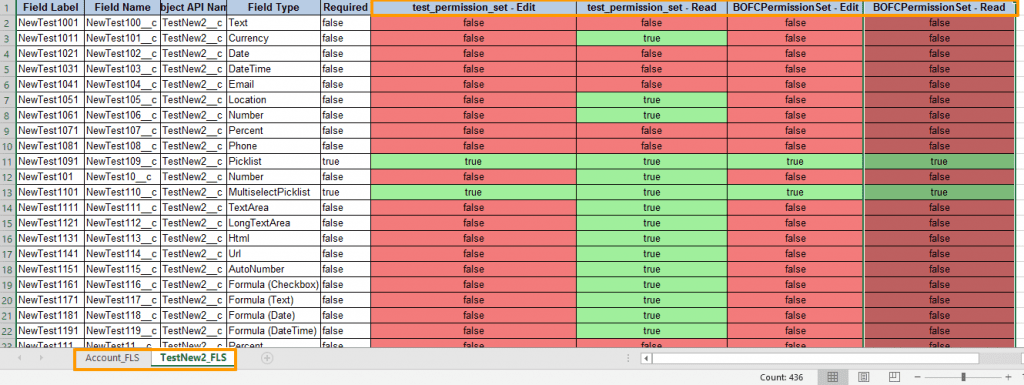
- Each Object has its own tab in same excel sheet
- Each Profile has two columns. One for Edit and One for Read
- GREEN colour represents TRUE and ORANGE colour represents FALSE
User can modify the field permissions in the same file and can save it.
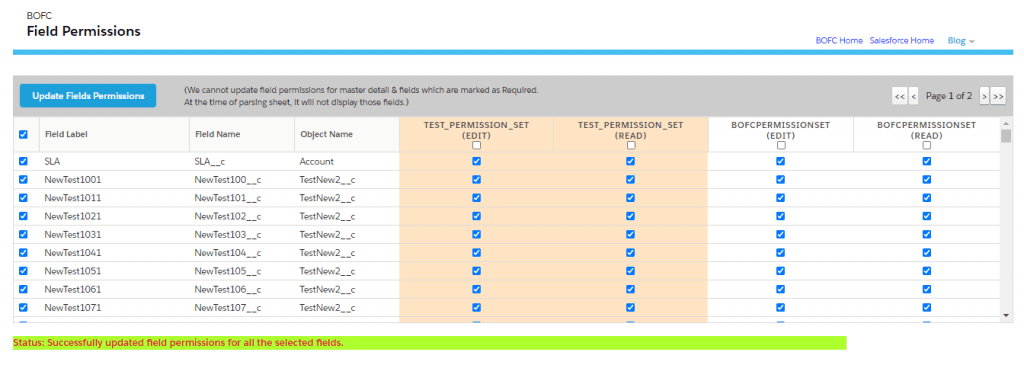
7. Now Upload your updated file on BOFC Field Permission page as highlighted in STEP 5
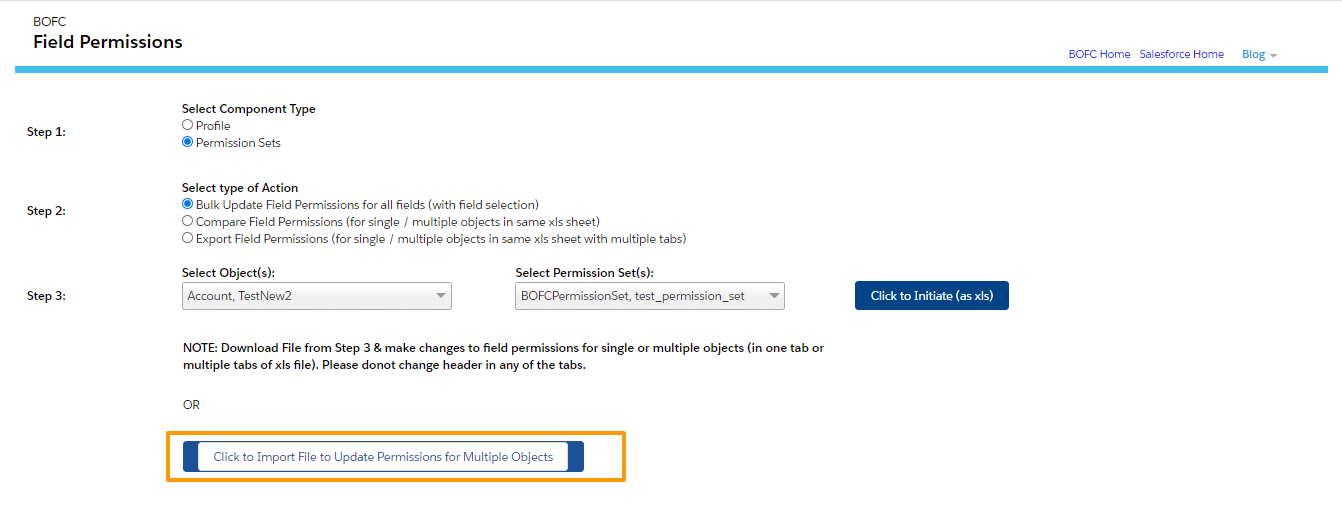
On upload, it will show below screen, Now select your field row (single or multiple) and click “Update Field Permissions”.
******************************************************************************
Have you started using BOFC yet? Thousands of BOFC users have been able to save time & boost productivity using our Salesforce Metadata app. Click here to install the latest version of BOFC application in your Salesforce instance & explore its complete benefits for you.
For any queries or suggestions, you can contact us at https://www.bofc.io/#contact or mail us: support@bofcapp.io. Our BOFC Expert will help you get the best out of it.