
What is Mass Deletion of Custom Fields in Salesforce?
Mass deleting custom fields in Salesforce is the process of removing multiple unused or unnecessary fields across one or more objects in a single operation.
By default, Salesforce requires deleting fields one by one, which is slow and inefficient for large-scale cleanup.
Why Delete Custom Fields in Salesforce?
Over time, Salesforce orgs accumulate unused fields due to frequent changes, feature updates, or poor governance.
Key reasons to clean up fields:
- Improve system performance
- Reduce clutter in objects
- Stay within field limits
- Simplify reporting and UI
- Maintain better data architecture
👉 Real-world insight (from admins):
Old unused fields often pile up and create maintenance issues
Challenges with Manual Field Deletion
Deleting fields manually in Salesforce can quickly become a bottleneck.
Common challenges:
- Requires deleting fields one by one
- High risk of missing dependencies
- Time-consuming for large orgs
- Difficult to manage across multiple objects
👉 Salesforce’s native approach is inefficient for bulk cleanup
How to Mass Delete Custom Fields in Salesforce
There are two main approaches:
Method 1: Manual Deletion (Default Salesforce Way)
Steps:
- Go to Object Manager
- Select the object
- Open Fields & Relationships
- Delete fields one by one
Limitations:
- Not scalable
- Extremely time-consuming
- Error-prone
Method 2: Mass Delete Custom Fields Using BOFC
A faster approach is using tools like Bulk Object Field Creator (BOFC), which allows bulk deletion in just a few clicks.
Why Use BOFC for Field Deletion?
Key capabilities:
- Delete fields across multiple objects
- Supports standard and custom objects
- Delete multiple field types (Text, Lookup, Picklist, etc.)
- Excel-based bulk deletion
- No coding required
👉 Designed to reduce manual effort and improve productivity
To avail this feature, kindly make sure you have installed the latest version of the application. You can upgrade your package using either of two ways:
- In Salesforce, go to “BOFC Home > Settings > App Version > Click to Upgrade” — or —
- Refer the below button to quickly upgrade your package to the latest version and explore its complete benefits:
Stay up to date with the latest in BOFC - Latest features, offers, news, tips and more
Few Simple Steps to Mass Delete Custom Fields in Salesforce
1. Open the BOFC Home > Click “Bulk Field Deletion”
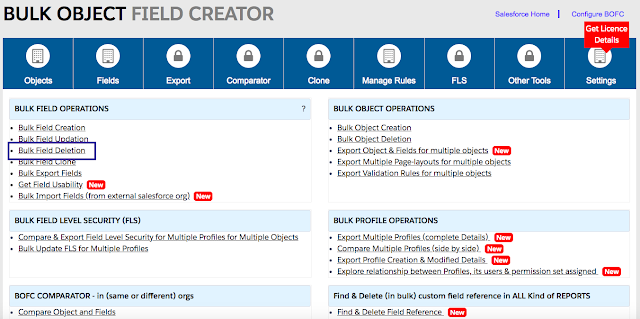
2. It will open below screen for BOFC Delete Fields
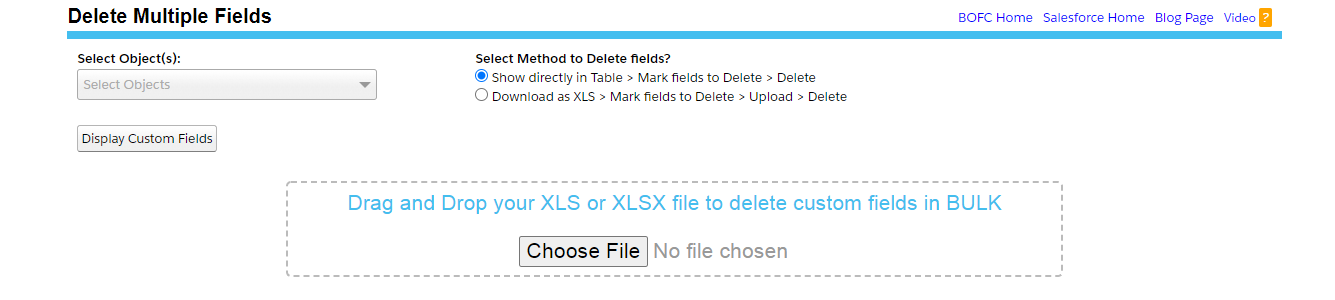
User can display list of fields using two methods:
- Show Directly: Once objects are selected and this method is selected, on clicking “Display Custom Fields”, it will display the list of custom fields for the selected objects in the form of table.
- Using XLS: User can download the XLS file for all the custom fields for the selected objects. User can filter the sheet and can mark which fields needs to be deleted. Once the sheet is ready, user can upload the final sheet and can delete multiple fields in single click.
Let’s review the XLS process in detail:
Step 1. Select multiple “objects” from drop down, Select the method as Download as xls to delete fields and Click on “Download as xls” button
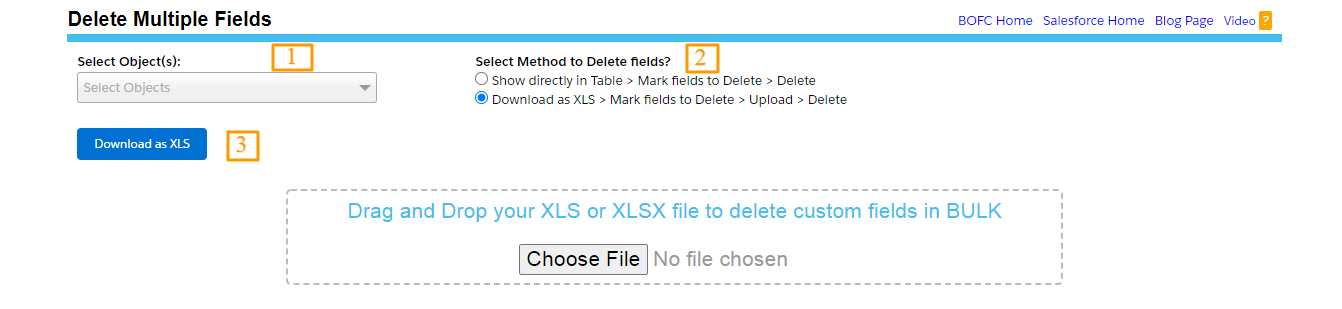
Steps:
- Select single or multiple objects
- Select Method to Delete
- Click on Download as xls and wait for couple of seconds for process to complete (as shown in below image)
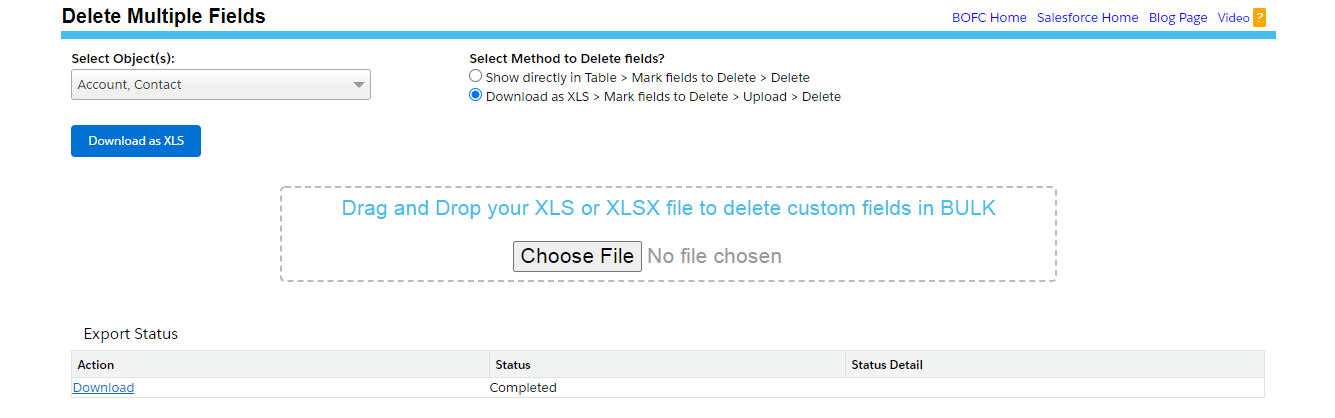
- User can click on [Download] as per above screenshot to download all fields in XLS
- Open excel and modify your field details and save file as xls or xlsx
- Open your BOFC Delete Field page and drag or select your excel file.
Step 2. Drag file on page and it displays all the fields in tabular format
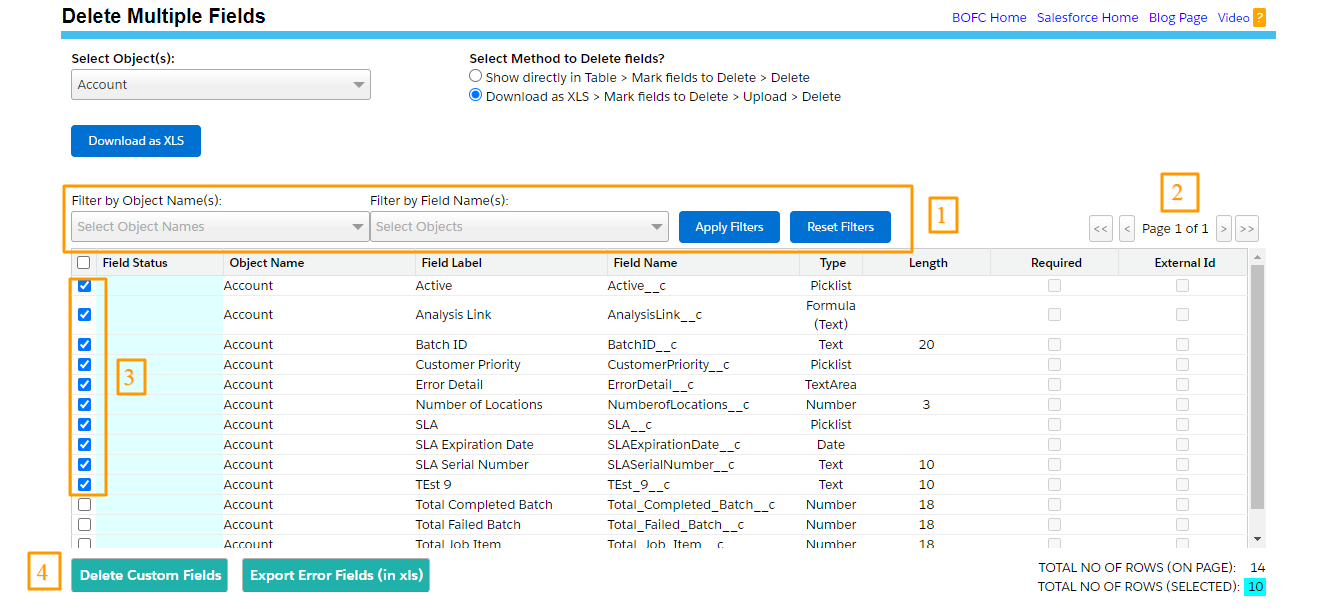
Above image has many features (each number has its description as below):
- User can filter fields by object or field names
- Pagination – This page has a pagination if count of fields is more than 80. Each page shows 80 fields. User can use “>” or “<” or “<<” or “>>” buttons to navigate on other pages.
- User can select the checkbox infront of each row.
- “Delete Fields“ – On clicking this button, it will Delete all the selected fields for object.
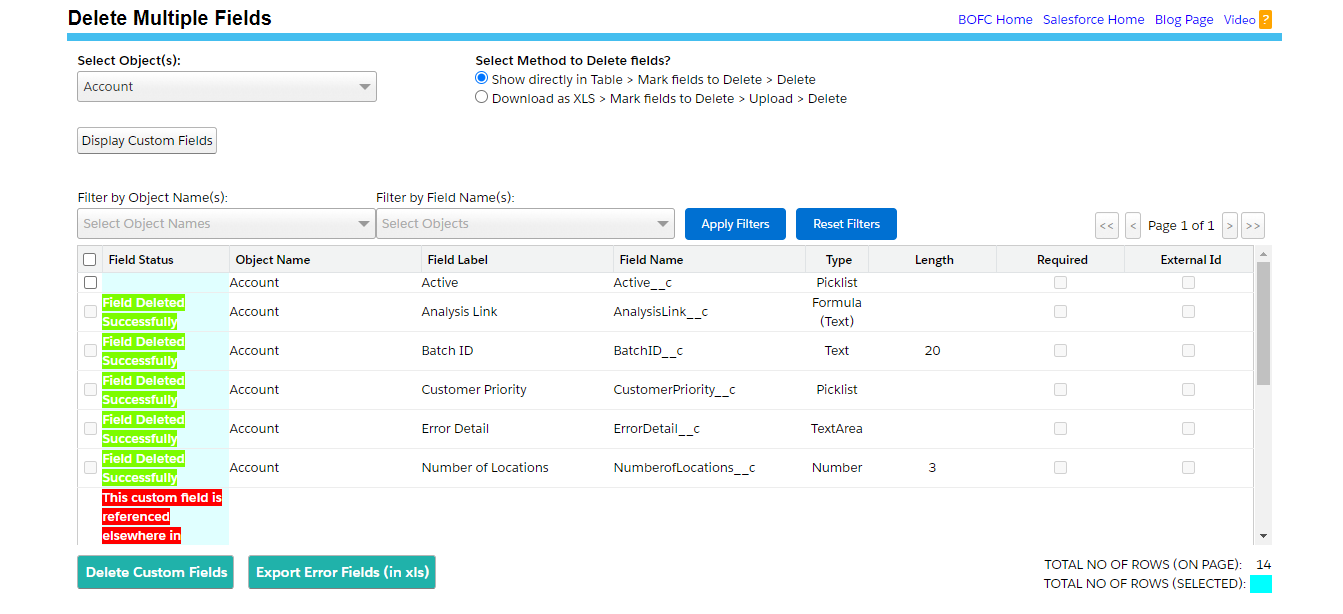
3. Once the Delete action is completed, it will show “Success or Error” status message in-front of each row.
Important Considerations Before Deleting Fields
Before deleting any custom field:
- Backup your data
- Check field dependencies (reports, flows, Apex)
- Confirm fields are not actively used
- Communicate changes with stakeholders
👉 Once deleted, data may not be recoverable easily
Final Thoughts
Mass deleting custom fields is essential for maintaining a clean, scalable, and efficient Salesforce environment.
While manual deletion works for small tasks, it is not practical for large orgs. Using bulk tools significantly reduces effort, minimizes errors, and speeds up cleanup operations.
******************************************************************************
Have you started using BOFC yet? Thousands of BOFC users have been able to save time & boost productivity using our Salesforce Metadata app. Click here to install the latest version of BOFC application in your Salesforce instance & explore its complete benefits for you.
For any queries or suggestions, you can contact us at https://www.bofc.io/#contact or mail us: support@bofcapp.io. Our BOFC Expert will help you get the best out of it.












Thank you for your blog!. It’s helpful for me!
Thank you for the article! Very informative!