Creating custom fields in Salesforce is a routine task—but when it scales, it quickly becomes a serious bottleneck.
If you’ve ever had to create dozens (or even hundreds) of fields across multiple objects, you already know: what starts as a simple admin task turns into hours of repetitive effort.
Let’s break down the problem, common approaches, and then explore a more efficient way to handle it.
The Real Problem: Field Creation Doesn’t Scale
In Salesforce, creating a single custom field involves multiple steps—selecting object, defining field type, setting permissions, adding to layouts, and saving.
That’s manageable… until it isn’t.
- 1 field ≈ ~1 minute
- 100 fields ≈ ~2 hours
- 500 fields ≈ multiple days
And it’s not just about time:
- ❌ High risk of human error
- ❌ Inconsistent configurations
- ❌ Repetitive, low-value work
This becomes especially painful during:
- Org-to-org migrations
- Large implementations
- Data model redesigns
What an Ideal Solution Should Do
Before choosing a tool, define the requirements clearly. An effective bulk field creation approach should:
- Create fields across multiple objects simultaneously
- Support different field types (Text, Picklist, Date, etc.)
- Allow bulk assignment of permissions & layouts
- Enable import from external sources (Excel or another org)
- Reduce manual effort without needing code
A Smarter Approach: Automating Bulk Field Creation
This is where specialized tools come into play.
One such solution is Bulk Object Field Creator (BOFC), a native Salesforce app designed specifically to eliminate repetitive metadata work.
Instead of creating fields one-by-one, it allows you to define and deploy multiple fields in a single workflow.
To avail this feature, kindly make sure you have installed the latest version of the application. You can upgrade your package using either of two ways:
- In Salesforce, go to “BOFC Home > Settings > App Version > Click to Upgrade” — or —
- Refer the below button to quickly upgrade your package to the latest version and explore its complete benefits:
Stay up to date with the latest in BOFC - Latest features, offers, news, tips and more
Simple Steps to Create Bulk Custom Fields in Salesforce:
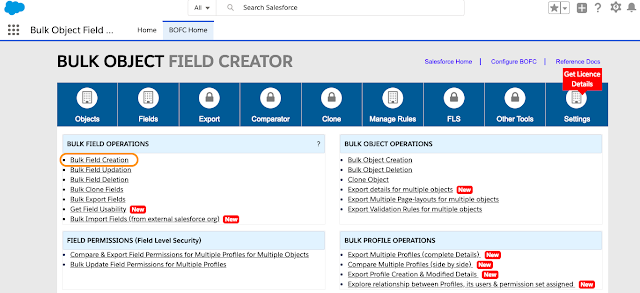
1. Click App Launcher & open BOFC “Bulk Field Creation” page
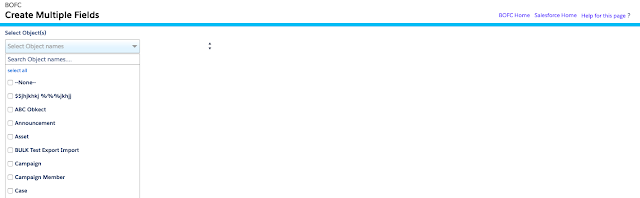
2. Select single or multiple objects (user can select any kind of object standard or custom or both)
3. User can select single or multiple (Profiles or Permission Sets or both) to assign field permissions and can select single or multiple layouts to assign newly created fields
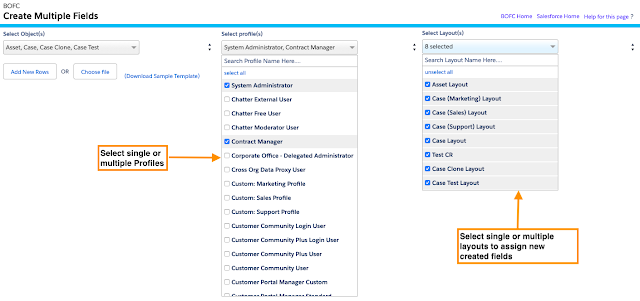
Profile & Layout selection
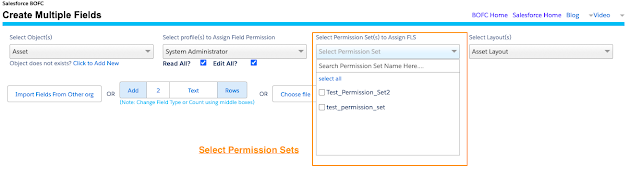
Permission-Sets selection
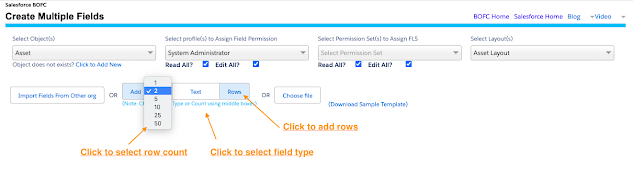
4. User can add rows of multiple fields in three ways. Let’s review all the above ways one by one:
Option 1: Manually Add New Rows – User can add any number of rows of any field type by using this option.
Option 2: Import fields from External Salesforce org– User can import custom fields of any kind of object (Standard/Custom/Managed) from any external Salesforce org (Production/Sandbox/Developer)
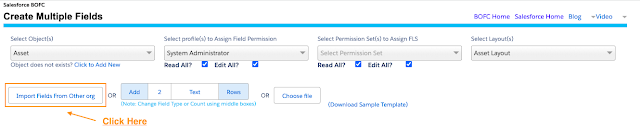
It will open the below popup to select source org information
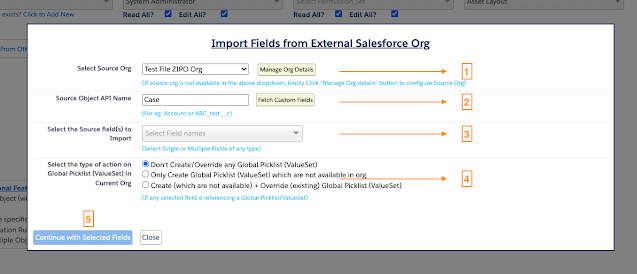
Above image has few features (each number has its description as below):
-
- Select the Source Org from where the fields needs to be imported
- Enter the API name of the Source Object & Click Fetch Custom Fields
- Select single or multiple custom fields
- If any selected fields of type picklist is referencing any global picklist, then BOFC can import global picklist along with Field.
- Click this button to import selected fields from Source Org.
Option 3: Import using CSV / XLS: In this option, user can import set of fields using CSV or XLS sheet. The sheet should in the proper format and can easily import any number of fields (Refer: Sample Template)
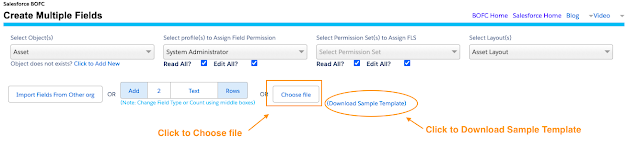
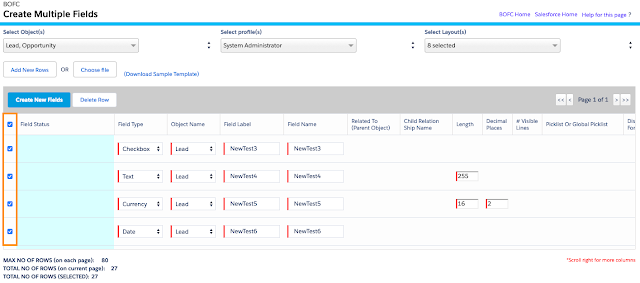
5. Once rows are added in the table using any of the above discussed options, the field creation screen will look like below:
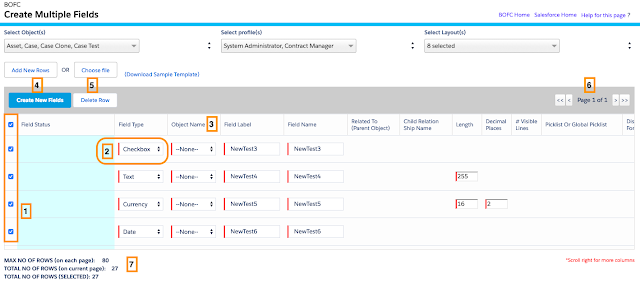
-
Above image has some features (each number has its description as below):
-
- Select rows which needs to be created as new fields in Salesforce
- User can modify field type (if required).
- User can choose Object name (same or different) on all rows.
- Click “Create New Fields” button to create fields in Salesforce
- Click “Delete Rows” to delete any unwanted rows.
- Pagination – This page has a pagination if count of fields is more than 80. Each page shows 80 fields. User can use “>” or “<” or “<<” or “>>” buttons to navigate on other pages.
- Counts:
- Max no of fields – 80 – Each page shows 80 fields
- Total no of rows – Number of rows added in table to create new fields
- Total no of rows (selected) – Count of rows selected to create new fields
6. Select your rows & verify all the details in required columns or remove error (if any).
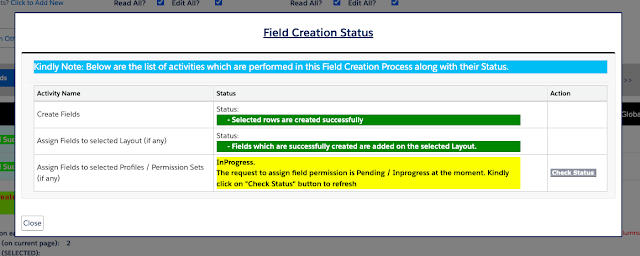
Click “Create New Fields” button to add newly fields to a selected objects. Once this button is clicked, it will show a popup for all the actions and their status.
7. Also, it will show “Success or Error” status message in-front of each row.
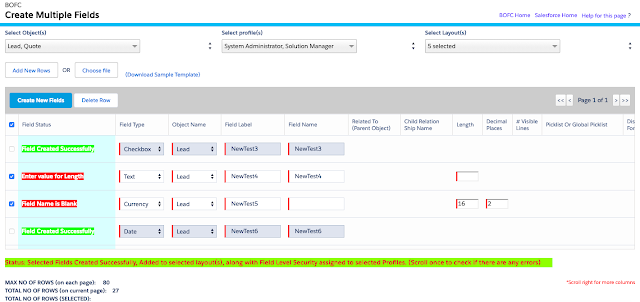
-
- Green means – Row created successfully as field, assigned field permissions to profiles & assigned to layouts
- Red means – Row error out with some error message
Why This Approach Is More Efficient
Compared to traditional methods:
| Factor | Manual Approach | Bulk Approach |
|---|---|---|
| Speed | Slow | Extremely fast |
| Error Rate | High | Minimal |
| Scalability | Poor | Excellent |
| Skill Requirement | Low | Low (admin-friendly) |
| Repeatability | Limited | High |
Bulk tools can create hundreds of fields in minutes, drastically reducing effort and improving consistency.
When You Should Use Bulk Field Creation
This approach is especially valuable when:
- Migrating between Salesforce orgs
- Building large-scale applications
- Standardizing field structures across objects
- Handling frequent metadata updates
Final Thoughts
Mass field creation isn’t just a technical challenge—it’s a productivity problem.
While Salesforce provides powerful customization capabilities, scaling those changes efficiently requires the right approach. Instead of relying on manual processes or complex scripts, using structured bulk methods can save time, reduce errors, and make your admin work far more strategic.
******************************************************************************
Have you started using BOFC yet? Thousands of BOFC users have been able to save time & boost productivity using our Salesforce Metadata app. Click here to install the latest version of BOFC application in your Salesforce instance & explore its complete benefits for you.
For any queries or suggestions, you can contact us at https://www.bofc.io/#contact or mail us: support@bofcapp.io. Our BOFC Expert will help you get the best out of it.