
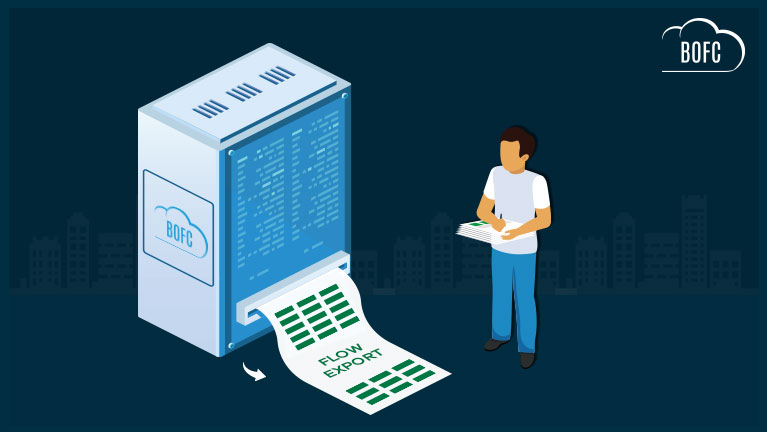
Requirement:
For any Salesforce Admin or developer, if there is a requirement to export or document all or any specific “Flow” in the system in XLS
– For a developer, it will be a tedious and time taking job. User would have to open each Flow and copy its contents one by one using Salesforce Standard process. These type of work requests would take much more effort and time, but with our Salesforce Appexchange Bulk Object Field Creator (BOFC) App user can easily “Export (Single or Multiple) Flows” within same Salesforce org in few clicks.
Benefits of using BOFC Application for Exporting Flows:
- User can export single or multiple Flows in few clicks.
- Support Flows for any kind of objects (Standard or Custom).
- Easy to use with few clicks.
- Saves ample amount of time of doing manual work.
To avail this feature, kindly make sure you have installed the latest version of the application. You can upgrade your package using either of two ways:
- In Salesforce, go to “BOFC Home > Settings > App Version > Click to Upgrade” — or —
- Refer the below button to quickly upgrade your package to the latest version and explore its complete benefits:
Few Simple Steps to Export Multiple Flows
1. Open the BOFC Home > Click “Export Flows in Bulk“

2. It will open below screen for “Export Flows” page. Now click “Fetch Active Flows” button

If it shows below red message on the screen, then click on Manage Org Details, otherwise go to next step 3.
There seems to be Firewall which is restricting API Callout to fetch details.
Please add a new connection using “Manage Org details” button for your current org with all the appropriate details and use it.
Once “Manage Org details” is clicked, then click on “New Environment” button to add a details for current org.

Add details for current environment and Save it (Click ? infront of each field for any help)

Once details are added and saved, then close this “Manage Environment” popup and it will show the same Flow page (where it shows red error message).
Now select the environment which you just added and click “Fetch Active Flows”

3. Once “Fetch Active Flows” is clicked, it will show below screen. Wait until Status is changed to Completed.

Once status is changed to completed, it will show a link “View Results”

4. Click “View Results”, and it will list all the “Active” Flows in the system

Above image has many features (each number has its description as below):
- User can export (in XLS) list of all the Flows WITHOUT summary using this button.
- Pagination will help user to navigate to next/previous page, if total count for flows is greater than 80.
Have a look at step by step detailed video to “Export Flows (Single Or Multiple) In XLS in Salesforce”
******************************************************************************Have you started using BOFC yet? Thousands of BOFC users have been able to save time & boost productivity using our Salesforce Metadata app. Click here to install the latest version of BOFC application in your Salesforce instance & explore its complete benefits for you.
For any queries or suggestions, you can contact us at https://www.bofc.io/#contact or mail us: support@bofcapp.io. Our BOFC Expert will help you get the best out of it.











I see the bulk action working properly with Flow Name, API Name, Active, Version, Type, Description and Last Modified Date. I do not see more detail then that and wondered if you are working on the ability to download the details of the Flow.
Thank you for your valuable comment. Yes, we are still working on it and will add the capability to export flow details in upcoming releases..