Managing Salesforce metadata can quickly become overwhelming—especially when you need to replicate dozens or even hundreds of fields across objects or environments.
Using Salesforce’s standard process, administrators often have to recreate each field manually, which is time-consuming and increases the risk of configuration errors. In large organizations, cloning objects with hundreds of fields can require significant manual effort and resources.
That’s why modern Salesforce teams are adopting bulk automation tools to streamline metadata operations and improve productivity.
In this guide, you’ll learn:
- How to clone multiple custom fields in Salesforce
- Why manual cloning is inefficient
- The fastest way to clone fields in bulk
- Best practices for metadata management in 2026
Why Cloning Custom Fields in Salesforce Is Challenging
Salesforce administrators frequently need to replicate fields when:
- Migrating data between environments
- Creating new business units
- Standardizing data models
- Performing sandbox refreshes
- Scaling Salesforce implementations
However, cloning fields manually requires repeating the same steps for each field—making the process slow and error-prone.
For example, cloning a single object with hundreds of fields requires recreating each field individually and reconfiguring permissions and layouts, which significantly increases workload and risk.
Modern Solution: Bulk Clone Custom Fields in Salesforce
Instead of manually recreating fields, Salesforce admins can now clone multiple fields simultaneously using automation tools.
With bulk cloning, administrators can:
- Clone multiple fields in one operation
- Preserve field properties and permissions
- Reduce manual errors
- Save hours of administrative time
Bulk cloning tools support cloning fields from:
- The same Salesforce org
- External Salesforce orgs
- Standard objects
- Custom objects
- Managed objects
They also replicate field attributes such as labels, API names, descriptions, and permissions automatically.
To avail this feature, kindly make sure you have installed the latest version of the application. You can upgrade your package using either of two ways:
- In Salesforce, go to “BOFC Home > Settings > App Version > Click to Upgrade” — or —
- Refer the below button to quickly upgrade your package to the latest version and explore its complete benefits:
Stay up to date with the latest in BOFC - Latest features, offers, news, tips and more
Few Simple Steps to Clone Multiple Custom Fields in Salesforce
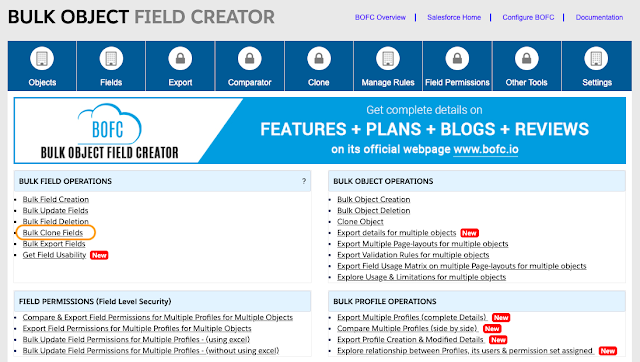
Step 1. Open the BOFC Home > Click “Bulk Clone Fields”.
Step 2. It will open below screen for BOFC Clone Fields.
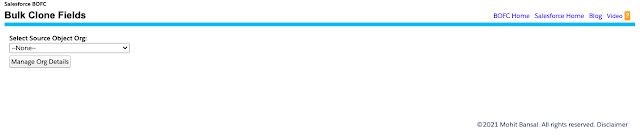
User can clone the fields from different type of source orgs:
- Can clone fields from an Object in the current org in which BOFC is installed
- Can clone fields from an Object of external org which are linked / non-linked to current org in which BOFC is installed
Step 3. Select the “Source Org” from the where you want to clone the fields & Enter the API name of the source object

Step 4. Select the target object

Step 5. Let’s manage the field permissions for Target Object & its fields
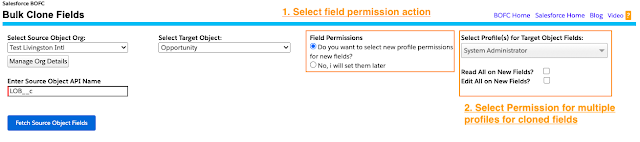
Here user can select multiple profiles & can choose what type of field permission should be assigned to new fields (Read or Edit).
Step 6. Finally we are ready with all the configuration and ready to initiate the process to clone.
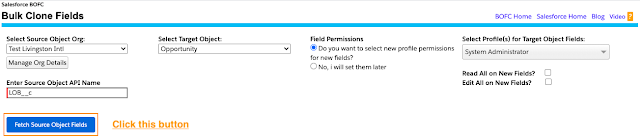
Click “Fetch Source Object Fields” – On clicking this button, it will fetch all the source fields of the selected source object
Step 7. Once the “Fetch Source Object Fields” button is clicked, it will display all the fields of a selected source object.
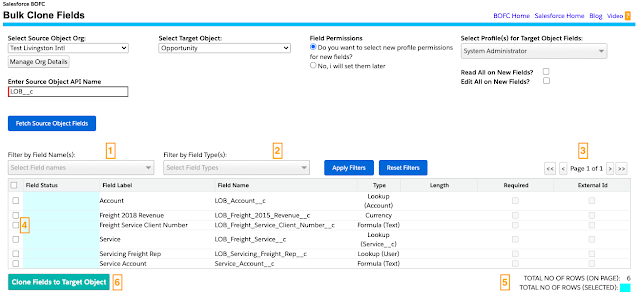
Above image has many features (each number has its description as below):
- User can filter source fields on the basis of Field Names
- User can filter source fields on the basis of Field Types
- Pagination – This page has a pagination if count of fields is more than 80. Each page shows 80 fields. User can use “>” or “<” or “<<” or “>>” buttons to navigate on other pages.
- User can select source fields by checking check boxes in-front of each row
- Total Field Count on page & Selected field count (for clone)
- Button “Clone Fields to Target Object” – On clicking this button, it will clone all the selected source fields to target object
Step 8. Select the Fields which you want to clone by selecting checkbox in-front of each row.
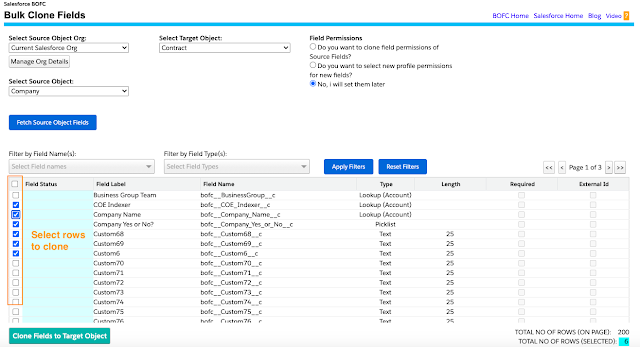
Once source fields are selected, Click “Clone Fields to Target Object” button to Clone fields from Source Object to Target Object.
Step 9. Once the Clone action is completed, it will show “Success or Error” status message in-front of each row.
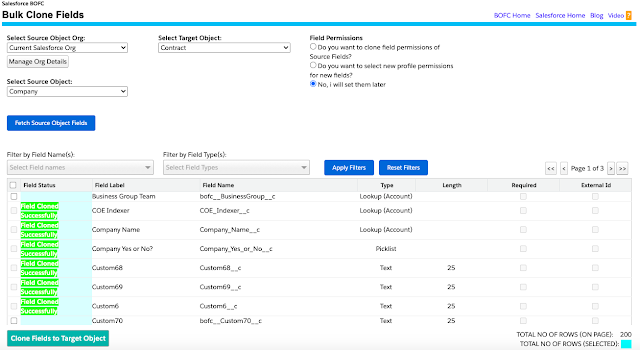
All the field attributes like (label, api name, description, help text, etc) are cloned and also fields permissions are cloned for each profiles.
Key Benefits of Bulk Cloning Custom Fields
1. Save Hours of Manual Work : Bulk cloning eliminates repetitive configuration tasks. Admins can clone dozens or hundreds of fields in minutes instead of hours.
2. Reduce Human Errors: Manual field creation increases the risk of:
-
Incorrect field types
-
Missing permissions
-
Inconsistent configurations
Automation ensures accuracy and consistency.
3. Improve Deployment Speed: Bulk cloning accelerates:
-
Sandbox refreshes
-
Org migrations
-
Implementation projects
-
Release cycles
4. Maintain Data Governance: Bulk cloning helps maintain:
-
Standardized data models
-
Consistent permissions
-
Reliable metadata structure
When Should You Use Bulk Field Cloning?
Use bulk cloning when:
-
Migrating Salesforce environments
-
Creating new objects with similar structures
-
Standardizing fields across departments
-
Scaling Salesforce implementations
-
Managing large metadata updates
These scenarios often involve replicating many metadata components, making manual processes inefficient and error-prone
Best Practices for Cloning Fields in Salesforce (2026)
1) Use Bulk Operations Instead of Manual Processes: Manual cloning does not scale.
Bulk operations improve:
-
Efficiency
-
Accuracy
-
Productivity
2) Always Test in a Sandbox First: Before cloning fields:
-
Validate dependencies
-
Verify permissions
-
Check integrations
3) Standardize Naming Conventions: Consistent naming improves:
-
Data quality
-
Reporting
-
Maintenance
4) Document Metadata Changes: Maintain documentation for:
-
Compliance
-
Auditing
-
Troubleshooting
Why Salesforce Admins Use Bulk Automation Tools
1) Modern Salesforce environments contain:
-
Hundreds of objects
-
Thousands of fields
-
Complex permissions
2) Managing metadata manually is no longer practical.
3) Bulk automation tools help administrators:
-
Work faster
-
Reduce errors
-
Scale Salesforce operations
Conclusion
Cloning multiple custom fields in Salesforce is a common requirement—but doing it manually is slow, repetitive, and prone to errors.
By using bulk cloning tools, Salesforce administrators can streamline metadata management, improve consistency, and significantly reduce deployment time.
Whether you’re migrating environments, scaling your organization, or standardizing data models, bulk cloning is one of the most efficient ways to manage Salesforce metadata.
******************************************************************************Have you started using BOFC yet? Thousands of BOFC users have been able to save time & boost productivity using our Salesforce Metadata app. Click here to install the latest version of BOFC application in your Salesforce instance & explore its complete benefits for you.
For any queries or suggestions, you can contact us at https://www.bofc.io/#contact or mail us: support@bofcapp.io. Our BOFC Expert will help you get the best out of it.