Custom Metadata Types are one of the most valuable building blocks in modern Salesforce orgs. They power configuration-driven automation, reusable business logic, and scalable app development.
But for Salesforce Admins and Release Managers, one challenge remains constant:
Exporting Custom Metadata Types is still not simple in Salesforce.
Salesforce provides powerful metadata capabilities, but when it comes to quickly exporting Custom Metadata Types (especially in bulk), the native experience often involves:
-
Metadata API dependencies
-
Salesforce DX commands
-
Manual recreation
-
Developer support for basic admin tasks
For fast-moving teams, that’s a bottleneck.
That’s why BOFC introduced a streamlined way to export Custom Metadata Types instantly — directly from Salesforce, in just a few clicks.
Why Custom Metadata Types Matter in Enterprise Salesforce Orgs
Custom Metadata Types (CMT) are commonly used to store critical org configuration such as:
-
Feature enablement rules
-
Product-level automation settings
-
Integration mappings
-
Approval routing conditions
-
Custom validation parameters
In enterprise environments, these metadata records are not “optional configuration” — they are core operational logic.
Which means:
Exporting them is essential for governance, deployment, and audit readiness.
The Problem: Salesforce Doesn’t Offer a Simple Export Option
If you’ve ever tried exporting Custom Metadata Types using standard Salesforce tools, you’ve probably run into challenges like:
-
No direct “Export Metadata” button in Setup
-
Metadata API exports requiring technical expertise
-
Difficulty handling multiple metadata types at once
-
Time-consuming manual checks during deployments
-
Lack of admin-friendly export workflows
For Salesforce teams managing dozens of metadata-driven processes, this becomes repetitive and inefficient.
BOFC Solution: Export Custom Metadata Types in Minutes
BOFC (Bulk Object Field Creator) is built to simplify Salesforce metadata operations for Admins and Developers.
With BOFC, exporting Custom Metadata Types becomes a clean, guided process — no scripting, no complex deployments, and no manual effort.
BOFC enables you to:
- Export Custom Metadata Types instantly
- Bulk export multiple metadata types at once
- Maintain configuration consistency across environments
- Reduce dependency on developers for metadata tasks
- Stay release-ready with structured metadata exports
Stay up to date with the latest in BOFC - Latest features, offers, news, tips and more
Methods to Export Custom Metadata Types (CMT) in Salesforce
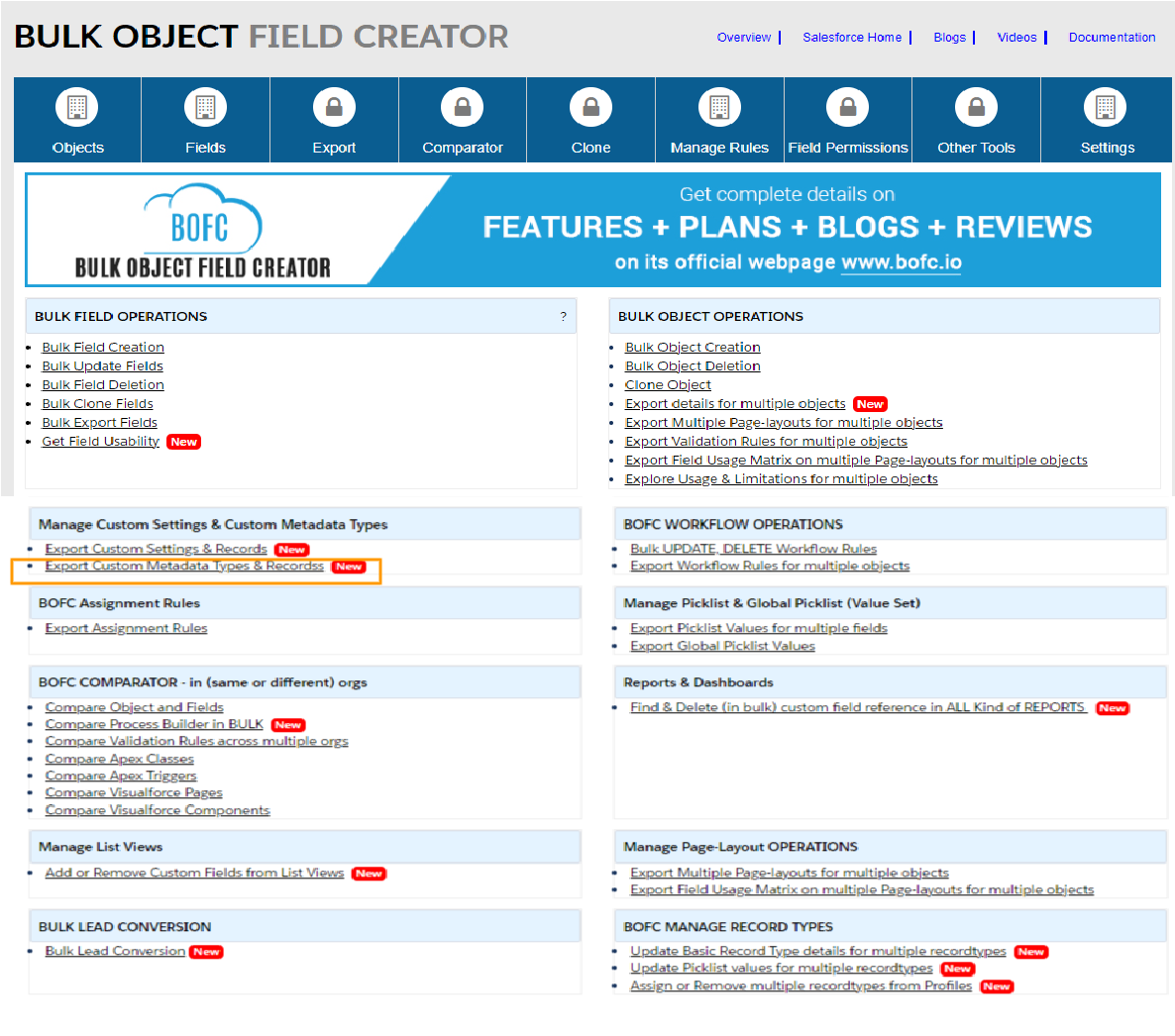
1. Open the BOFC Home > Click “Export Custom Metadata Types”
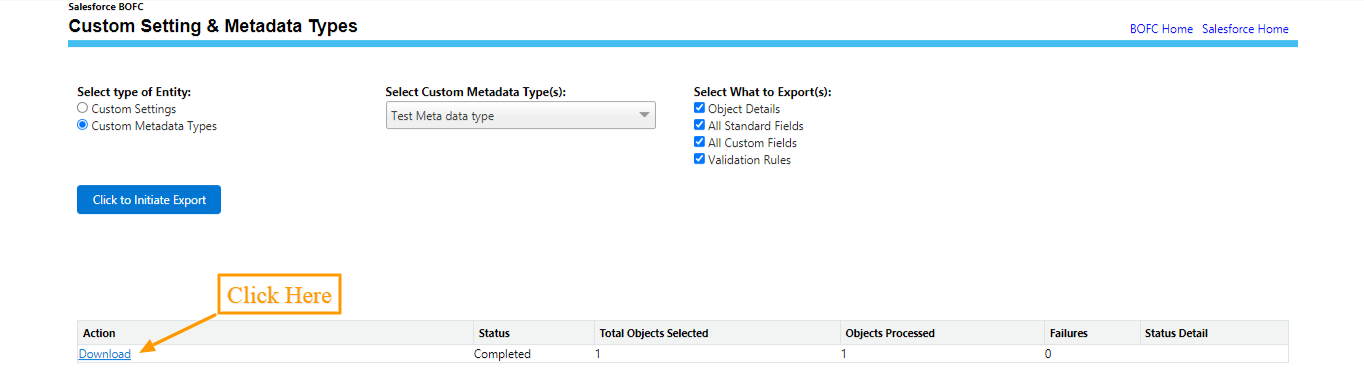
2. It will open below screen for Manage Custom Metadata Types.

Above image has many features (each number has its description as below):
-
- Select the Type of Entity as Custom Metadata Types.
- Select the Custom Metadata Type(s) from the dropdown.
- Can select Object Details, All Standard Fields, All Custom Fields and Validation Rules from the “Select What to Export(s) by checking the checkbox.”
- After completing the above 3 steps just click on “Click to Initiate Export” Button.
3. Once “Click to Initiate Export” button is clicked, it will display a table with the Export Status. Just wait for few seconds for the Process to Complete. Once the process is completed, it will display a “Download” link in the action column.
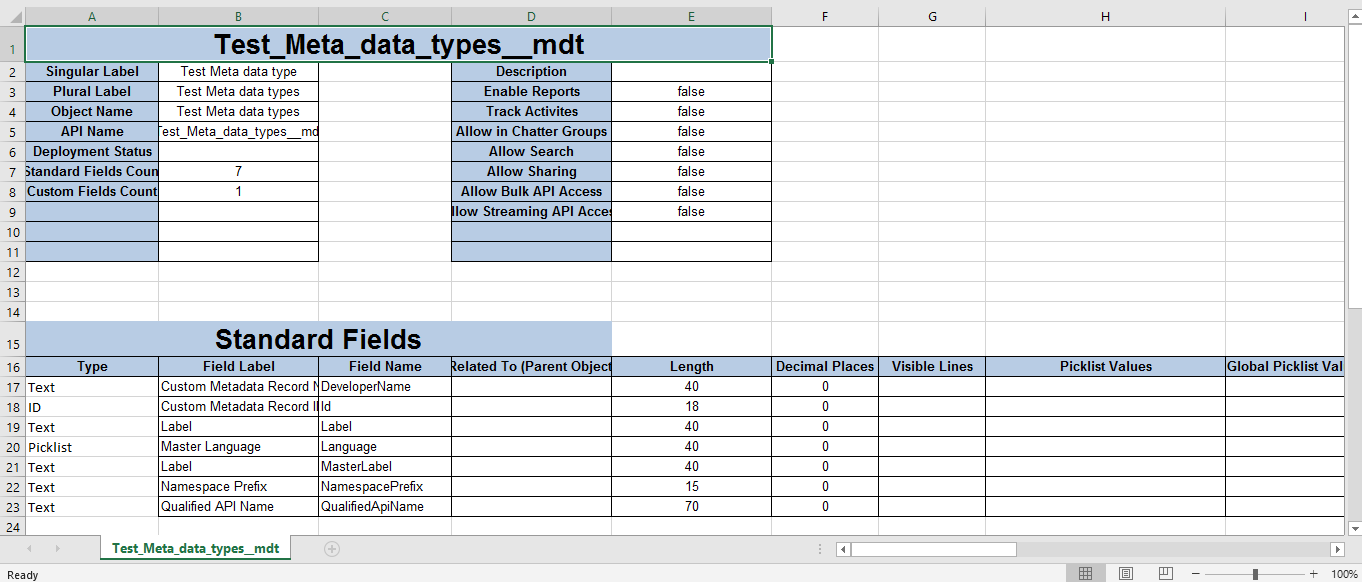
4. Click on “Download” Link in the first column of the table and open the downloaded file. The screen looks like the below image.
Why Salesforce Admins Prefer BOFC for Metadata Operations
BOFC is built specifically for Salesforce teams who need speed, accuracy, and scale.
Instead of spending hours using Metadata API tools, BOFC delivers:
-
Admin-first UI experience
-
Bulk export capabilities
-
Enterprise-ready metadata governance
-
Faster configuration management
-
Reduced manual deployment friction
BOFC makes metadata work operational — not technical.
Final Thoughts: Metadata Export Shouldn’t Be a Bottleneck
Custom Metadata Types drive critical Salesforce logic — but exporting them shouldn’t require complex tools or developer cycles.
With BOFC, Salesforce teams can export Custom Metadata Types in just a few clicks and stay fully in control of their configuration lifecycle.
******************************************************************************
Have you started using BOFC yet? Thousands of BOFC users have been able to save time & boost productivity using our Salesforce Metadata app. Click here to install the latest version of BOFC application in your Salesforce instance & explore its complete benefits for you.
For any queries or suggestions, you can contact us at https://www.bofc.io/#contact or mail us: support@bofcapp.io. Our BOFC Expert will help you get the best out of it.