How to Compare Salesforce Orgs and Catch Drift Before Release?
Published: Jul 09 2026
Last Updated: Nov 19 2026
Quick Summary:
Comparing Salesforce orgs shows exactly what differs between production, sandboxes and developer orgs, so deployments don’t fail and drift is caught early. You can compare objects, Apex, Visualforce, profiles, permission sets, field permissions, validation rules, Process Builder and list views. Use a dedicated tool like BOFC for readable results across multiple orgs, and compare before every release and sandbox refresh.
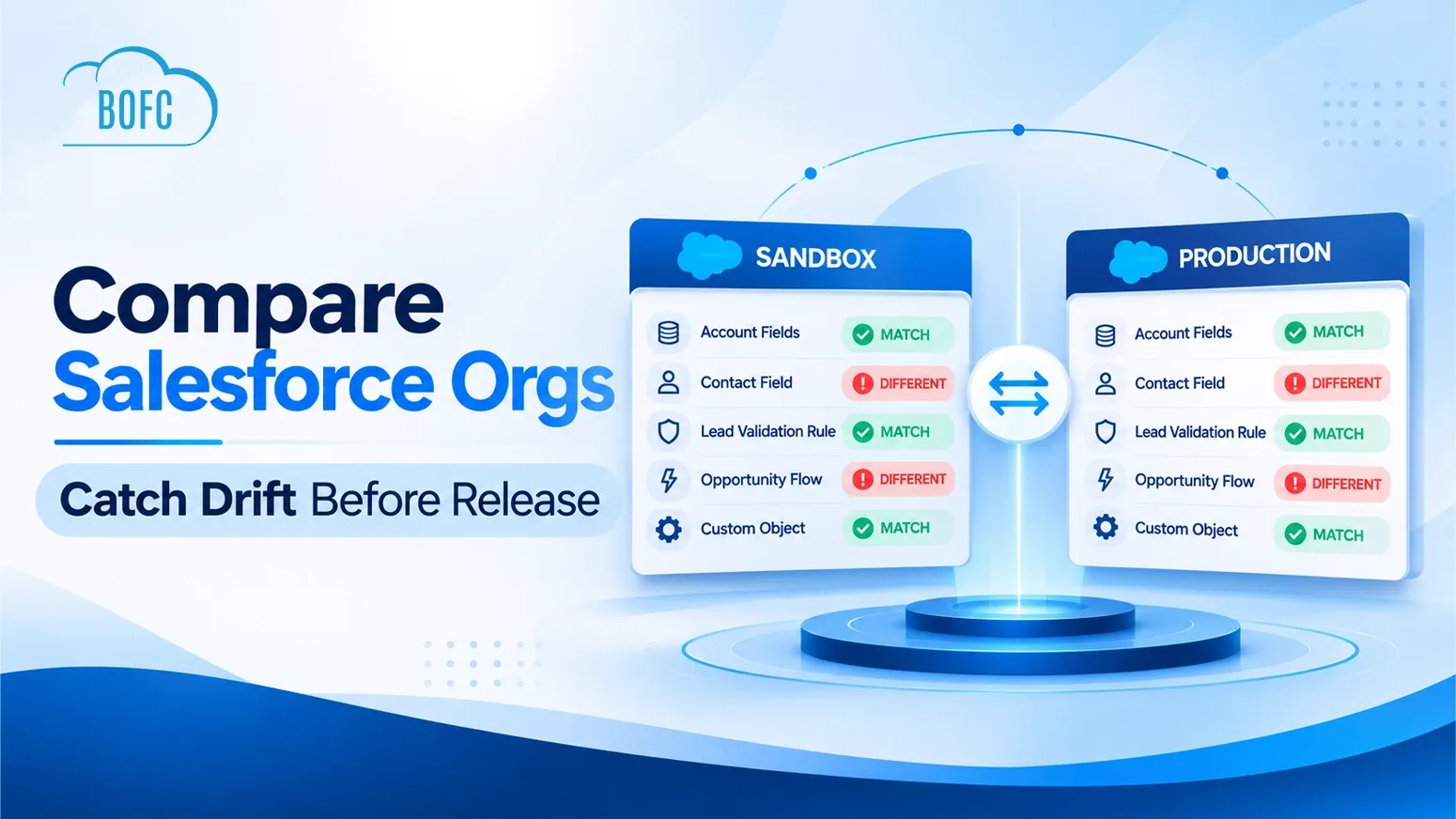
To compare Salesforce orgs is to line up two or more environments, such as production, a full sandbox and a developer org, and see exactly which metadata differs: objects and fields, Apex code, permissions, automation and more. Anyone who deploys changes has to do it, and most teams still do it by hand, one screen at a time.
This guide explains when you need to compare orgs, what you can compare, how the main approaches differ, and how BOFC compares 11 types of Salesforce metadata across orgs, with a step-by-step guide for each.
What Does It Mean to Compare Salesforce Orgs?
Comparing Salesforce orgs means reviewing the metadata in a source org against a target org and listing what is added, missing or changed. Metadata is the configuration and code that define how an org behaves: custom objects and fields, Apex classes, Visualforce pages, profiles, permission sets, validation rules, automation and list views.
A good comparison answers three questions quickly: what is different, where is it different, and does the difference matter before we deploy?
When You Need to Compare Salesforce Orgs
- Before a deployment. Confirm the target org looks the way you expect before you push a release, so nothing fails or behaves differently at go-live.
- After a sandbox refresh or when a sandbox drifts. Quick fixes made directly in UAT or a developer sandbox rarely make it back into the pipeline. Comparing exposes that drift.
- When something works in one org and breaks in another. The cause is almost always a field, a rule, a permission or a piece of code that exists in only one place.
- During security and access reviews. Auditors and admins compare profiles, permission sets and field-level security to find access that should not exist.
- When merging or migrating orgs. You need a reliable list of what has to move, and what conflicts.
- When you inherit an org. Comparing against a clean environment is the fastest way to see what has been customized.
Three Ways to Compare Salesforce Orgs
1. Manual comparison
Open both orgs side by side and check object by object, field by field. It works for a handful of components and nothing larger. It is slow, it is easy to miss a difference, and the result is not repeatable. You also end up redoing the work before every release.
2. Salesforce CLI and a diff tool
Developers can retrieve metadata from each org into separate folders with the Salesforce CLI and compare them with Git or any diff tool. It is flexible and free, but it needs command-line comfort, a manifest that lists the right metadata types, and a way to read large XML files. Many admins do not want to work that way, and even for developers, reading raw XML to spot a permission change is tedious.
3. A dedicated comparison tool
An app that connects to your orgs, retrieves the metadata you choose and shows the differences in a readable view. This is the fastest route for admins and a time saver for developers. What matters when you evaluate one:
- Which metadata types it can compare (code and configuration, not only objects)
- Whether it compares across multiple orgs, not only two
- Whether results are readable side by side and exportable for review or audit
- Whether it fits an admin’s workflow without a pipeline or source control
Compare Code Across Multiple Salesforce Orgs
Code drift is the most expensive kind. A hotfix applied directly in production, an Apex class edited in a sandbox and never promoted, or a Visualforce page that differs between UAT and live can all fail a deployment or change behavior silently.
BOFC lets you compare the code-based components that matter most:
- Apex classes: compare class code, metadata and deployment differences to track versions and support code review. See the guide to compare Apex classes across Salesforce orgs .
- Visualforce pages: compare markup and configuration across orgs. See compare Visualforce pages across orgs .
- Visualforce components: review attributes and implementation logic in one view. See compare Visualforce components across orgs .
What to look for: classes or pages present in only one org, differences in logic between versions, and anything changed directly in production.
Compare Profiles, Permission Sets and Field Permissions
Access problems are the most common reason “it works for me” turns into a support ticket. Access is also layered: a user’s real access is the combination of their profile and every permission set assigned to them, so you need to compare all of them.
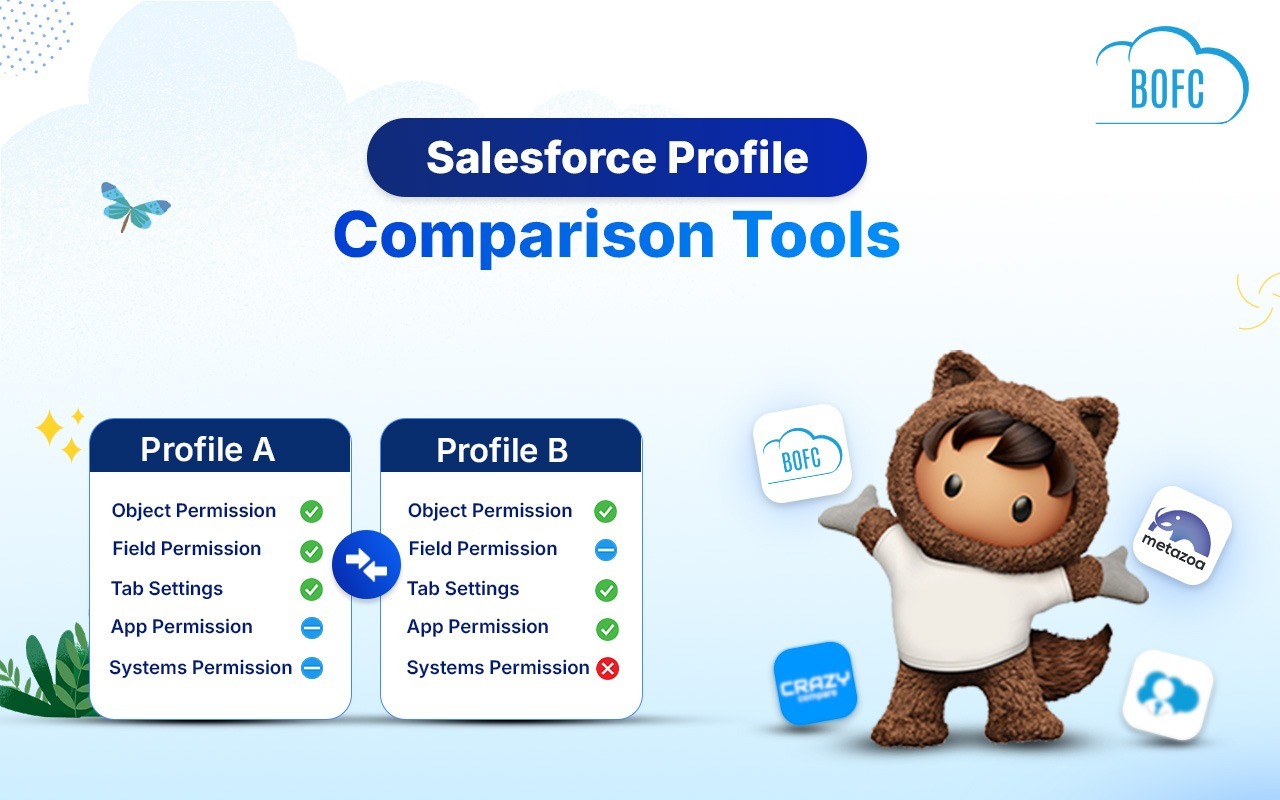
- Profiles: compare configurations side by side to find security and access differences between user types. See compare profiles in Salesforce.
- Permission sets: compare object access, field permissions and system permissions across several permission sets at once. See compare multiple permission sets.
- Field permissions: review field-level security for profiles and for permission sets in an organized view, and export it when you need a record. See compare or export field permissions.
What to look for: a field readable in one org and hidden in another, a permission set that has drifted from its sandbox version, and profiles that were meant to be identical but are not.
Compare Objects and Fields Across Orgs
The data model is the foundation everything else depends on. Comparing Salesforce objects between sandbox and production shows missing fields, changed field types and relationship differences before a deployment depends on them. See the guide to compare Salesforce objects across orgs.
What to look for: fields that exist in the source and not the target, and data type or relationship changes that could break formulas, automation or integrations.
Compare Validation Rules and Process Builder
Business logic is easy to change and hard to track. A validation rule that was loosened in one org, or a process that behaves differently after a quick fix, produces bugs that look random until you compare the two.
- Validation rules: compare formulas, conditions and error messages across orgs. See compare validation rules in Salesforce.
- Process Builder: compare criteria, actions and automation logic between orgs. Salesforce has been steering teams toward Flow, so older orgs often still carry Process Builder processes, and comparing them is a sensible first step before any migration. See compare Process Builder across orgs.
What to look for: rules active in one org and inactive in another, changed formulas, and processes with different entry criteria or actions.
Compare List Views
List views affect what each team sees every day. Comparing filters, visible fields and sharing settings keeps views consistent across teams and between orgs, and shows which ones were changed or never promoted. See compare multiple list views in Salesforce.
A Simple Process for Comparing Salesforce Orgs
- Decide the source of truth. Usually production, or a specific release branch’s sandbox. Comparing in the wrong direction produces a confusing list.
- Scope by metadata type. Start with the types your release touches: objects, code, permissions, automation. Comparing everything at once buries the differences that matter.
- Run the comparison and sort differences into three groups: intentional (part of this release), accidental (drift) and unknown.
- Resolve the unknowns before you deploy. Ask who changed it and why. Unexplained differences are the ones that cause incidents.
- Repeat on a schedule. Compare before every release and after every sandbox refresh. Drift is cheaper to catch early.
- Keep a record. Export results for audits and release notes so you do not start from scratch next time.
Common Mistakes When Comparing Orgs
- Comparing profiles and ignoring the permission sets that modify them
- Treating a field as “the same” because the name matches, without checking type and properties
- Checking objects and skipping code and automation, where the riskiest drift lives
- Comparing only two orgs when a change has to land in several
- Doing a one-off comparison before launch and never again
Why Teams Use BOFC to Compare Salesforce Orgs
BOFC (Bulk Object Field Creator) has offered org comparison since 2015, which means its comparison features have been used across a wide range of real org setups, from small admin-run orgs to large enterprise ones. It is trusted by 50,000+ installs and rated 4.8/5 on the Salesforce AppExchange.
What that gives you in practice:
- Eleven comparison types in one app, covering code, data model, security and automation
- Comparison across multiple orgs, not only two
- Built for admins, with no source control or command-line setup required
- Comparison alongside the rest of the workflow: BOFC also creates, clones, exports and deletes metadata in bulk, so the differences you find can be acted on in the same tool
Explore all BOFC compare features · Check Pricing