
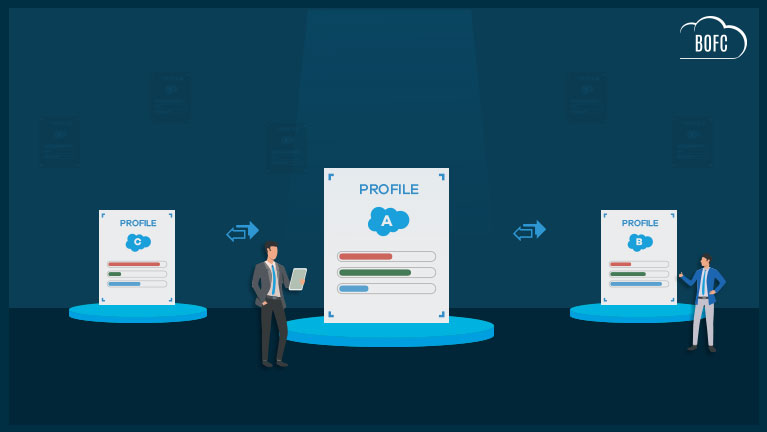
What is Bulk Profile Comparison in Salesforce?
Bulk comparing Salesforce profiles allows administrators to quickly identify differences in permissions, object access, and field-level security across multiple profiles.
Since Salesforce does not provide a native profile comparison feature, admins often rely on metadata exports or specialized tools to perform this task efficiently.
Why Compare Salesforce Profiles?
Comparing profiles is essential for maintaining a secure and scalable Salesforce environment.
Key benefits:
- Identify permission mismatches
- Improve security and compliance
- Troubleshoot user access issues
- Ensure consistency across teams
- Prepare for deployments or org merges
How to Compare Salesforce Profiles
There are two main approaches:
Method 1: Manual Profile Comparison in Salesforce
You can compare profiles manually using Salesforce metadata.
Steps:
- Export profiles using Metadata API
- Open the profile XML files
- Use a diff tool to compare configurations
Limitations:
- Time-consuming
- Error-prone
- Difficult to scale for multiple profiles
Method 2: Bulk Compare Salesforce Profiles Using BOFC
One of the fastest ways to compare Salesforce profiles is by using tools like Bulk Object Field Creator (BOFC), which automates the entire process.
Key capabilities:
- Compare multiple profiles side-by-side
- Export comparison results in Excel
- Compare profiles across different orgs
- Analyze 14+ profile attributes including permissions
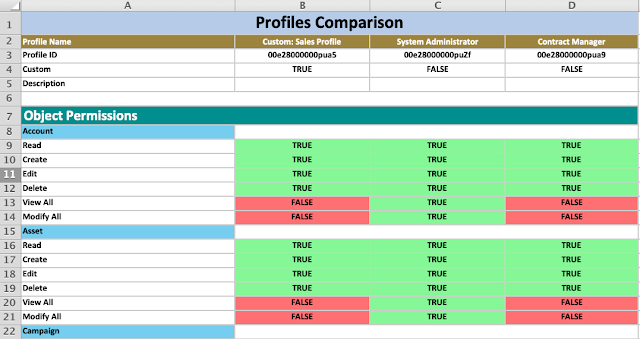
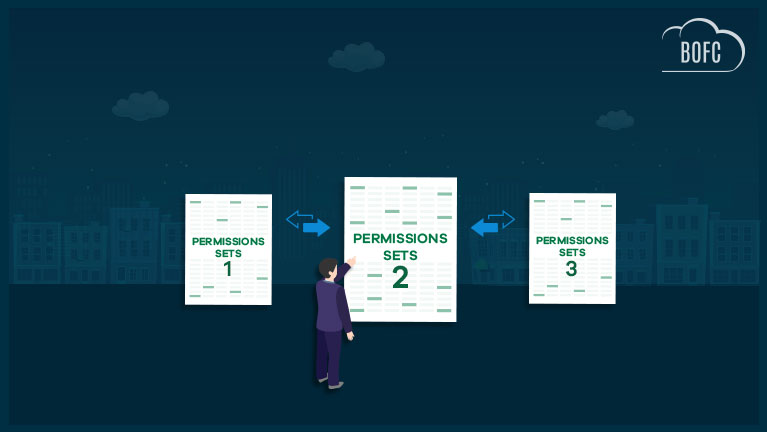
Salesforce Profile Comparison within same Org (side-by-side)
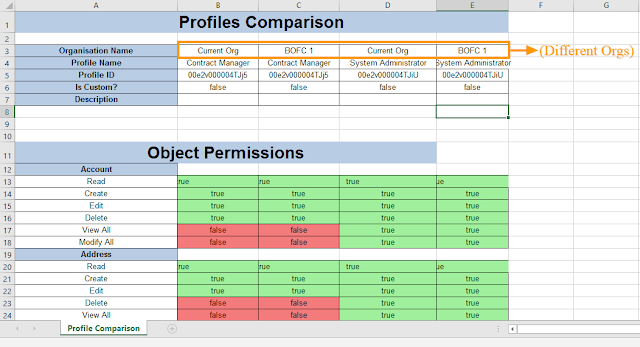
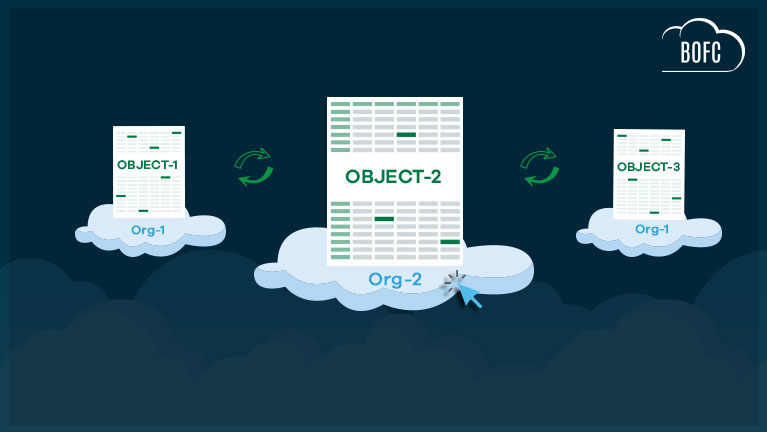
Salesforce Profile Comparison across Multiple Orgs (side-by-side)
To avail this feature, kindly make sure you have installed the latest version of the application. You can upgrade your package using either of two ways:
- In Salesforce, go to “BOFC Home > Settings > App Version > Click to Upgrade” — or —
- Refer the below button to quickly upgrade your package to the latest version and explore its complete benefits:
Stay up to date with the latest in BOFC - Latest features, offers, news, tips and more
Step-by-Step: Compare Multiple Salesforce Profiles Using BOFC
1. Open the BOFC Home > Click “Compare Multiple Profiles (side by side)”
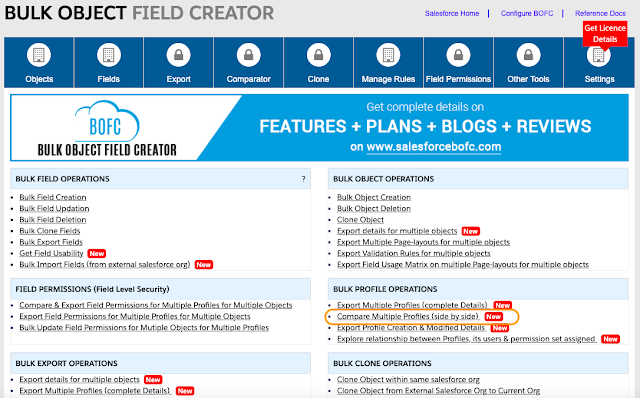
2. It will open below screen for Managing actions on Multiple Profiles”

3. Select “Compare Multiple Profiles”

User can Mass Compare Salesforce Profiles:
- Within Current Org – means profiles which needs to be compared exists in current org in BOFC is installed
- Between Current & Selected Org – means user can select the profiles which needs to be compared (with same name or different name) in both current org and selected org.
Let’s go ahead and see how it works when we are trying to compare salesforce profiles across different org.
4. Select “Between Current Org & selected Org” and it will ask user to select External org. If org doesn’t exists, user can click “Manage Org Details” to add any Org.

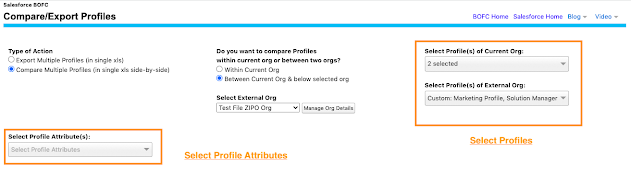
5. Once the External Org is selected, it will ask user to Select Profiles in each Org and Profile Attributes.
- Select single or multiple Profiles from the drop down
- Select which profile attributes needs to be compared (for eg: Object details, Apex permissions, Record type settings etc)
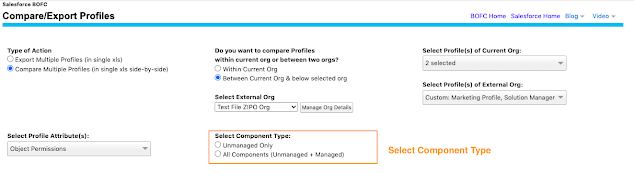
6. Once profiles and attributes are selected, it will ask user to select the Component Types:
- Unmanaged Components – which means components which ARE created in this org and NOT a part of any Managed Package installed in the Salesforce org
- Managed Components – which means components which are NOT created in this org and ARE a part of any Managed Package installed in the Salesforce org
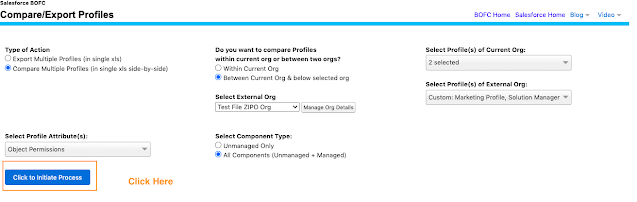
7. All Set we are ready to Initiate the Process to Compare. Click on “Click to Initiate Process“
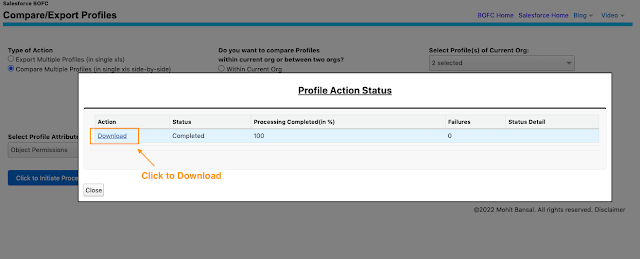
8. Once “Click to Initiate Process” button is clicked, it will display a popup on the page. This popup show the status of the process to compare multiple profiles. Wait for couple of seconds, until status is changed to “Completed” in the highlighted table.
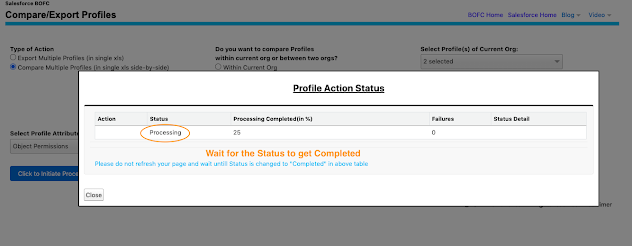
- Status: Shows if process got completed or not
- Failure: Shows no of profiles which got error out
9. Once status is “Completed“, your comparison file is ready for export. Click on “Download” link to download in xls.
Common Challenges in Profile Comparison
1. Large Number of Profiles: Managing multiple profiles manually is inefficient and time-consuming.
2. Complex Permission Structures: Profiles include:
- Object permissions
- Field-level security
- System permissions
3. No Native Comparison Tool: Salesforce does not provide a built-in feature for comparing profiles in bulk.
4. Human Errors: Manual comparison increases the risk of missing critical differences.
Profiles vs Permission Sets: What You Should Know
Salesforce is moving towards using permission sets instead of relying heavily on profiles.
| Profiles | Permission Sets |
|---|---|
| One per user | Multiple allowed |
| Static | Flexible |
| Hard to scale | Easy to manage |
👉 Best practice:
Use profiles for baseline access and permission sets for additional permissions.
Final Thoughts
Bulk comparing Salesforce profiles is critical for maintaining security, consistency, and efficiency in your Salesforce environment.
While manual methods exist, they are not scalable. Using automated tools simplifies the process, reduces errors, and saves significant time for administrators.
******************************************************************************
Have you started using BOFC yet? Thousands of BOFC users have been able to save time & boost productivity using our Salesforce Metadata app. Click here to install the latest version of BOFC application in your Salesforce instance & explore its complete benefits for you.
For any queries or suggestions, you can contact us at https://www.bofc.io/#contact or mail us: support@bofcapp.io. Our BOFC Expert will help you get the best out of it.








Thank you for your blog!. It’s helpful for me!