How to Export Multiple Static Resources in Salesforce?
Published: May 12 2026
Last Updated: Jun 03 2026
Static Resources play an important role in Salesforce development. From JavaScript libraries and CSS files to images, fonts, and ZIP assets, these resources power Visualforce pages, Lightning Components, branding, and custom user experiences across Salesforce environments.
As Salesforce orgs grow, managing Static Resources becomes increasingly difficult — especially when teams need to export resources for backups, migrations, deployment validation, or documentation purposes.
The standard Salesforce setup makes this process highly manual and time-consuming. Admins and developers often spend hours downloading resources individually, navigating through multiple setup pages, and organizing files manually.
BOFC (Bulk Object Field Creator) simplifies this entire workflow by enabling export of multiple Static Resources directly within Salesforce.
Instead of downloading files one by one, BOFC allows users to:
- Select multiple Static Resources at once
- Export everything together
- Download resources as a ZIP file
- Complete the entire process in just a few clicks
This helps Salesforce teams streamline:
- Backup management
- Sandbox and production migrations
- Release preparation
- Deployment documentation
- Asset management workflows
With BOFC, admins can handle large-scale Static Resource management faster, more efficiently, and with significantly less manual effort.
Guide to Export Multiple Static Resources in Salesforce Using BOFC
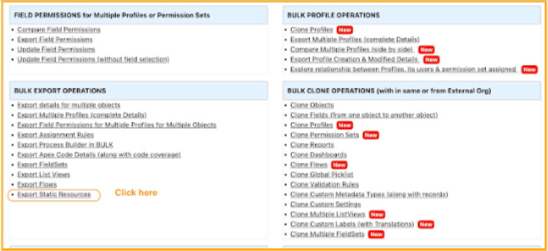
Step 1. Open the BOFC Home > Click “Export Static Resources”
Step 2. It will open below screen to Export Static Resources as ZIP file
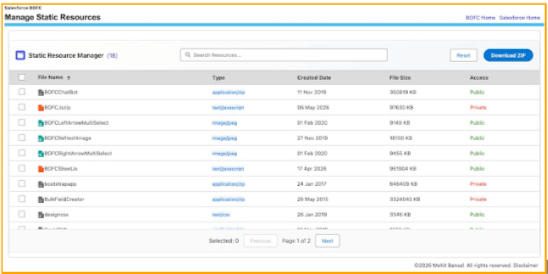
Step 3. Select single or multiple resources. Once ready, click on “Download ZIP” button to initiate the process.
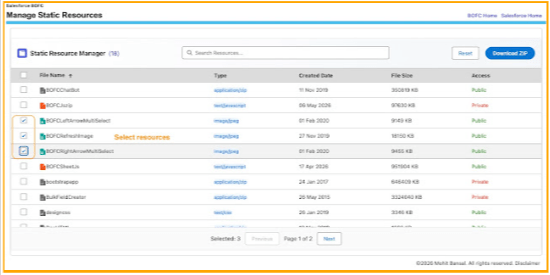
Step 4. Once the “Download ZIP” button is clicked, it will export all the selected resources as ZIP File.
Admins can then:
- Store backups
- Share files across teams
- Use resources for deployments
- Maintain version history externally