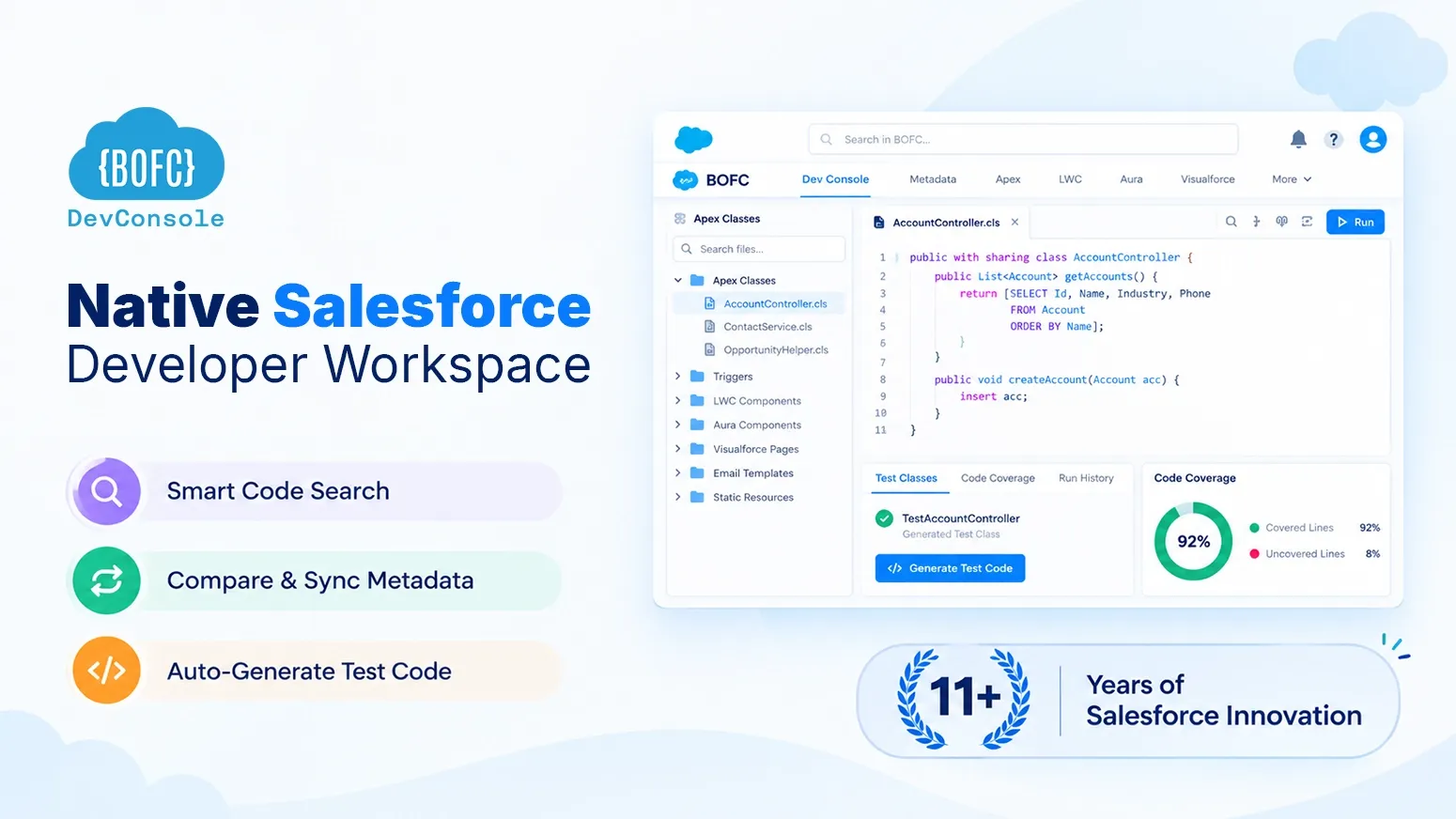
How to Compare Salesforce Code Across Multiple Orgs?
Published: Nov 23 2026
Quick Answer:
Salesforce has no built-in way to compare code across orgs, so teams either diff files by hand in VS Code or paste proprietary code into an outside website. BOFC’s Compare and Sync feature puts Apex classes, triggers, Visualforce, LWC, Aura and email templates side by side across multiple orgs. Differences show in green and red, and one click syncs the code in either direction. This guide explains the problem, the usual workarounds and the full steps.
Anyone who manages more than one Salesforce org has asked the same question: is this Apex class the same in both orgs, or did someone change it? It sounds like a two-click answer inside Salesforce, but it is not. Salesforce has no built-in side-by-side view of code across orgs.
That gap is a real problem. Code drifts between sandbox and production after hotfixes and quick edits, and without a clear comparison, the differences surface as failed deployments or unexpected behavior. This guide covers why code drifts, why the usual workarounds carry risk, and how BOFC’s Compare and Sync feature solves it, with a full step-by-step guide.
What Does It Mean to Compare Salesforce Code Across Orgs?
To compare Salesforce code across orgs means checking the actual code and markup of a component in one org against the same component in another, line by line, to see what is different. It is separate from comparing metadata structure such as fields or objects. Here the question is whether the content of an Apex class, a Visualforce page or a Lightning component matches.
The components that usually need comparing are:
- Apex classes and triggers
- Visualforce pages and components
- Lightning Web Components (LWC)
- Aura components
- Email templates
Why Salesforce Code Drifts Between Orgs
Code rarely stays identical across environments for long. Common causes include:
- Emergency fixes in production that never get applied back to sandbox or development
- Changes made directly in a sandbox that are never promoted
- Partial deployments where a change set or package covered some components and missed others
- Parallel work by different developers or consultants in separate orgs
- Multiple client or business-unit orgs that started from the same code and slowly diverged
If nobody can see the difference, nobody can decide whether it is intentional.
Common Ways to Compare Salesforce Code, and Their Limits
Most teams handle this in one of two ways.
1. Retrieve both versions into VS Code
Retrieve the component from each org and use the diff view. This works, but it means downloading metadata locally, keeping track of which copy came from which org, and repeating the process every time. There is no persistent, side-by-side, cross-org view.
2. Paste the code into an external diff checker
This is the riskier option. It means putting proprietary Apex code, business logic and sensitive references into a third-party website you do not control. Even for a quick check, that is poor security practice and the kind of thing that raises concerns in a code review or security audit.
One approach is manual and repetitive, and the other exposes your code. Neither is built for the job.
How BOFC Compares Salesforce Code Across Orgs
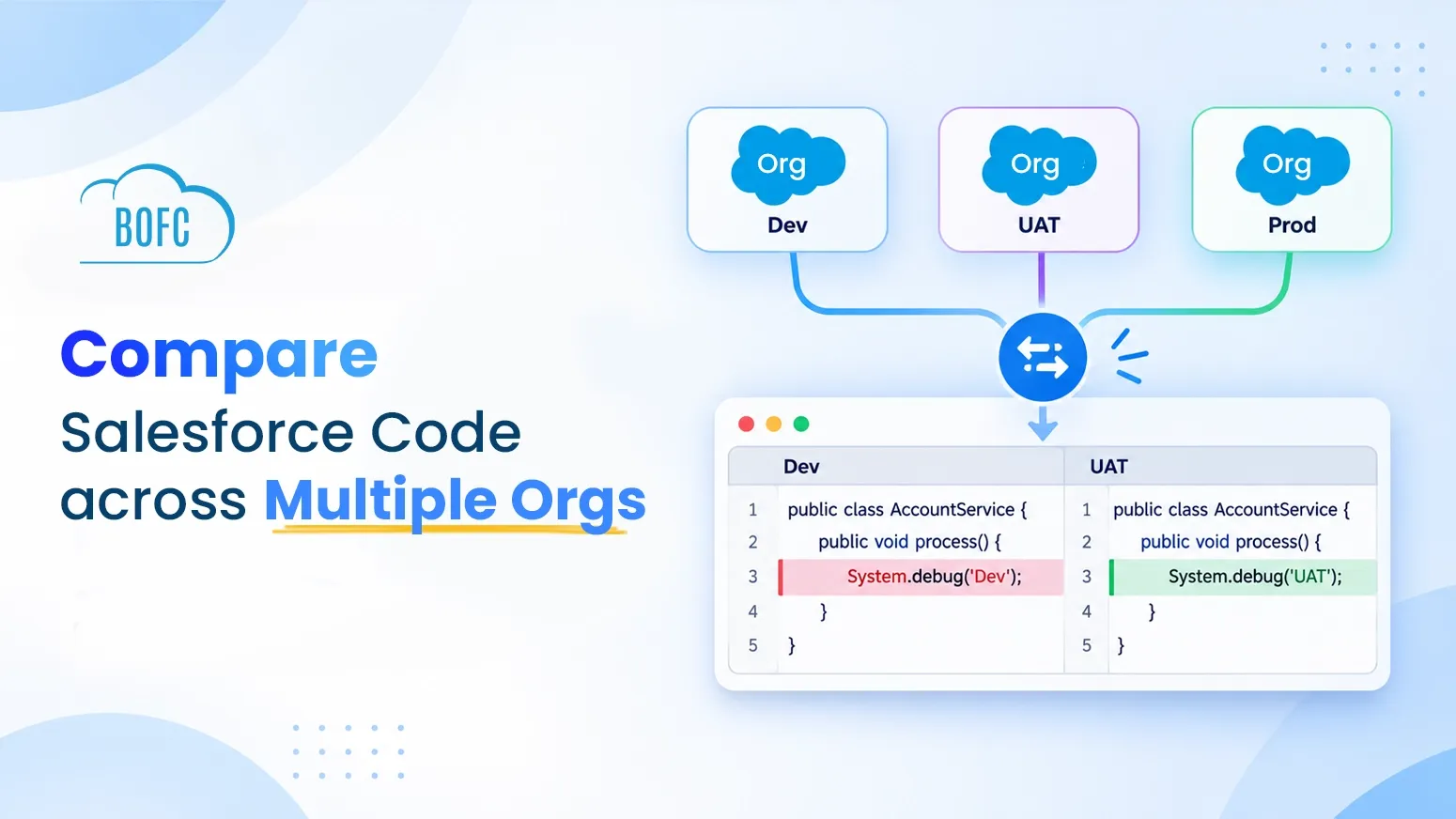
BOFC’s Compare and Sync feature is built for this problem. It compares Apex classes, triggers, Visualforce pages, Visualforce components, LWC, Aura components and email templates side by side across multiple orgs, without retrieving anything locally and without sending your code outside your own connected orgs.
It gives you:
- Side-by-side comparison of the same component, or different components, across two or more orgs
- Visual diff highlighting with matching lines in green and differing lines in red, the familiar diff pattern, without leaving Salesforce
- One-click sync in either direction, so a version can be pushed from Org 1 to Org 2 or pulled the other way
That turns retrieve, diff locally and redeploy by hand into one contained workflow.
Step-by-Step: Using Compare and Sync in BOFC
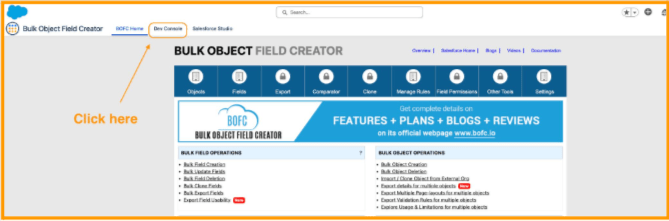
Step 1 : Open BOFC In Salesforce, click the App Launcher (nine dots) and search for “BOFC Home.” Then click the Dev Console tab next to it.
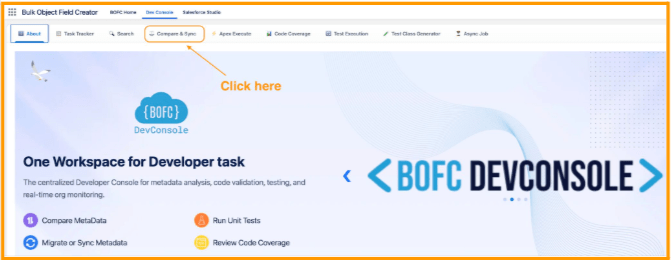
Step 2 : Navigate to Compare and Sync From the BOFC home menu, go to the Compare and Sync section.
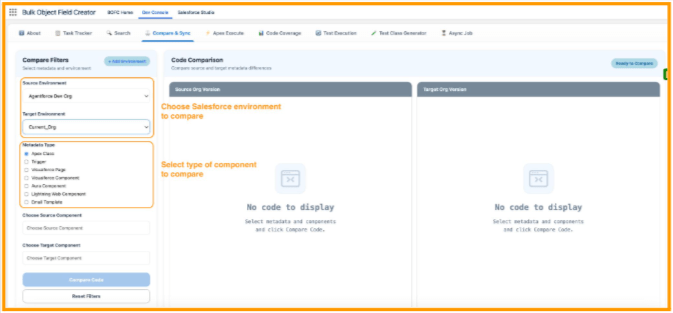
Step 3 : Connect or select the orgs to compare Choose the two orgs you want to compare — for example, your sandbox and production, or two separate client orgs already connected to BOFC.
Also, Select the component type Pick the type of component you want to compare: Apex Class, Trigger, Visualforce Page, Visualforce Component, LWC, Aura, or Email Template.
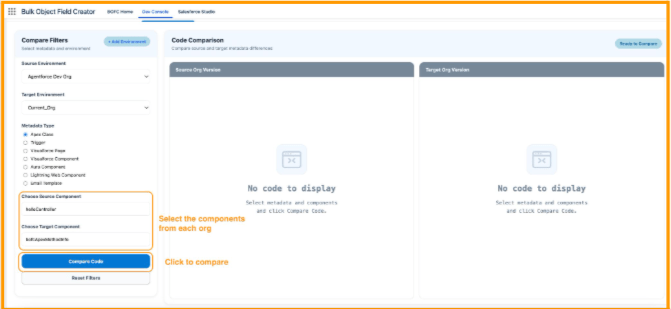
Step 4 : Select the specific component Choose the component to compare from both the selected orgs.
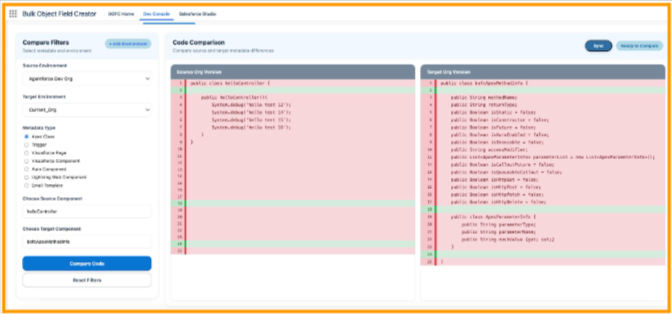
Step 5 : Review the side-by-side differences. BOFC displays both versions side by side, with matching lines highlighted in green and differing lines highlighted in red, so you can immediately see what changed.
Step 6 : Decide on a direction to sync (if needed) If you find differences you want to resolve or sync, choose which direction to sync: from Org 1 to Org 2, or from Org 2 to Org 1.
- Click on Sync button
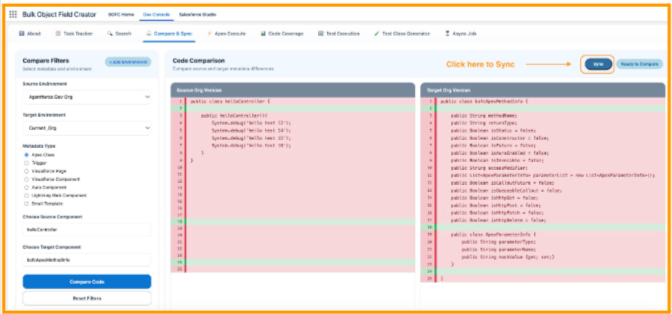
- Define the direction for the sync
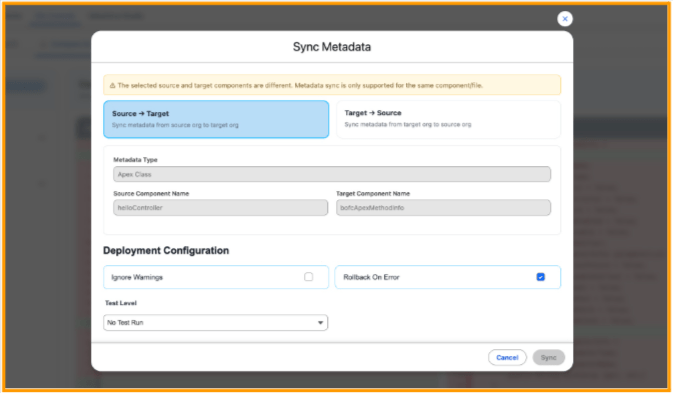
Sync in one click Click sync. BOFC pushes the selected version of the code to the target org, so both orgs now match — without you retrieving, packaging, or manually deploying anything yourself.
Step 7 : Verify Re-run the comparison if you’d like to confirm both orgs now show a full match (all green, no red).
Where It Pays Off
- Pre-deployment checks: confirm exactly what differs between sandbox and production instead of hoping the change set covers everything.
- Multi-org consulting work: spot drift between similar components across client orgs without exporting code anywhere.
- Post-hotfix reconciliation: after an emergency production fix, compare back to sandbox or development and sync the change downstream in one click.
- Security-conscious teams: get diff-checker-style comparison without sending proprietary code to an outside site.
Conclusion
Comparing code across Salesforce orgs should not mean choosing between a manual VS Code workflow and pasting Apex into a random external tool. BOFC’s Compare and Sync brings the comparison into one place, with a side-by-side, color-coded view and a one-click sync to resolve differences, while your code stays inside your own connected orgs.