Salesforce IDEs: A Complete Guide to Development Tools
Published: Aug 18 2026
Last Updated: Nov 12 2026
Quick Answer:
The best Salesforce IDE depends on how you work. VS Code with Salesforce Extensions and CLI is the most widely used for source-driven development and CI/CD, while BOFC Dev Studio lets you code Apex, LWC, Aura, and Visualforce directly inside your org with no local setup. Many teams use both.
Salesforce development involves writing and managing Apex code, building Lightning Web Components, working with metadata, debugging applications, and deploying changes across orgs. The right Integrated Development Environment (IDE) can make these tasks easier and help developers work more efficiently.
Salesforce developers have several tools to choose from, including browser-based development environments, local code editors, and solutions that work directly inside Salesforce.
This guide explores seven Salesforce IDEs and development tools, highlighting their key capabilities and the development workflows they support.
What Is a Salesforce IDE?
A Salesforce IDE is a development environment used to create, edit, test, debug, and manage Salesforce applications and code.
Depending on the tool, developers can use an IDE to work with:
- Apex Classes and Triggers
- Lightning Web Components (LWC)
- Aura Components
- Visualforce Pages
- SOQL queries
- Salesforce metadata
- Debug logs and test execution
Some Salesforce IDEs run directly in a browser or inside a Salesforce org, while others require local installation and configuration.
Types of Salesforce Development Environments
Salesforce development tools generally fall into three categories:
1. Browser-Based IDEs
These tools provide access to development features through a web browser. They reduce the need for local installation and can be useful for quick code changes, queries, and debugging.
2. Local Development IDEs
These tools run on a developer’s computer and often support source control, command-line tools, extensions, testing, and deployment workflows. They are commonly used for larger development projects.
3. In-Org Development Tools
These tools work directly within a Salesforce org. They can simplify everyday development tasks by reducing the need to switch between Salesforce and external applications.
7 Salesforce IDEs and Development Tools to Know
1. BOFC Dev Studio
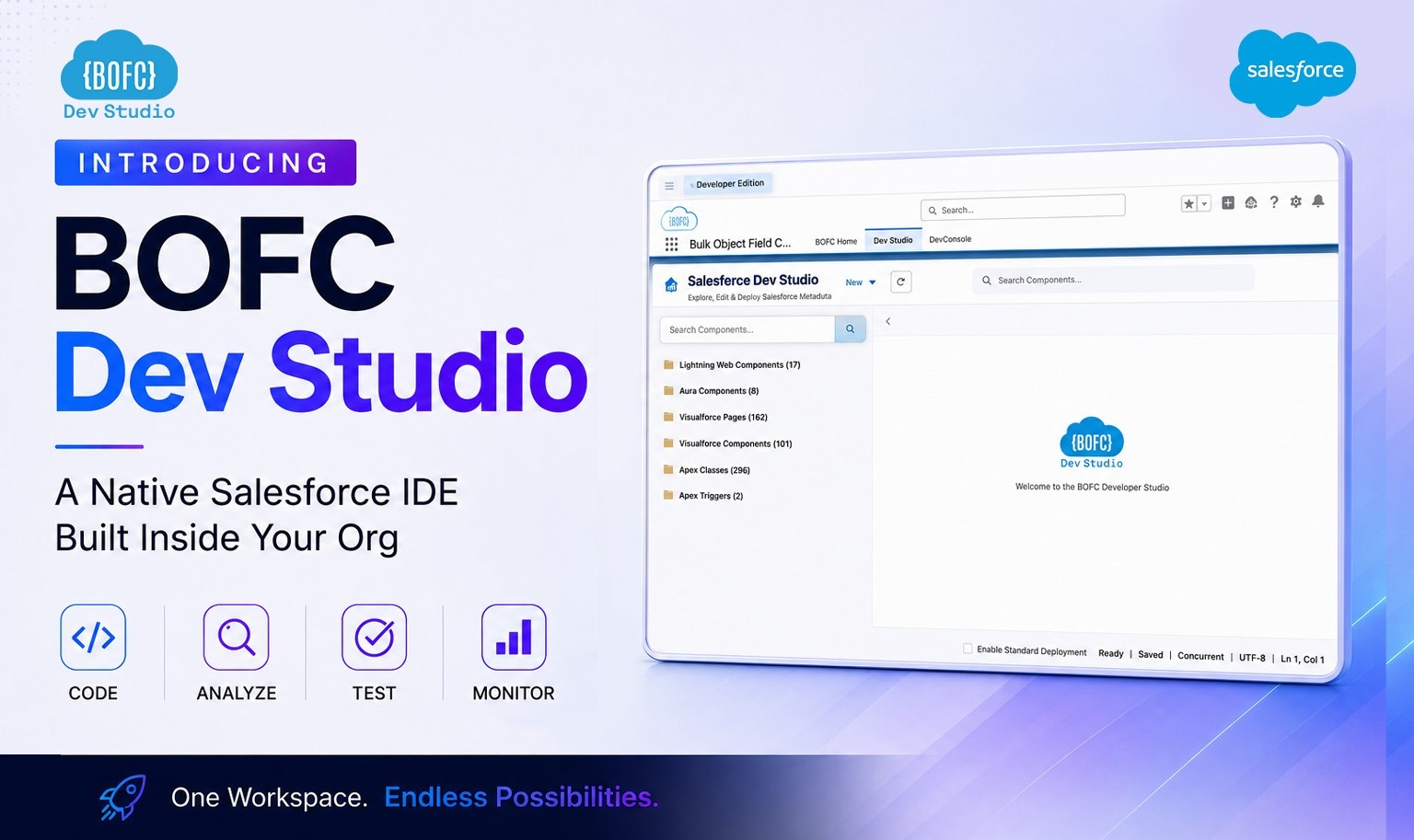
BOFC Dev Studio is an in-org development environment that allows Salesforce professionals to create and manage code directly within their Salesforce org.
It supports Apex Classes, Apex Triggers, Lightning Web Components, Aura Components, Visualforce Pages, and Static Resources.
Key capabilities include:
- Live-org autocomplete and metadata suggestions
- Quick metadata access using the Shift+M shortcut
- LWC bundle renaming and guided Trigger creation
- Static Resource management
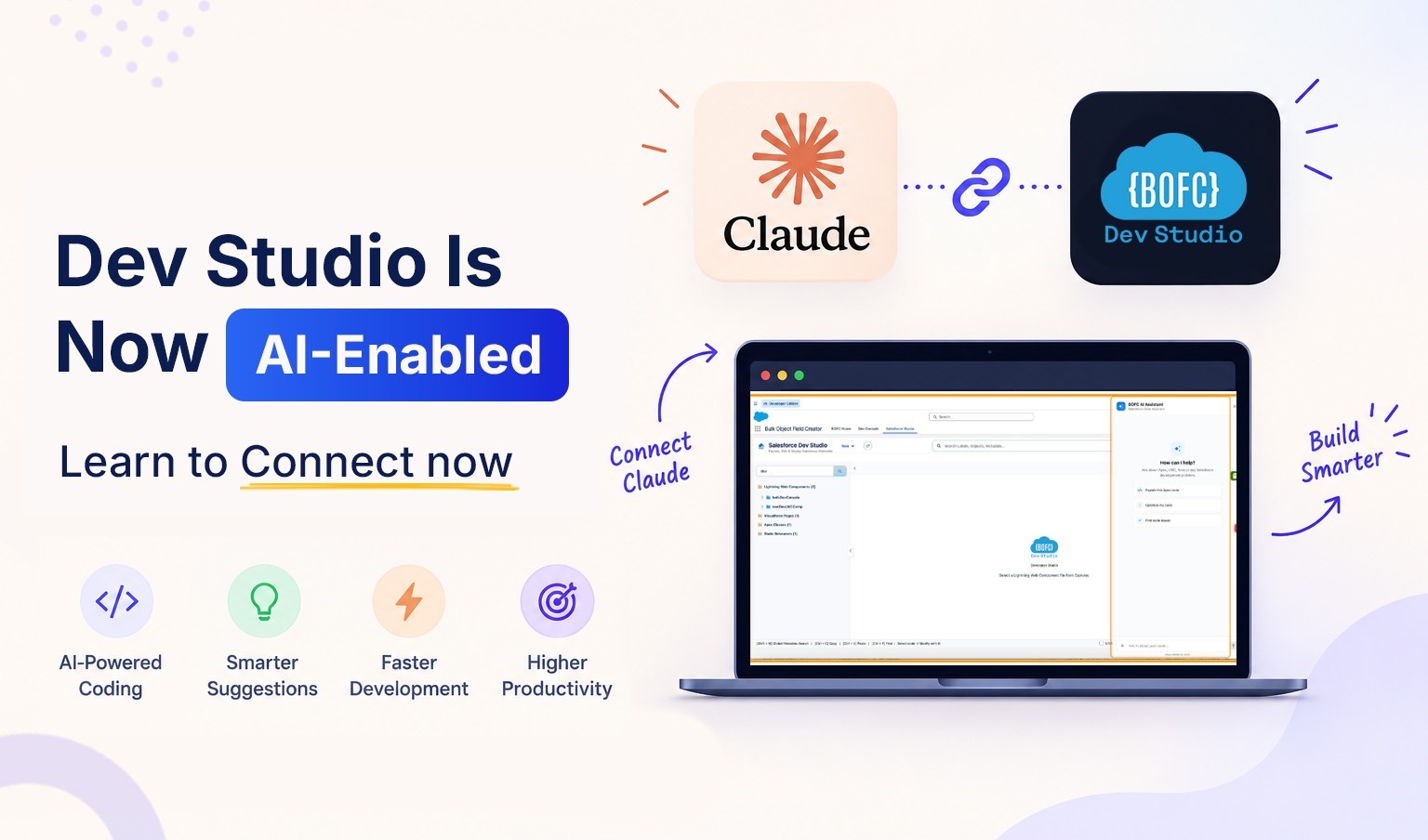
- Code search and Claude AI integration
Dev Studio does not require a separate local IDE or CLI setup for its supported in-org development workflows. It is included across BOFC plans and is suited to developers who want to handle everyday coding tasks within Salesforce.
2. Salesforce Web Console
Salesforce Web Console is a browser-based development environment built around VS Code for the Web.
It provides tools for working with Apex, Lightning Web Components, SOQL queries, Anonymous Apex, tests, and debug logs.
Key points include:
- Access through a web browser without local installation
- VS Code-style editing experience
- Support for common development and debugging tasks
- Apex editing restrictions in Production environments
It is useful for developers who want a browser-based environment for supported Salesforce development and debugging activities.
3. Agentforce Vibes IDE
Agentforce Vibes IDE, formerly known as Salesforce Code Builder, provides a cloud-based VS Code development experience for Salesforce.
It supports Salesforce extensions and development workflows involving Apex, Lightning Web Components, Salesforce CLI, and source control integrations.
Key points include:
- VS Code-based browser environment
- Integration with Salesforce development tools
- Support for AI-assisted development
- Availability in supported Developer Edition orgs and sandboxes, rather than Production orgs
It is suited to developers who prefer a cloud-based VS Code experience without setting up a complete local environment.
4. Visual Studio Code with Salesforce Extensions
Visual Studio Code is one of the most widely used code editors for Salesforce development. With Salesforce Extensions and Salesforce CLI, developers can build, test, debug, and deploy Salesforce applications.
Key capabilities include:
- Apex, LWC, Aura, and Visualforce development
- Salesforce CLI integration
- Git and source control support
- Metadata retrieval and deployment
- Testing and debugging tools
VS Code requires local setup and configuration. It is a strong choice for developers and teams working on larger projects, source-driven development, and CI/CD workflows.
5. Illuminated Cloud 2
Illuminated Cloud 2 is a Salesforce development plugin for JetBrains IDEs, including IntelliJ IDEA and WebStorm.
It provides Salesforce-specific development features within the JetBrains environment.
Key capabilities include:
- Apex and Salesforce metadata support
- Code completion and inspections
- Code navigation and refactoring
- Integration with JetBrains development tools
Illuminated Cloud 2 requires a separate license and is suitable for developers who prefer working with JetBrains IDEs.
6. Salesforce Developer Console
Salesforce Developer Console is a built-in development tool available within Salesforce.
It provides basic capabilities for writing and executing Apex code, running SOQL queries, reviewing debug logs, and executing tests.
Key capabilities include:
- Apex code editing
- Anonymous Apex execution
- SOQL query execution
- Debug log inspection
- Test execution and code coverage
Developer Console remains useful for existing debugging and development workflows, although it does not provide the same modern editing experience or LWC support as newer development environments.
7. Lightning Studio
Lightning Studio is a browser extension that provides additional development capabilities for Salesforce.
It supports workflows involving Lightning Web Components, message channels, Apex, and code management.
Key capabilities include:
- LWC development and management
- Message channel support
- Apex-related development features
- Code download and backup options
As a browser extension, it may require access to Salesforce session information and browser permissions. Developers should review its permissions and test it in a sandbox before using it in a Production environment.
Can You Use More Than One Salesforce IDE?
Yes. Salesforce developers can use multiple development environments depending on the task.
For example, an in-org development tool can be useful for quick code edits and metadata-related work, while VS Code can support source control, deployment, and larger development projects.
Using more than one tool can provide flexibility, as long as the team’s development and deployment processes remain consistent.
Final Thoughts
Choosing a Salesforce IDE depends on your development workflow, project requirements, and preferred working environment. Browser-based tools offer quick access without local setup, while VS Code and JetBrains-based solutions provide more flexibility for larger development projects. In-org options can simplify everyday coding and metadata work directly within Salesforce. Before choosing a tool, consider its supported features, integration requirements, security practices, and compatibility with your org. The right development environment is the one that fits your team’s workflow and helps you work efficiently.