How to Clone a Dashboard with Reports in Salesforce?
Published: Nov 17 2025
Last Updated: Nov 13 2026
Quick Answer:
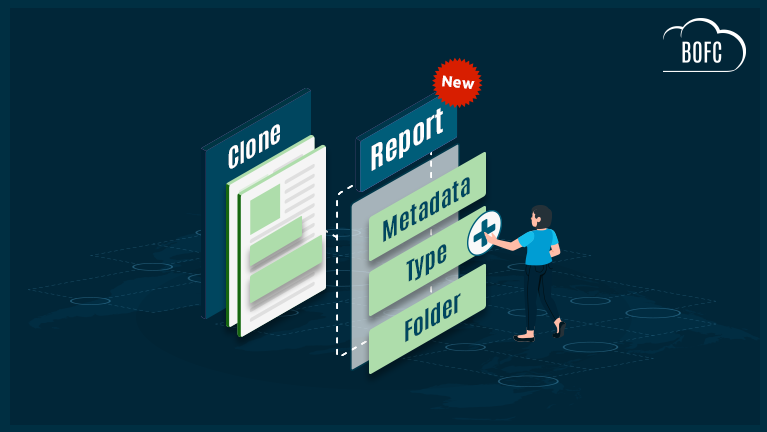
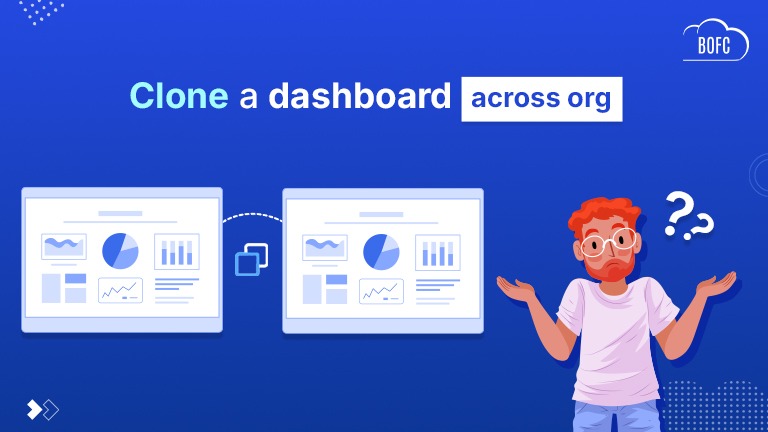
Salesforce can clone a Dashboard, but the copy still depends on the original reports. BOFC clones the dashboard together with its reports, report folders and report types, from your current org or an external org, in 7 steps.
It works for admins who copy dashboards for new teams, regions or environments. You can clone from the current org or an external org, linked or not, choose Clone & Override or Clone & No-Override for existing items, and let BOFC create any component that is missing in the target org.
Salesforce dashboards help teams track KPIs and make decisions from live data. When another team, region or environment needs the same dashboard, cloning it should be a quick job.
It rarely is. A dashboard depends on its reports, so the copy needs those reports too. This guide explains why that happens and shows how to clone a dashboard with its reports using BOFC, in the same org or across orgs.
Cloning Dashboards Shouldn’t Mean Rebuilding Reports
You built the dashboard once. Now three regions want their own copy, or it has to move from Sandbox to Production.
A Salesforce dashboard pulls its data from reports, and cloning the dashboard alone does not duplicate those reports. So you clone each report by hand, rebuild folders and reconnect components one at a time. Across orgs, native options are limited, so the work often starts from scratch.
This is routine for admins, and it is slow. Typical cases include:
- Creating dashboards for different teams or regions
- Moving dashboards from Sandbox to Production
- Reusing a dashboard as a template for consistent reporting
- Testing a new dashboard layout without touching the original
- Deploying dashboards across Salesforce orgs
How BOFC Clone a Dashboard with Their Reports
BOFC (Bulk Object Field Creator) handles the dashboard and its dependencies in one guided flow. With the Clone Dashboards feature, you:
- Pick a source org: the current org or an external org
- Select the dashboard folders and the dashboards you need
- Decide how existing report types, report folders and reports are treated
- Let BOFC create any component missing in the target org
You skip the manual report cloning and reconnecting, and you can follow the status of every item as it runs.
Step-by-Step: How to Clone Salesforce Dashboards Using BOFC
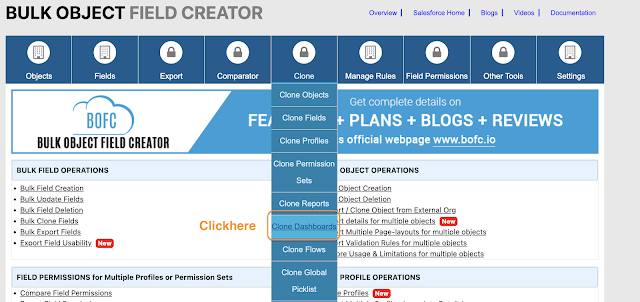
Step 1: Open BOFC Home → Click “Clone Dashboards”
Navigate to the BOFC home screen and select Clone Dashboards under the Clone category.
Step 2: Open the Clone Dashboards Screen & Select the Source Org
Choose where the dashboards should be cloned from.
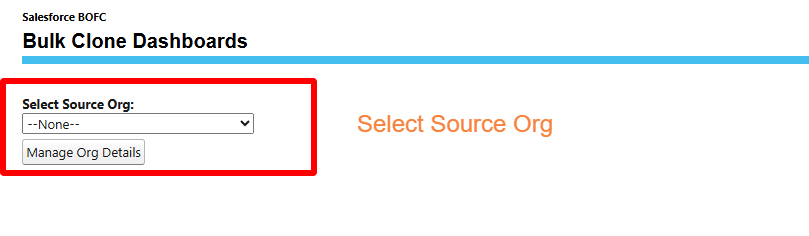
User can clone the dashboards from different type of source orgs:
- Can clone from “Current Salesforce Org” in which BOFC is installed
- Can clone from “External Salesforce org” (Salesforce org which are linked / non-linked to current org in which BOFC is installed)
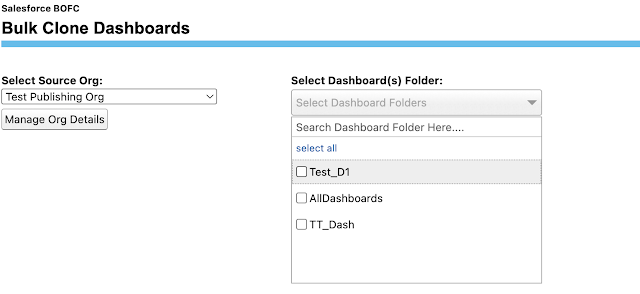
Step 3: Select the Dashboard Folder(s)
BOFC displays all dashboard folders from the selected org. Choose one or multiple folders containing dashboards you wish to clone.
Step 4: Choose How to Handle Existing Metadata
Select how BOFC should treat existing:
- Report Types
- Report Folders
- Reports
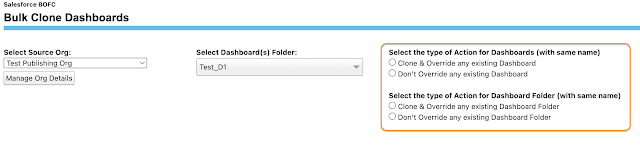
Available Actions
- Clone & Override – overwrite existing items
- Clone & No-Override – skip existing items and create only missing ones
Note – BOFC automatically creates any components that do not exist in the target org.
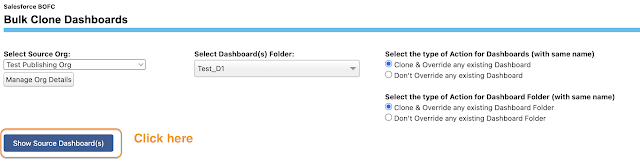
Step 5: Fetch Dashboards from the Source Org
Click the blue action button to load all dashboards from the selected folders.
Step 6: Select Dashboards to Clone
BOFC displays a list of dashboards in a table. Select one or multiple dashboards and click: “Click here to Initiate Clone”
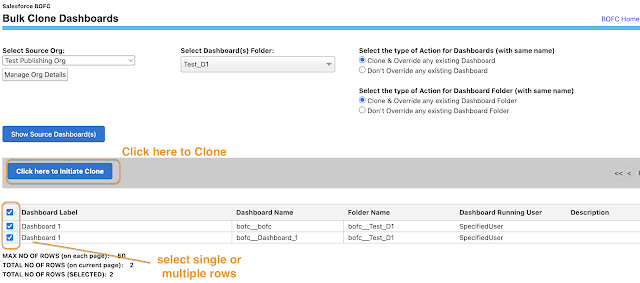
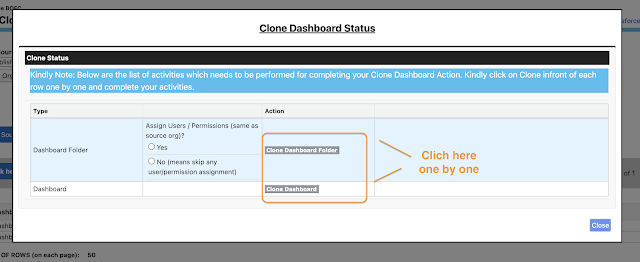
Step 7: Follow Final Instructions & Click “Clone”
A popup will appear with instructions. For each dashboard row, click Clone to begin the operation.
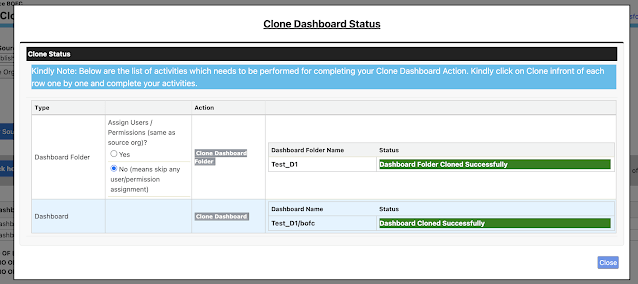
BOFC displays real-time status updates for each cloned item. Once all rows show “Success” the cloning is complete.
Benefits of Cloning Dashboards with Reports Using BOFC
-
- Save Admin Time: No cloning each report by hand and reconnecting components. One guided flow covers the dashboard and its reports.
- Reduce Manual Errors: Report types, folders and reports are handled by the tool, so fewer steps depend on memory and attention.
- Keep control over existing items: Choose Clone & Override or Clone & No-Override so nothing is overwritten by surprise.
- Work across orgs: Clone from the current org or an external org, whether it is linked or not.
- Deploy faster: Launch new dashboards for teams, regions or environments without rebuilding reports from scratch.
Conclusion
Cloning dashboards is routine for Salesforce admins, but it gets complicated when each dashboard depends on several reports. Native cloning covers the dashboard itself, while the reports and cross-org needs still take manual effort.
BOFC clones the dashboard together with its reports, so you can deploy dashboards across teams and orgs with less effort and fewer mistakes.
Want to see it on your own dashboards? Install BOFC or Book a Demo. For the reports on their own, see How to Clone Multiple Salesforce Reports.