How to Mass Update Field Descriptions & Help Text in Salesforce?
Published: Aug 06 2021
Last Updated: Oct 07 2026

Updating Field Descriptions and Help Text Manually?
Open any Salesforce org with a few hundred fields and you will find the same thing: empty Description and Help Text boxes. New admins guess what a field is for, and users enter data the wrong way. The description tells admins why a field exists, and the help text tells users what to enter.
Filling them in is the painful part. Adding a description and help text to one field takes around 1 minute with the standard Salesforce process. At that pace, 500 fields means more than 8 hours of repetitive clicking.
👉 Salesforce has no default option to update descriptions or help text for multiple fields in one go, so admins open every field one by one.
How BOFC Handles This Issue
Bulk Object Field Creator (BOFC) lets you update descriptions and help text for multiple fields across multiple objects in a few clicks. You can work in two ways:
- Edit in a table: display the fields inside BOFC, change the values and update.
- Edit in Excel: download the fields as an XLS, edit them, and upload the XLS or XLSX file back.
It works with standard and custom objects, so there is no coding or deployment involved.
To avail this feature, kindly make sure you have installed the latest version of the application. You can upgrade your package using either of two ways:
- In Salesforce, go to “BOFC Home > Settings > App Version > Click to Upgrade” — or —
- Refer the below button to quickly upgrade your package to the latest version and explore its complete benefits:
Guide to Mass Update Salesforce Field Descriptions and Help Text
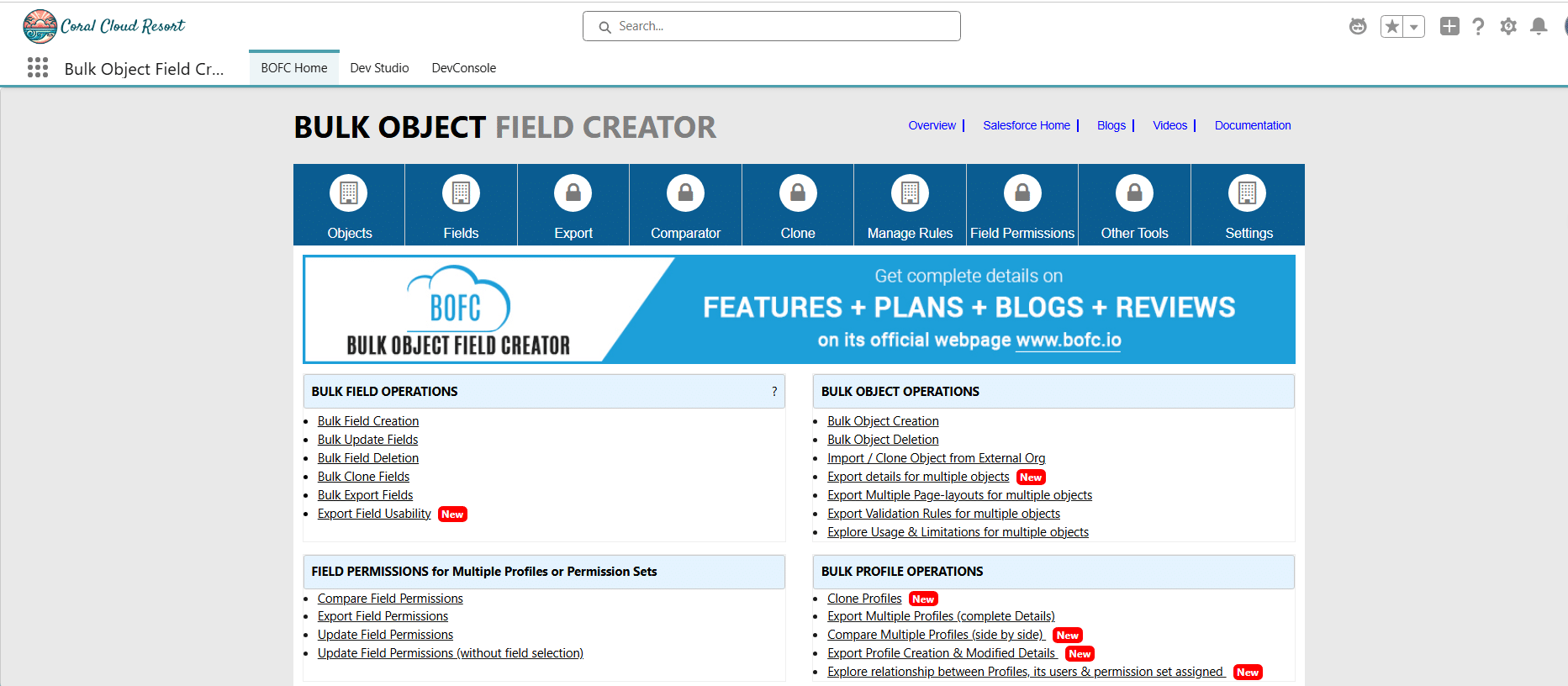
1. Open the BOFC Home and click “Bulk Update Fields”.
2. On the BOFC Update Fields screen, select single or multiple objects and choose your method.
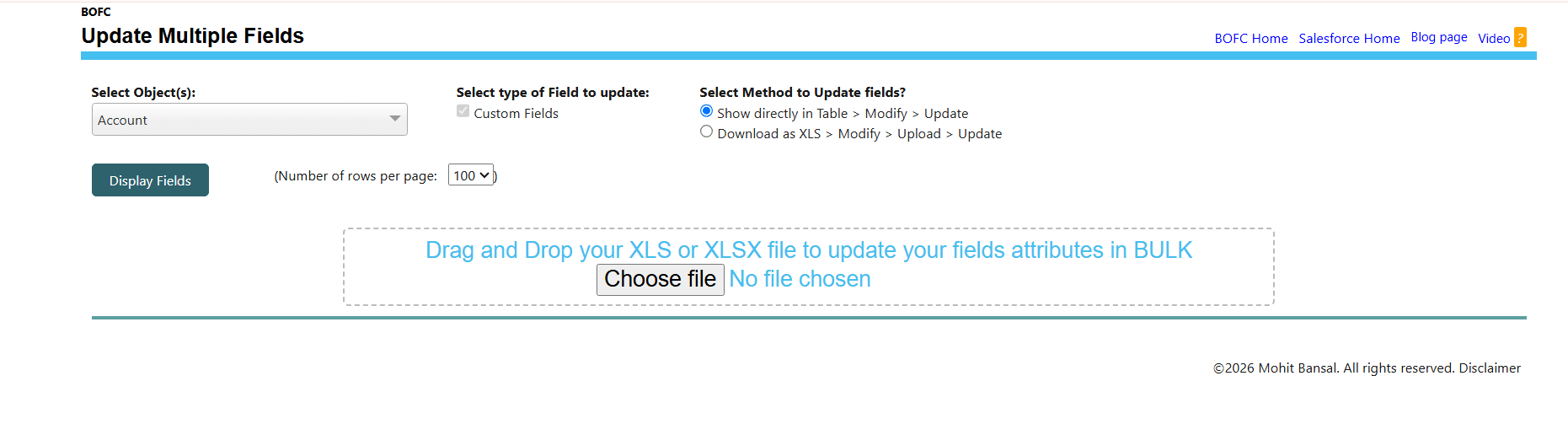
Method 1: “Show Directly in Table > Modify > Update”
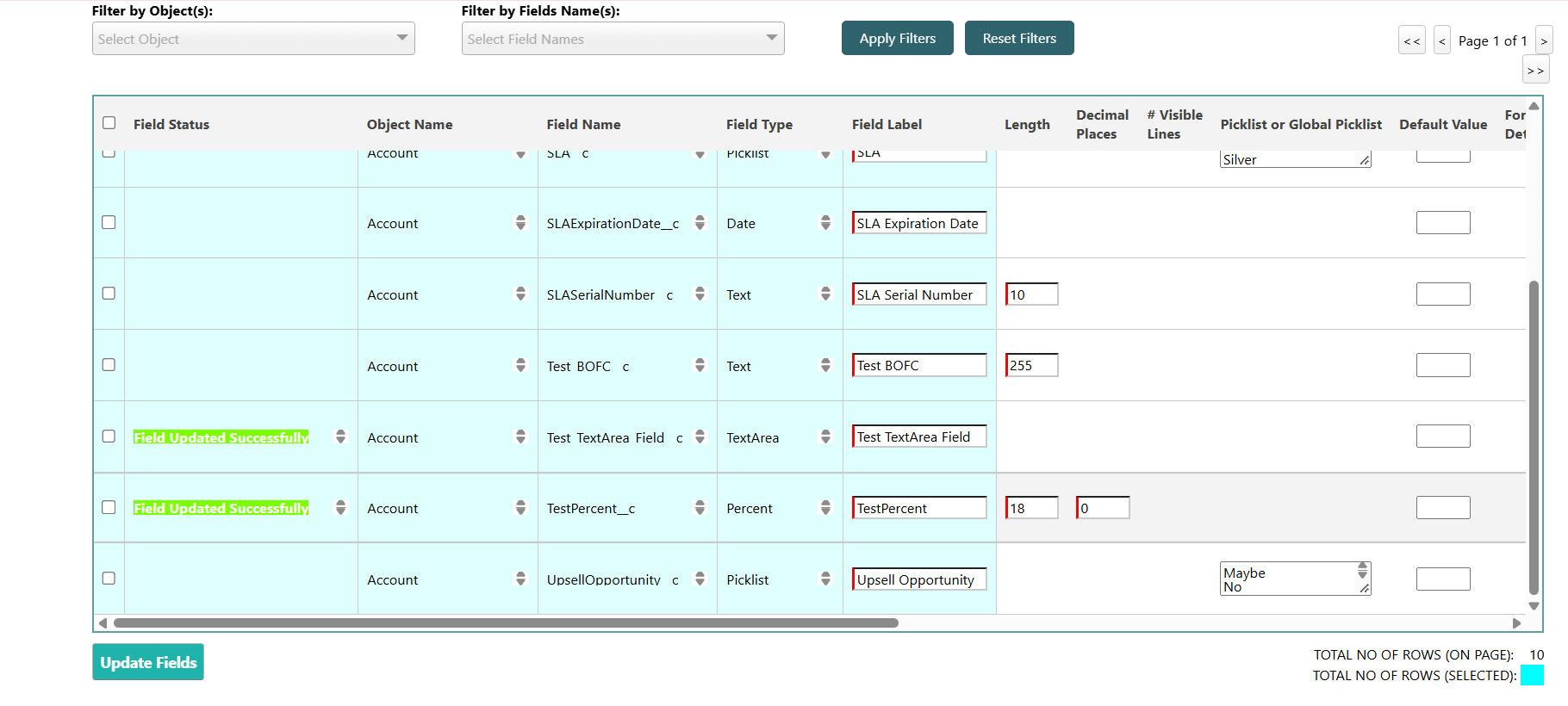
3. Choose “Show Directly in table” and click “Display Fields”. Filter by object or field name, then scroll to the Description and Help Text columns and enter your new values.
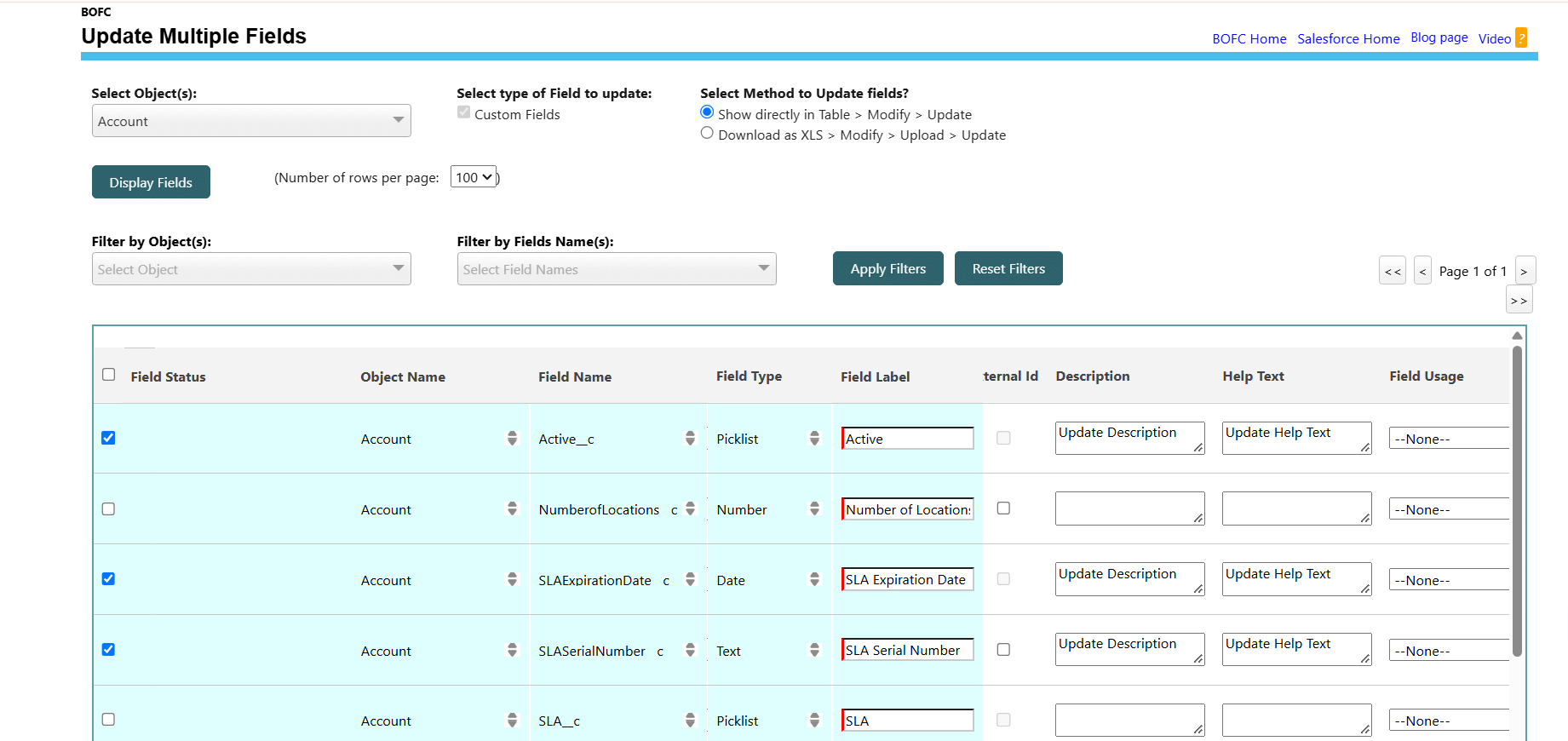
4. Select the rows you want to update and click “Update Fields”. A Success or Error status shows in front of each row.
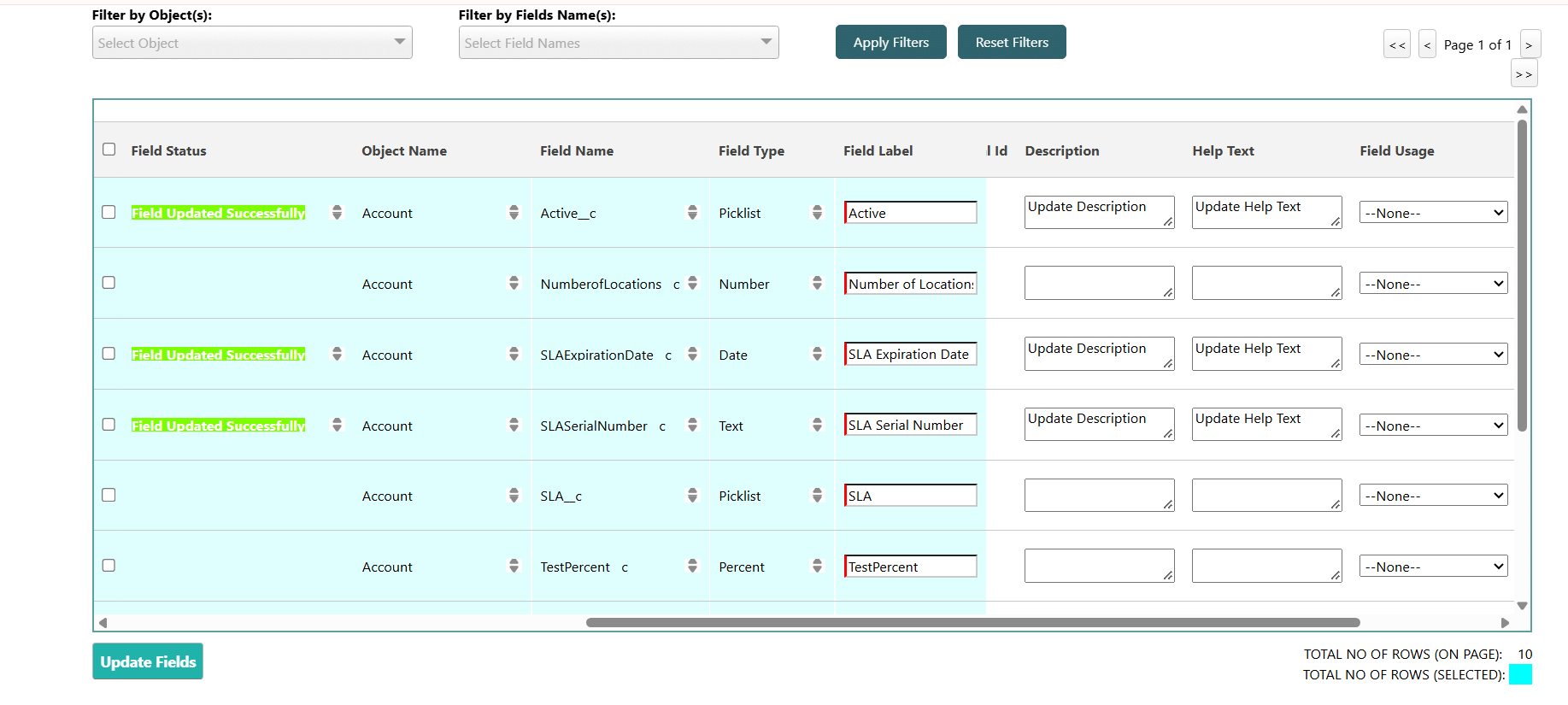
Method 2: “Download as XLS > Modify > Upload > Update”
3. Choose “Download as XLS”, click Download as xls, then click the [Download] link to save all fields.
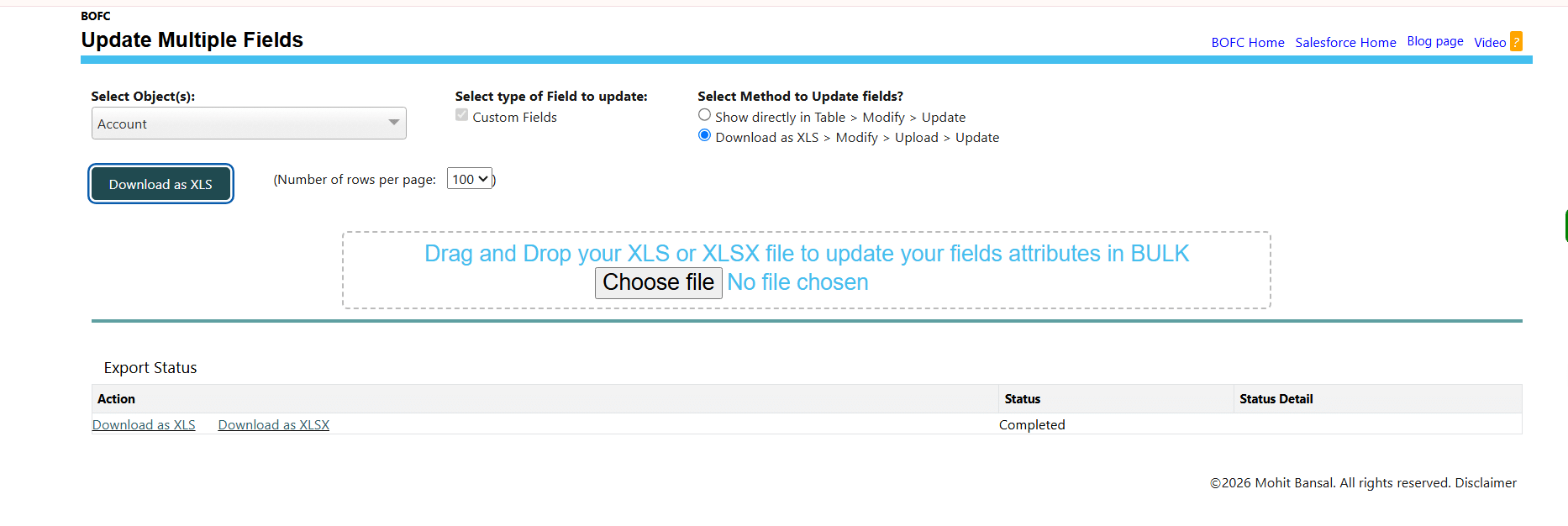
4. Open the file in Excel, update the Description and Help Text columns, and save it as XLS or XLSX.

5. Drag and drop the file onto the BOFC Update Field page, select the fields in the table and click “Update Fields”. Check the Success or Error status for each row.
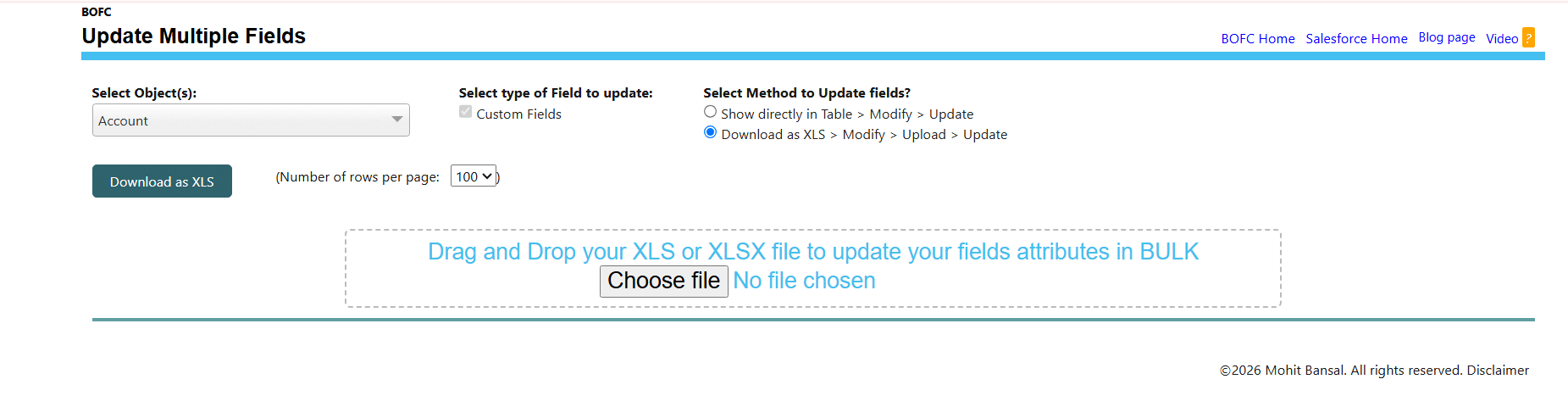
💡 Tip: Download your current fields first as a before copy, and use one format for every description, for example “Purpose | Owner | Data source”.
Benefits of Using BOFC
- Saves hours of repetitive manual work
- Updates multiple fields across multiple objects in one go
- Works with standard and custom objects
- Supports table editing and Excel (XLS/XLSX) files
- Shows Success or Error status for every row
- Needs no coding or deployment
Conclusion
With BOFC, documenting your org stops being a multi-day job. You update descriptions and help text for hundreds or thousands of fields in a few clicks, and your team gets a clearer, more consistent org. To change other field properties, see How to update mass custom fields in Salesforce?