How to Create Bulk Fields in Salesforce?
Published: Jan 06 2026
Last Updated: Oct 21 2026
Quick Summary:
This guide explains how to create bulk custom fields in Salesforce using different methods, including Salesforce Setup, Metadata API, and BOFC. It walks through BOFC’s Bulk Field Creation workflow step by step, showing how to add field definitions manually, import fields from another Salesforce org, or upload a CSV/XLS file. You’ll also learn how to configure field permissions, assign fields to page layouts, and review creation results.
Creating custom fields one at a time in Salesforce can become repetitive when working with multiple objects or preparing a new org. Whether you are setting up a new implementation, migrating configurations, or standardizing fields across environments, creating fields in bulk can make the process more manageable.
Salesforce provides several ways to create custom fields, including its standard Setup interface and metadata-based deployment tools. For admins and developers who prefer a guided, spreadsheet-friendly workflow, BOFC provides a dedicated Bulk Field Creation interface.
In this guide, you’ll learn about the different methods to create bulk fields in Salesforce and follow a step-by-step walkthrough of the BOFC workflow.
Different Ways to Create Bulk Fields in Salesforce
There are multiple ways to create fields in Salesforce, depending on your requirement, scale, and technical expertise.
While some methods are suitable for small tasks, others are designed for bulk field creation and large-scale implementations.
1. Manual Creation via Salesforce UI
This is the most basic approach where fields are created one at a time through Object Manager.
How it works:
- Navigate to Object Manager
- Select an object
- Create fields individually
Limitations:
- Time-consuming for large numbers of fields
- Not scalable for bulk creation
- Higher chances of manual errors
Best for: Creating fewer than 10 fields
2. Using Metadata API / Workbench
This method allows you to create multiple custom fields using XML configurations and deployment tools.
How it works:
- Define fields in metadata (XML format)
- Deploy using tools like CLI or Workbench
Limitations:
- Requires technical expertise
- Not ideal for admins without development experience
Best for: Developers and deployment-based workflows
3. Using BOFC for Bulk Field Creation
BOFC provides a dedicated Bulk Field Creation interface for admins and developers who need to create multiple fields without manually configuring each field through Setup.
With BOFC, you can add field definitions manually, import custom fields from another Salesforce org, or upload a CSV/XLS file. You can also select profiles or permission sets for field permissions and layouts for newly created fields.
This approach is useful when working with large field lists, setting up multiple objects, or replicating field configurations across Salesforce environments.
Best for: Bulk field creation through a guided, spreadsheet-friendly workflow.
Note:
To avail this feature, kindly make sure you have installed the latest version of the application. You can upgrade your package using either of two ways:
- In Salesforce, go to “BOFC Home > Settings > App Version > Click to Upgrade”
— or —
- Refer the below button to quickly upgrade your package to the latest version and explore its complete benefits:
Stay up to date with the latest in BOFC - Latest features, offers, news, tips and more
To avail this feature, kindly make sure you have installed the latest version of the application. You can upgrade your package using either of two ways:
- In Salesforce, go to “BOFC Home > Settings > App Version > Click to Upgrade” — or —
- Refer the below button to quickly upgrade your package to the latest version and explore its complete benefits:
Stay up to date with the latest in BOFC - Latest features, offers, news, tips and more
How to Create Bulk Fields in Salesforce Using BOFC
Instead of manually creating fields or writing XML, you can use BOFC to create multiple fields across objects in minutes. Here’s how you can do it:
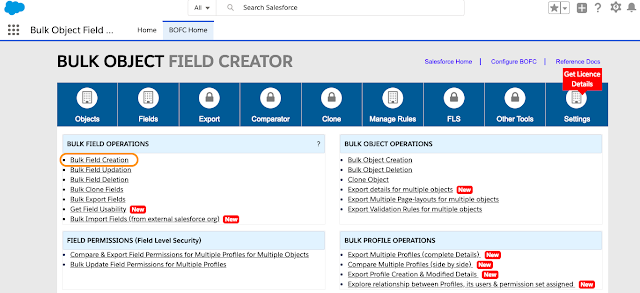
1. Click App Launcher & open BOFC “Bulk Field Creation” page
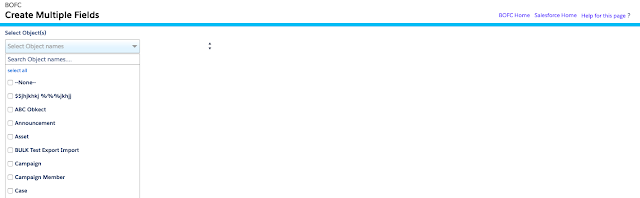
2. Select single or multiple objects (user can select any kind of object standard or custom or both)
3. User can select single or multiple (Profiles or Permission Sets or both) to assign field permissions and can select single or multiple layouts to assign newly created fields
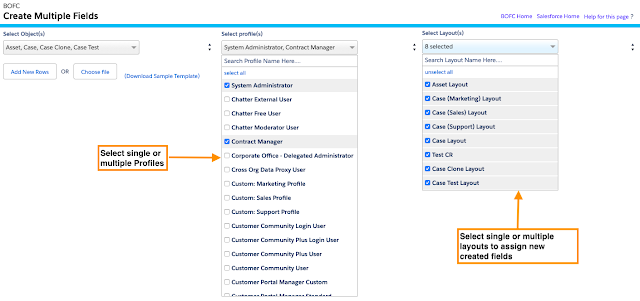
Profile & Layout selection
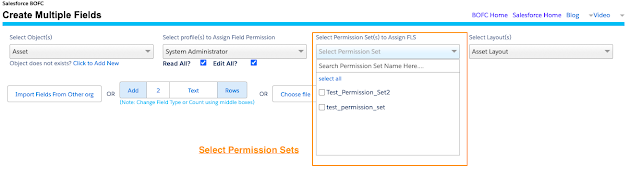
Permission-Sets selection
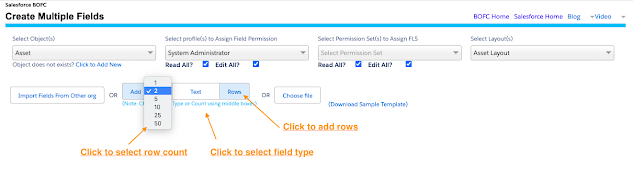
4. User can add rows of multiple fields in three ways. Let’s review all the above ways one by one:
Option 1: Manually Add New Rows – User can add any number of rows of any field type by using this option.
Option 2: Import fields from External Salesforce org– User can import custom fields of any kind of object (Standard/Custom/Managed) from any external Salesforce org (Production/Sandbox/Developer)
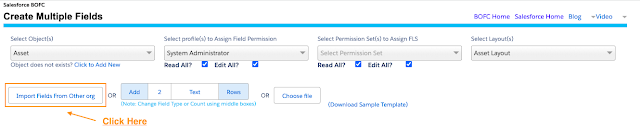
It will open the below popup to select source org information
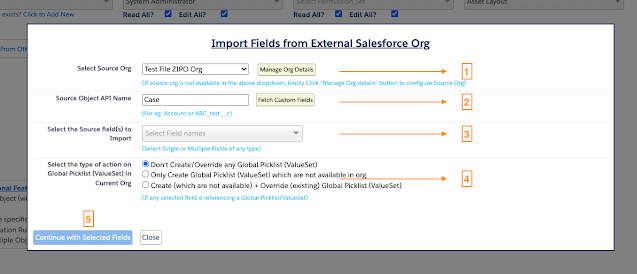
Above image has few features (each number has its description as below):
-
- Select the Source Org from where the fields needs to be imported
- Enter the API name of the Source Object & Click Fetch Custom Fields
- Select single or multiple custom fields
- If any selected fields of type picklist is referencing any global picklist, then BOFC can import global picklist along with Field.
- Click this button to import selected fields from Source Org.
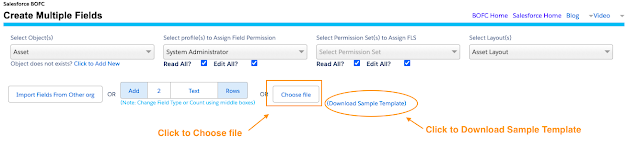
Option 3: Import using CSV / XLS: In this option, user can import set of fields using CSV or XLS sheet. The sheet should in the proper format and can easily import any number of fields (Refer: Sample Template)
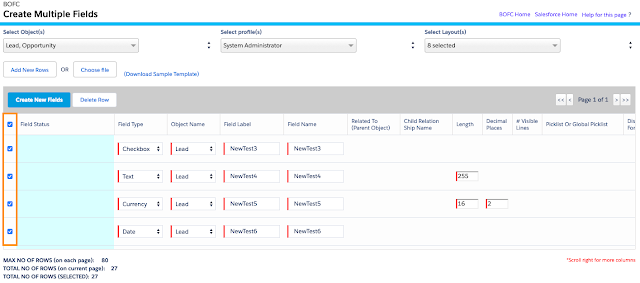
5. Once rows are added in the table using any of the above discussed options, the field creation screen will look like below:
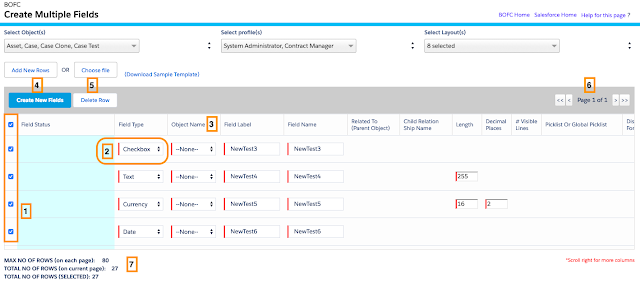
-
Above image has some features (each number has its description as below):
-
- Select rows which needs to be created as new fields in Salesforce
- User can modify field type (if required).
- User can choose Object name (same or different) on all rows.
- Click “Create New Fields” button to create fields in Salesforce
- Click “Delete Rows” to delete any unwanted rows.
- Pagination – This page has a pagination if count of fields is more than 80. Each page shows 80 fields. User can use “>” or “<” or “<<” or “>>” buttons to navigate on other pages.
- Counts:
- Max no of fields – 80 – Each page shows 80 fields
- Total no of rows – Number of rows added in table to create new fields
- Total no of rows (selected) – Count of rows selected to create new fields
6. Select your rows & verify all the details in required columns or remove error (if any).
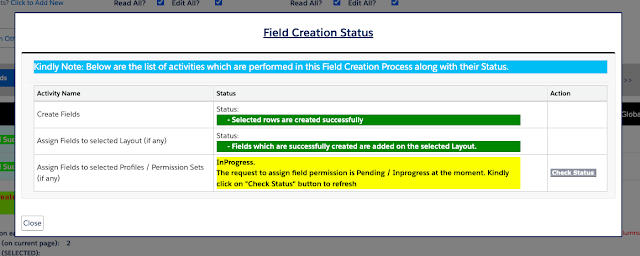
Click “Create New Fields” button to add newly fields to a selected objects. Once this button is clicked, it will show a popup for all the actions and their status.
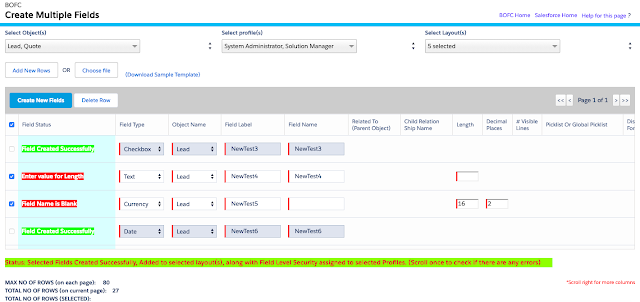
7. Also, it will show “Success or Error” status message in-front of each row.
-
- Green means – Row created successfully as field, assigned field permissions to profiles & assigned to layouts
- Red means – Row error out with some error message
Why Use BOFC for Bulk Field Creation in Salesforce?
When creating fields across multiple objects, the work involves more than defining each field. It also includes managing the field list, configuring access, assigning layouts, and checking the results.
BOFC brings these tasks into one guided workflow. You can prepare field definitions manually, import them from another Salesforce org, or upload a CSV/XLS file. The interface also supports selecting field permissions and page layouts and reviewing individual operation results.
This makes BOFC useful for Salesforce admins and developers handling new implementations, org configuration, and large-scale field setup.
Create Salesforce Fields Faster with BOFC
Creating a few fields through Salesforce Setup is straightforward. When the task involves multiple objects or a large list of field definitions, a bulk workflow can make configuration more manageable.
BOFC lets you add field definitions manually, import fields from another Salesforce org, or upload a CSV/XLS file, then review the results through its Bulk Field Creation interface.
Quick Install BOFC to choose the appropriate installation option for your Salesforce environment.