How to Connect Claude to Dev Studio for Faster Salesforce Development?
Published: Sep 08 2026
Last Updated: Sep 29 2026
Quick Answer:
Connect Claude AI to Dev Studio to code more efficiently in Salesforce: get an Anthropic API key from console.anthropic.com, open Dev Studio in your Salesforce org, click “Link your Claude,” paste in your API key, select a Claude model (Sonnet or Opus), and click Save. Once connected, an AI side panel appears next to your code editor where Claude can write, fix, explain, and apply Apex, LWC, and Trigger code directly to your files. Setup takes under 2 minutes.
The Future of Salesforce Development Is Here
Writing Apex from scratch. Debugging a trigger at 5 PM. Figuring out why an LWC component is not rendering. Looking up SOQL syntax for a query you have written a hundred times but cannot quite remember.
Every Salesforce developer knows these moments. They are not failures — they are just friction. Small interruptions that pull you out of flow, slow you down, and add up to hours lost every week.
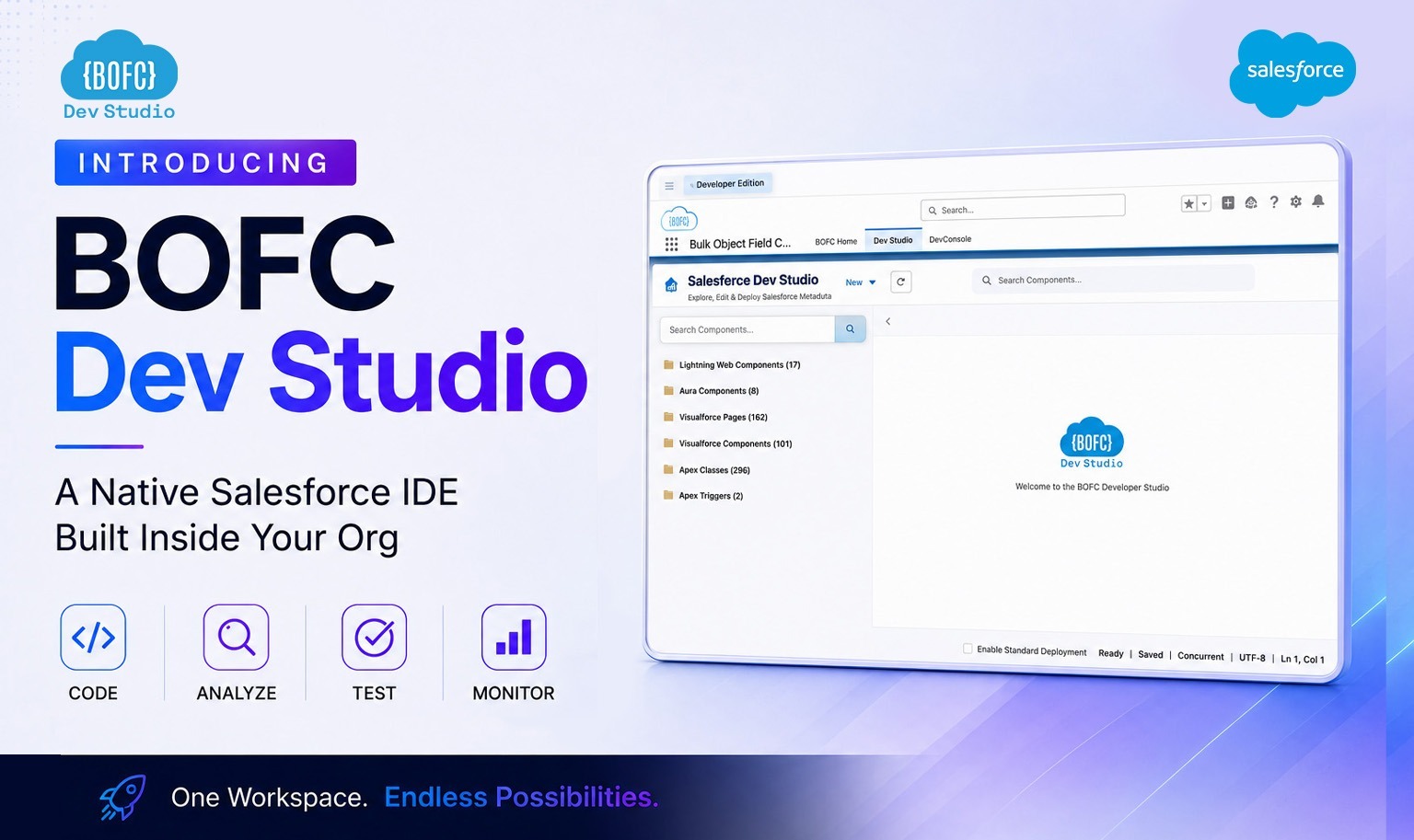
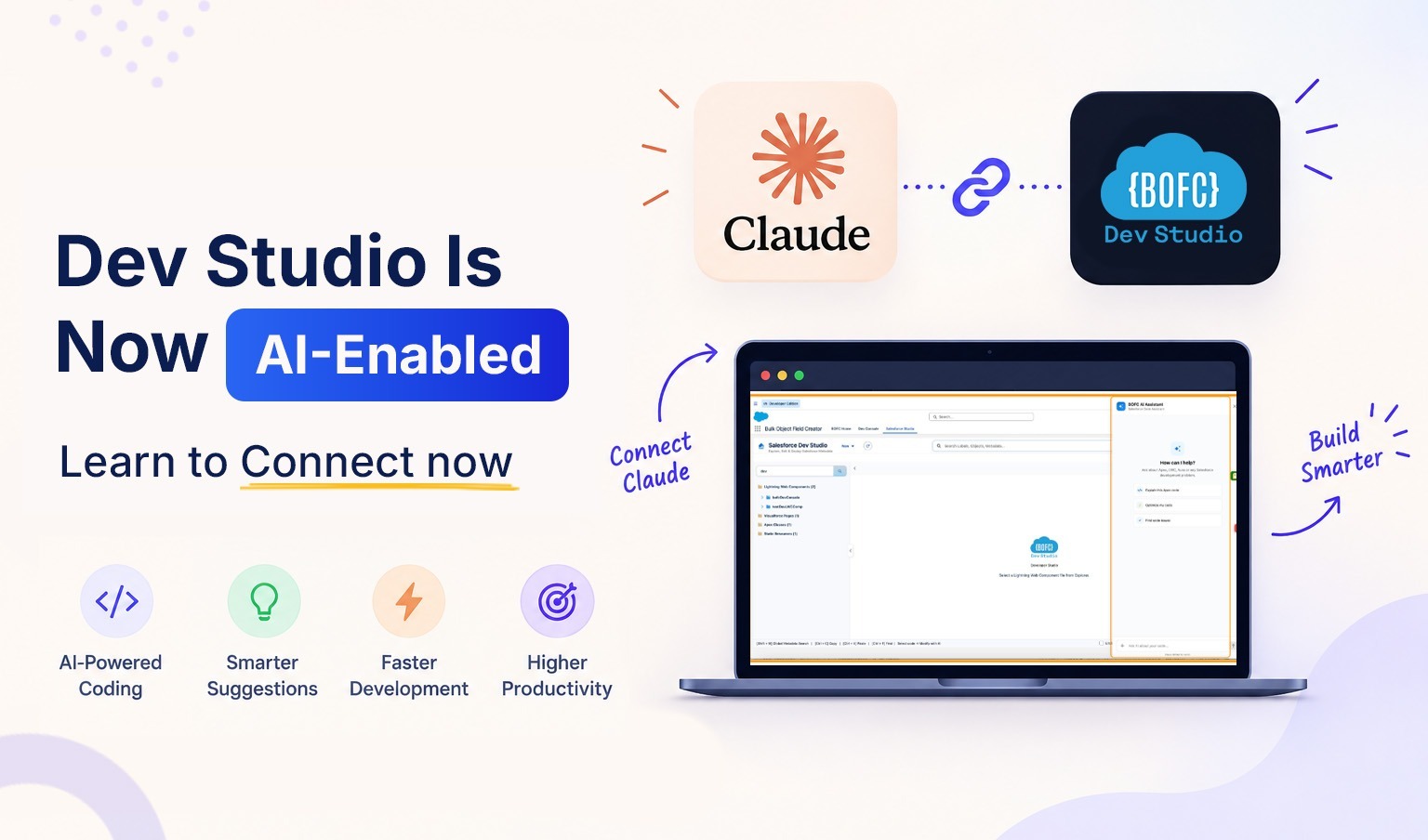
“BOFC Dev Studio is now AI-enabled”
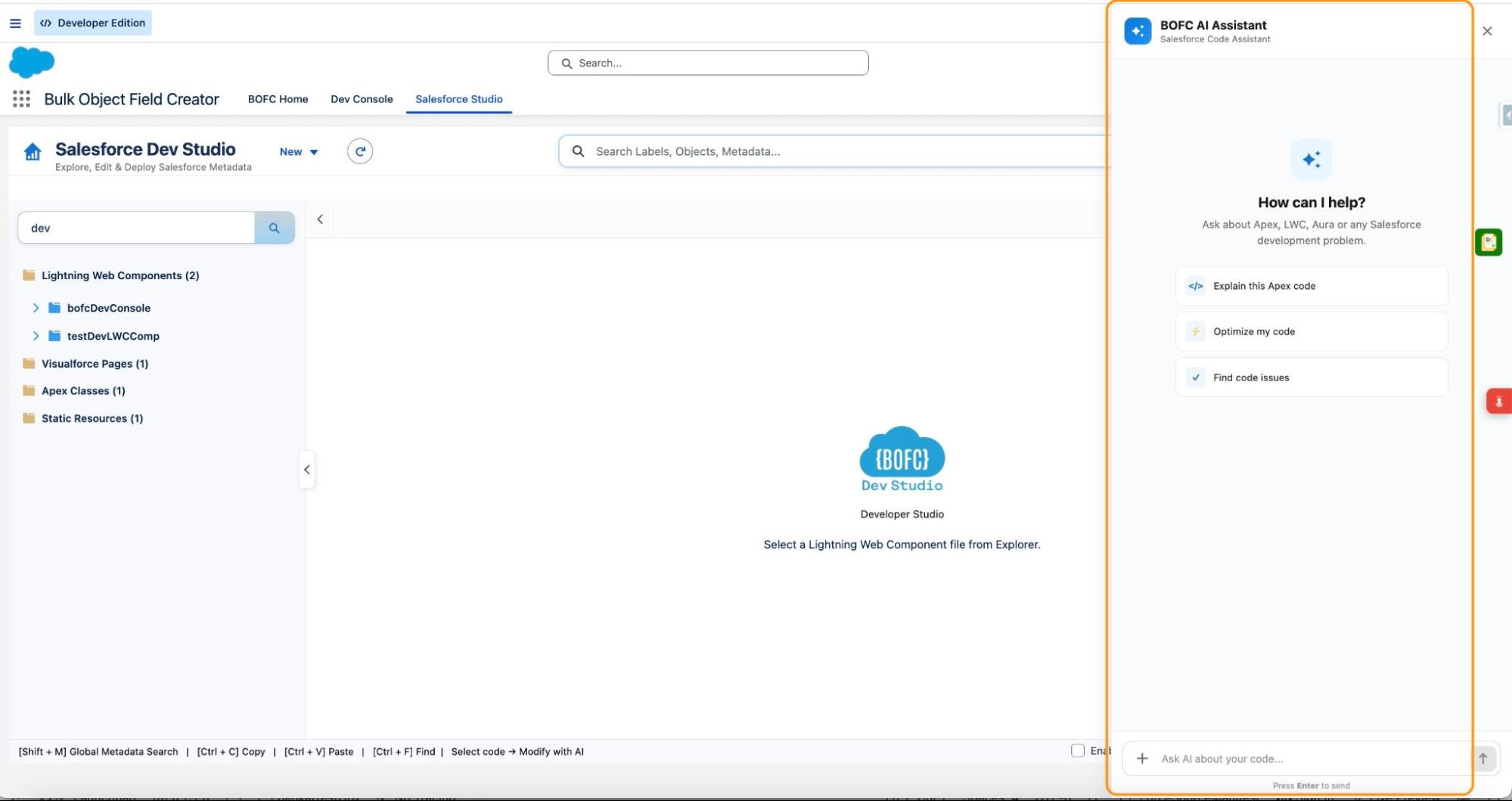
Connect your Claude account using your Anthropic API key, select your preferred Claude model, and a powerful AI assistant opens as a side panel directly alongside your code editor — inside Salesforce, inside Dev Studio, with no context-switching required.
Ask Claude to write new code. Ask it to fix an existing bug. Ask it anything about Salesforce development — or anything else entirely. Claude reads your context, responds in the panel, and can apply suggestions directly to your Salesforce with a single confirmation.
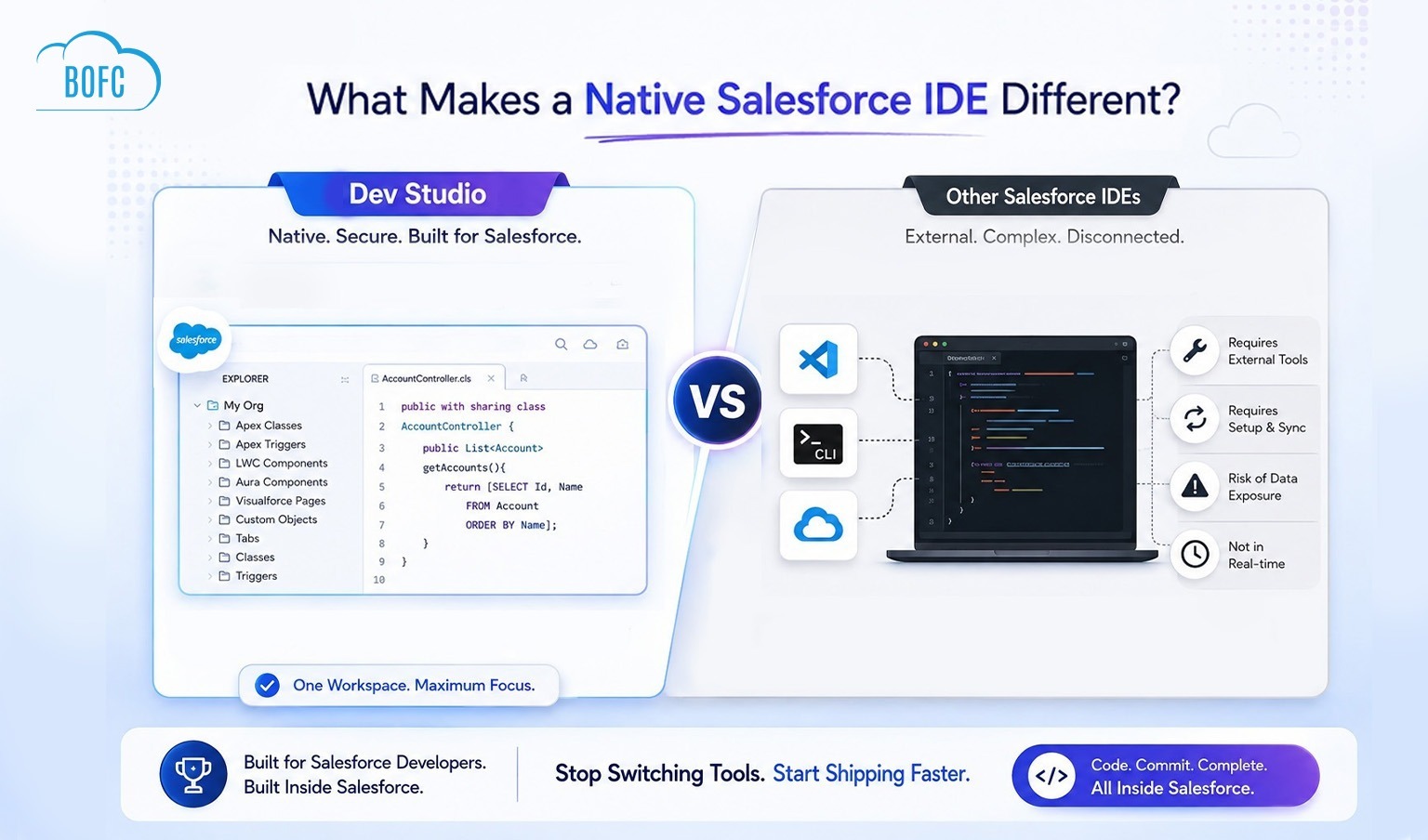
This is not a chatbot bolted onto the side of an IDE. This is an AI pair programmer built into the first native Salesforce IDE — available from the moment you connect your API key.
What You Can Do With AI in Dev Studio
Once enabled, the Claude AI side panel unlocks the following capabilities directly inside Dev Studio:
- Generate new code — Describe what you need in plain English and Claude writes the Apex Class, LWC component, Trigger, or Visualforce page for you
- Fix existing issues — Paste an error message or describe a bug and Claude diagnoses the problem and suggests a fix — which can be applied directly to the Salesforce.
- Explain existing code — Ask Claude to explain what a piece of Apex does, why a Trigger is firing unexpectedly, or how a specific LWC lifecycle hook works
- Optimise and refactor — Ask Claude to improve performance, simplify logic, or refactor messy code in the current file
- Answer Salesforce questions — SOQL syntax, governor limits, platform events, Flow vs Apex decisions, security model questions — ask anything
- Answer non-Salesforce questions — General programming concepts, JavaScript patterns, debugging approaches, API design — Claude answers it all
- Get code review feedback — Ask Claude to review by sharing the name of code and it will share the best practices, potential issues, or governor limit concerns
How to Enable AI in BOFC Dev Studio — Step by Step
1
step 1
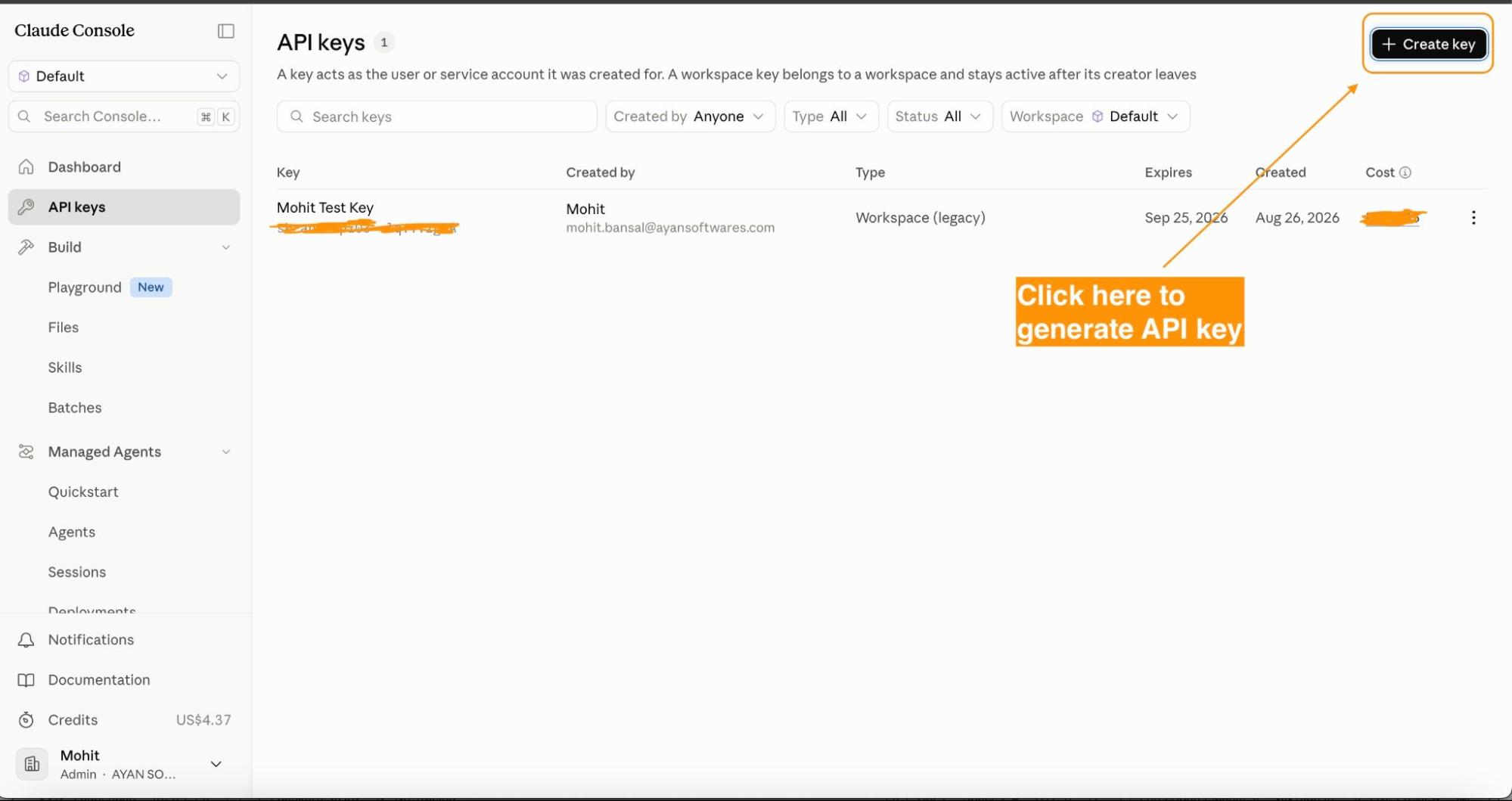
Get Your Anthropic API Key
To connect Claude to Dev Studio, you need an Anthropic (or Claude) API key. If you do not already have one:
- Visit console.anthropic.com
- Sign in or create a free Anthropic account
- Navigate to API Keys in the left sidebar
- Click Create Key, give it a name (e.g., “BOFC Dev Studio”), and copy the key
Keep the key safe — you will only see it once. If you lose it, you will need to generate a new one.
2
step 2
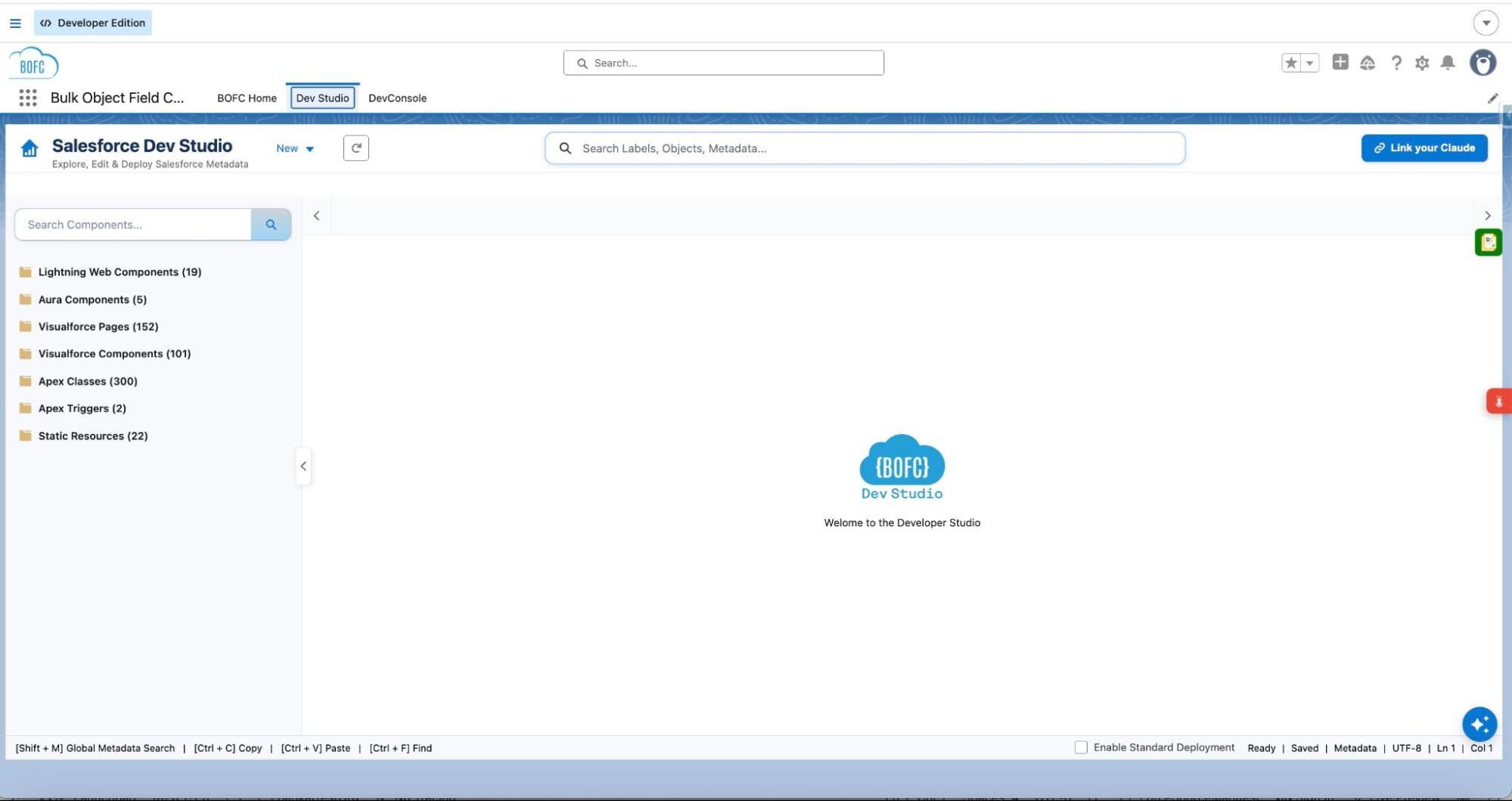
Log in to your Salesforce Org. Open the App Launcher (the nine-dot grid in the top-left navigation bar), search for BOFC, and open the application.
From the BOFC navigation menu, click Dev Studio to open the IDE.
3
step 3
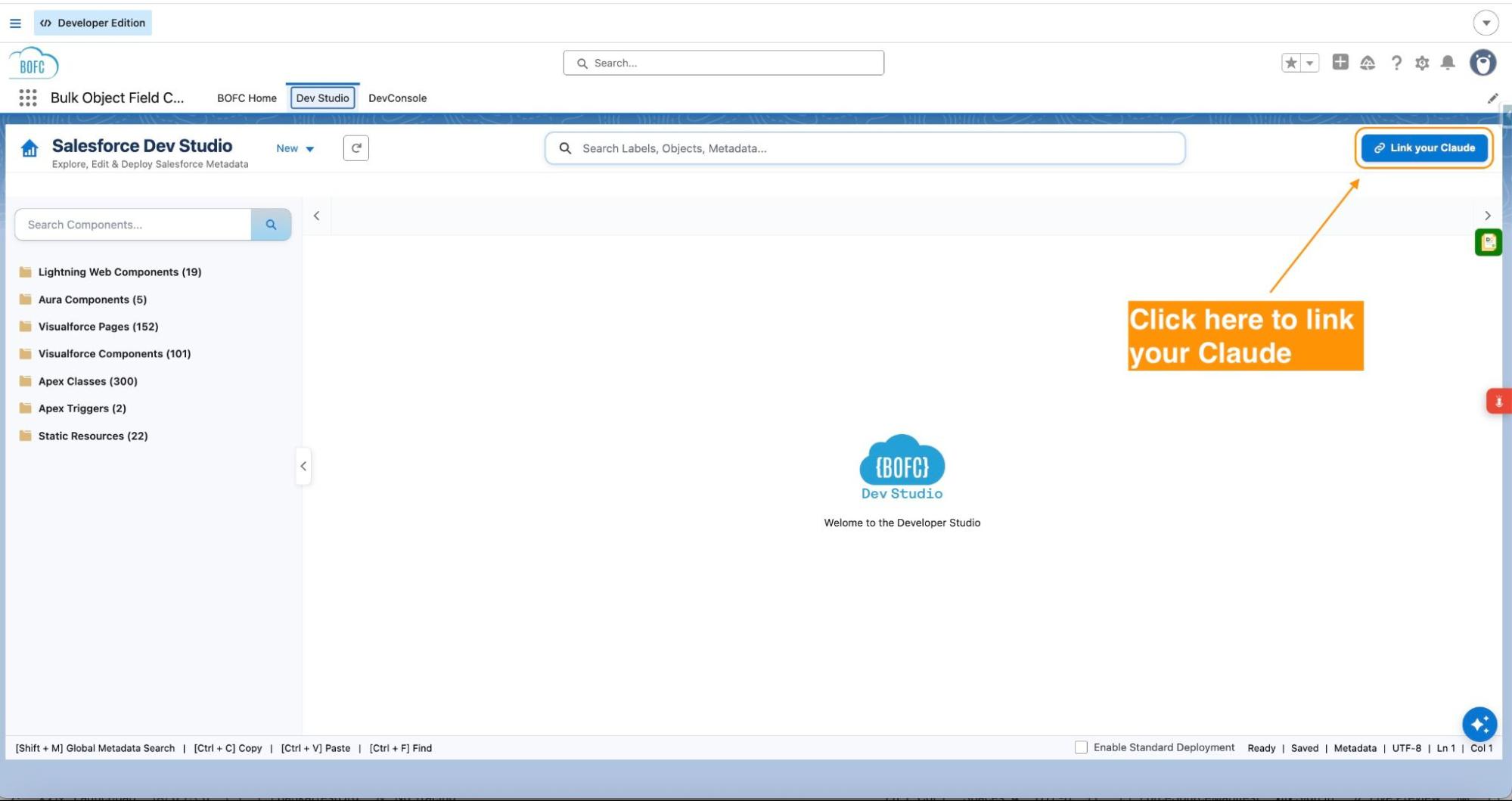
Click on “Link your Claude” link on the top right corner of the Dev Studio
Inside Dev Studio, locate the link “Link your Claude” in the Dev Studio.
Click it to open the AI configuration panel. The panel will slide open alongside your code editor.
4
step 4
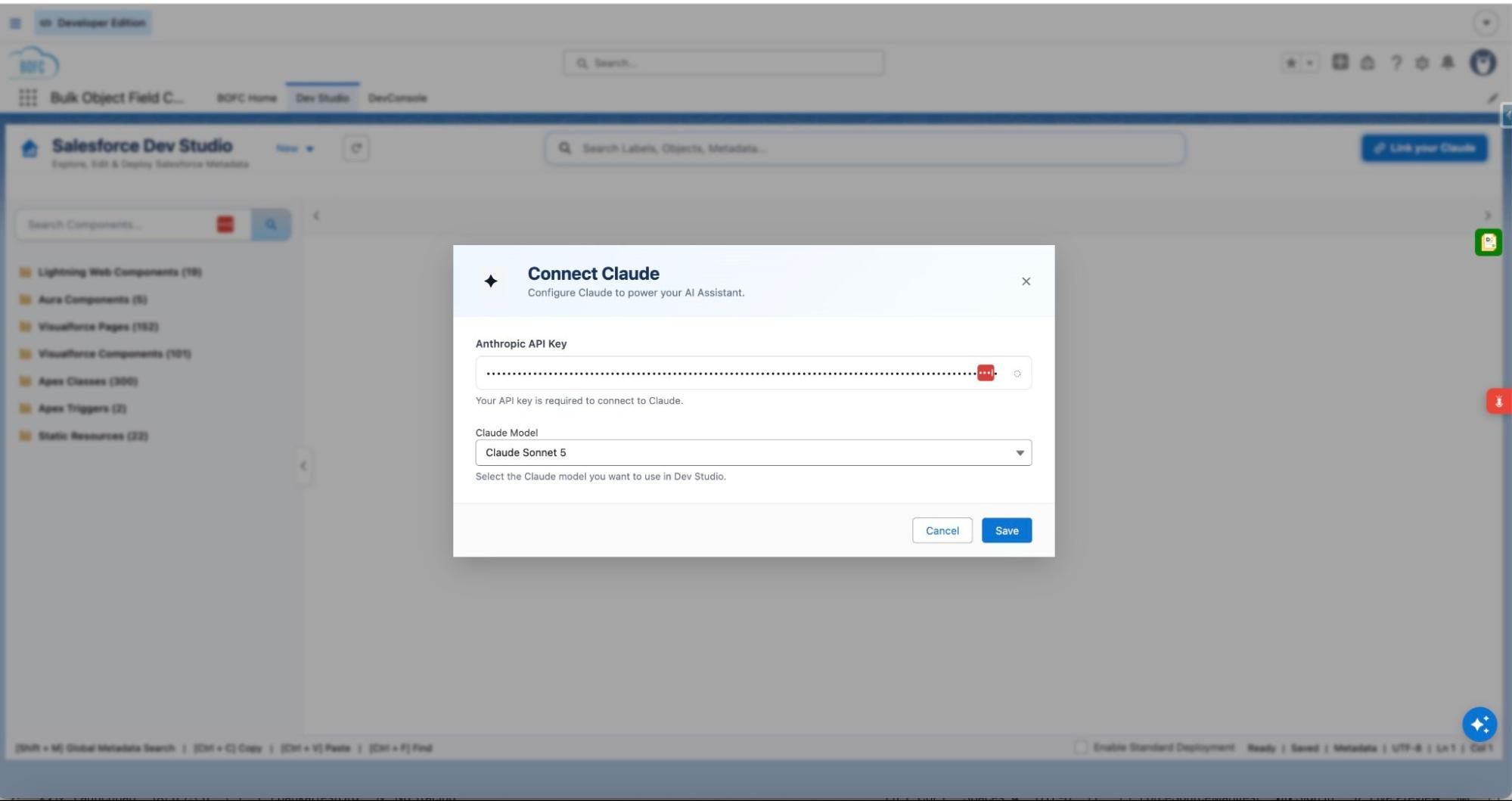
Enter Your Claude API Key
In the AI side panel, you will see the API Key input section at the top. This is where you connect your Claude account to Dev Studio.
Click it to open the AI configuration panel. The panel will slide open alongside your code editor.
- Paste your Anthropic API key into the API Key input field
- The key is stored securely within Dev Studio and is only used to authenticate requests to the Claude API on your behalf
5
step 5
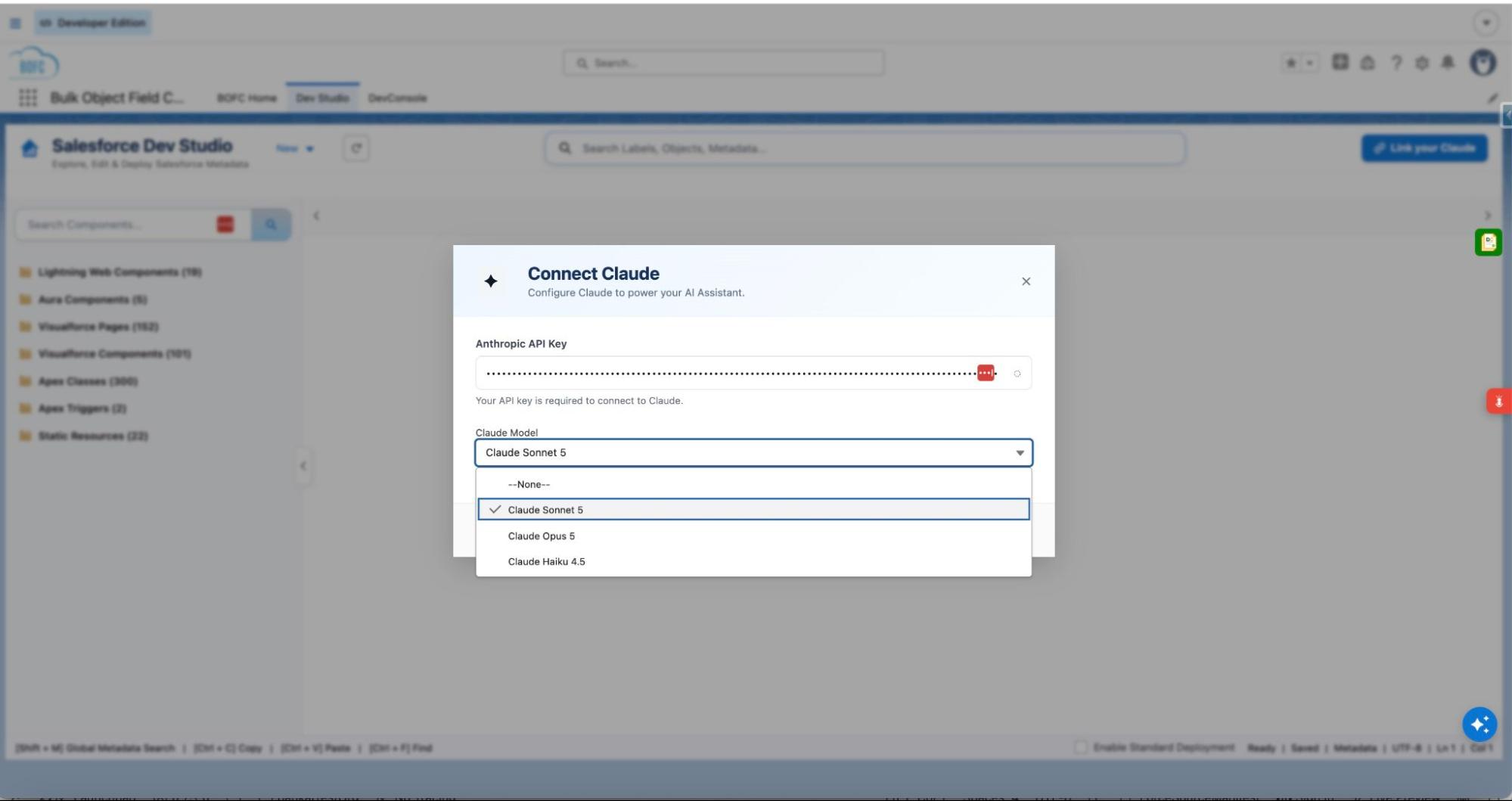
Select Your Claude Model
Once your API key is entered, a model selector dropdown will appear. Select the Claude model you want to use for your AI assistant.
Available models may include options such as:
- Claude Sonnet — Fast, highly capable, ideal for everyday coding tasks and quick answers
- Claude Opus — Most powerful, best for complex code generation, architecture decisions, and detailed explanations
Choose the model that best matches your use case. You can change this at any time from the AI panel settings.
6
step 6
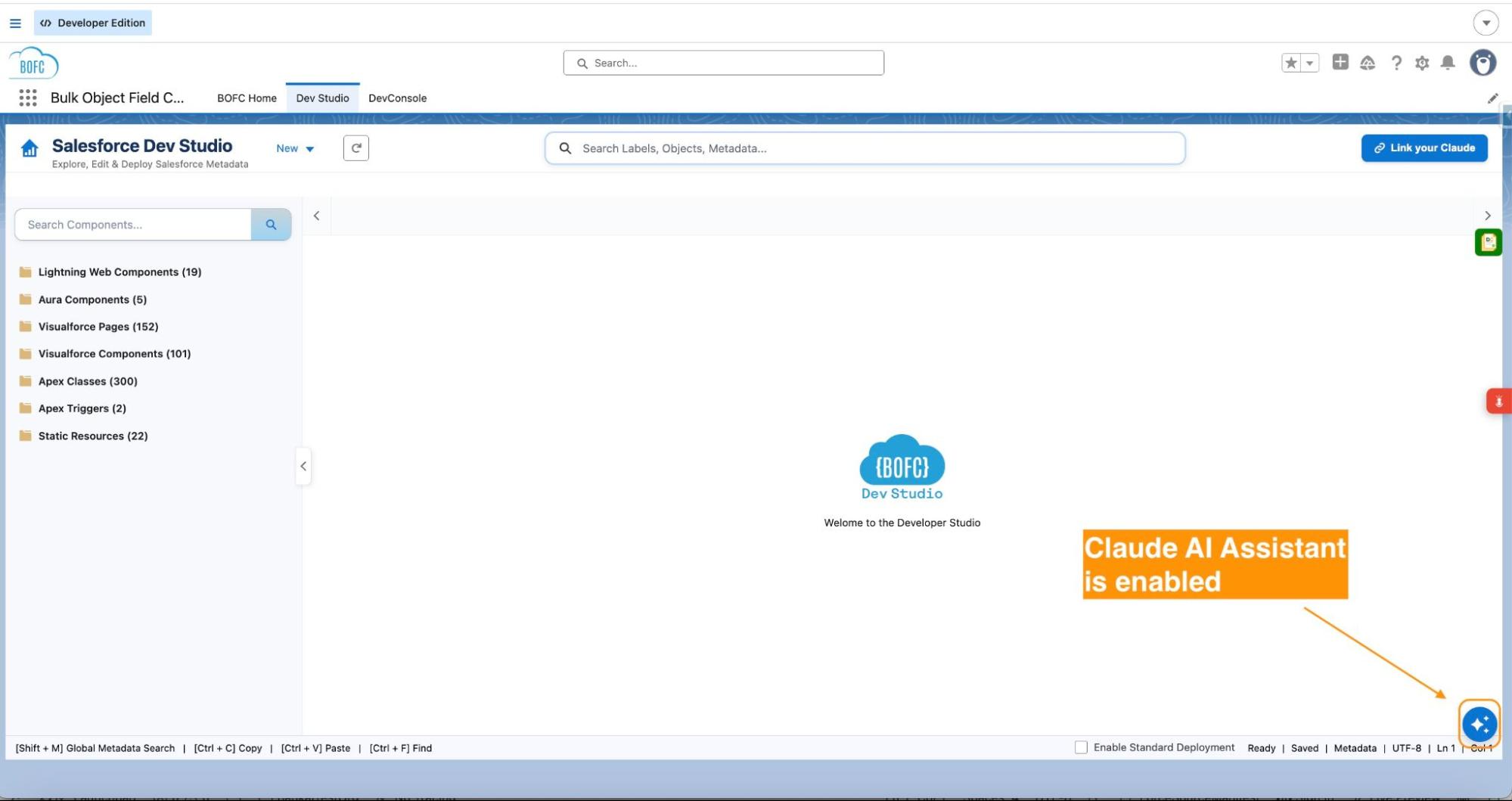
Save and Activate
Click Save to confirm your API key and model selection. Dev Studio will verify the connection to the Claude API.
Once verified, the AI panel activates — the chat input appears, the connection status shows as active, and the Claude AI assistant is ready to use.
7
step 7
Start Using AI in Dev Studio
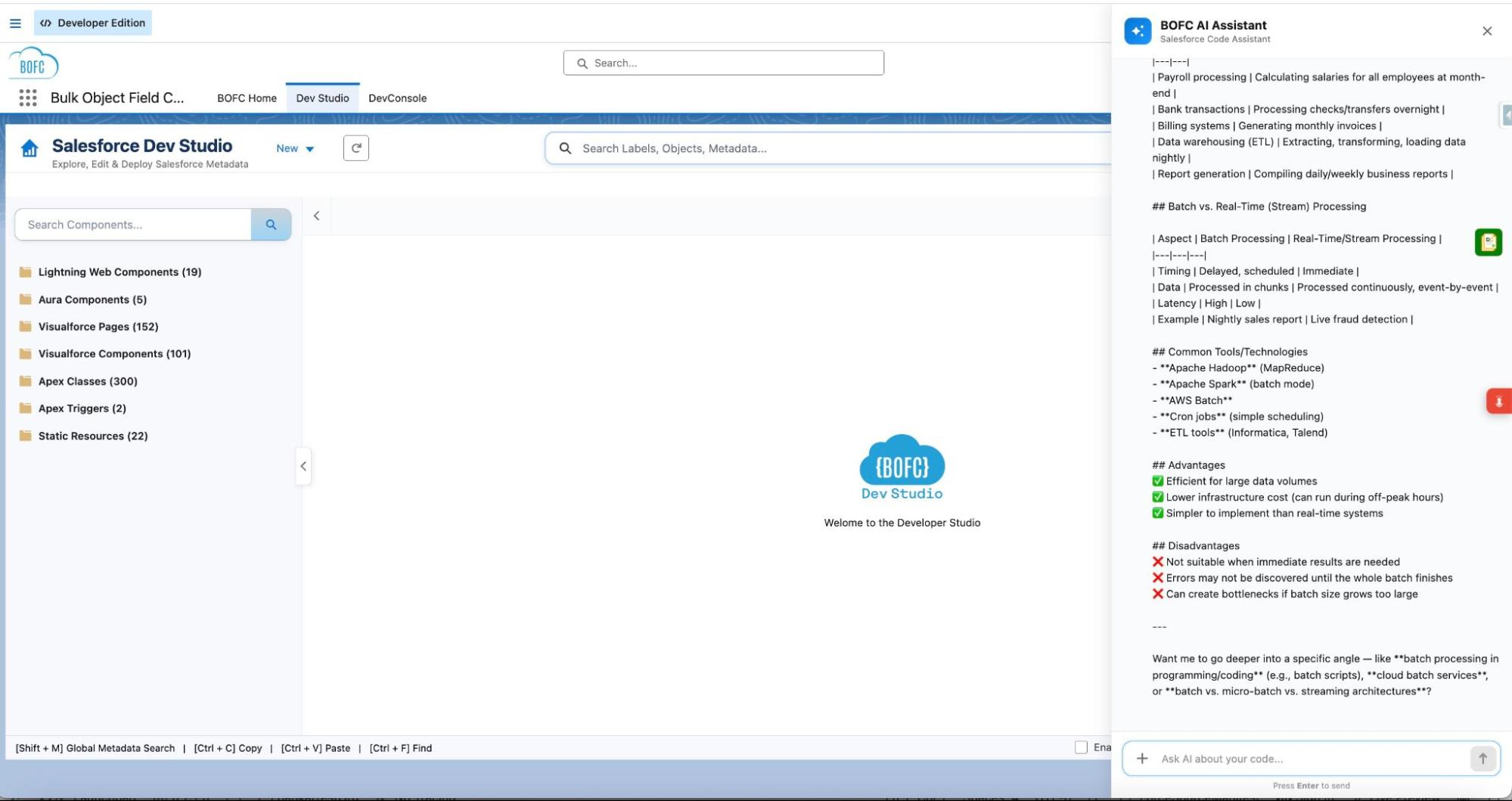
The AI side panel is now live alongside your code editor. Type your question or request in the chat input and press Enter or click Send.
Claude responds directly in the panel. If the response includes code, you have two options:
- Copy the code — Use the copy button on the code block to copy it to your clipboard and paste it into the editor manually
- Apply to editor — Click Apply to insert the suggested code directly into your open file. Dev Studio will show a diff preview of the change and ask for your confirmation before applying it
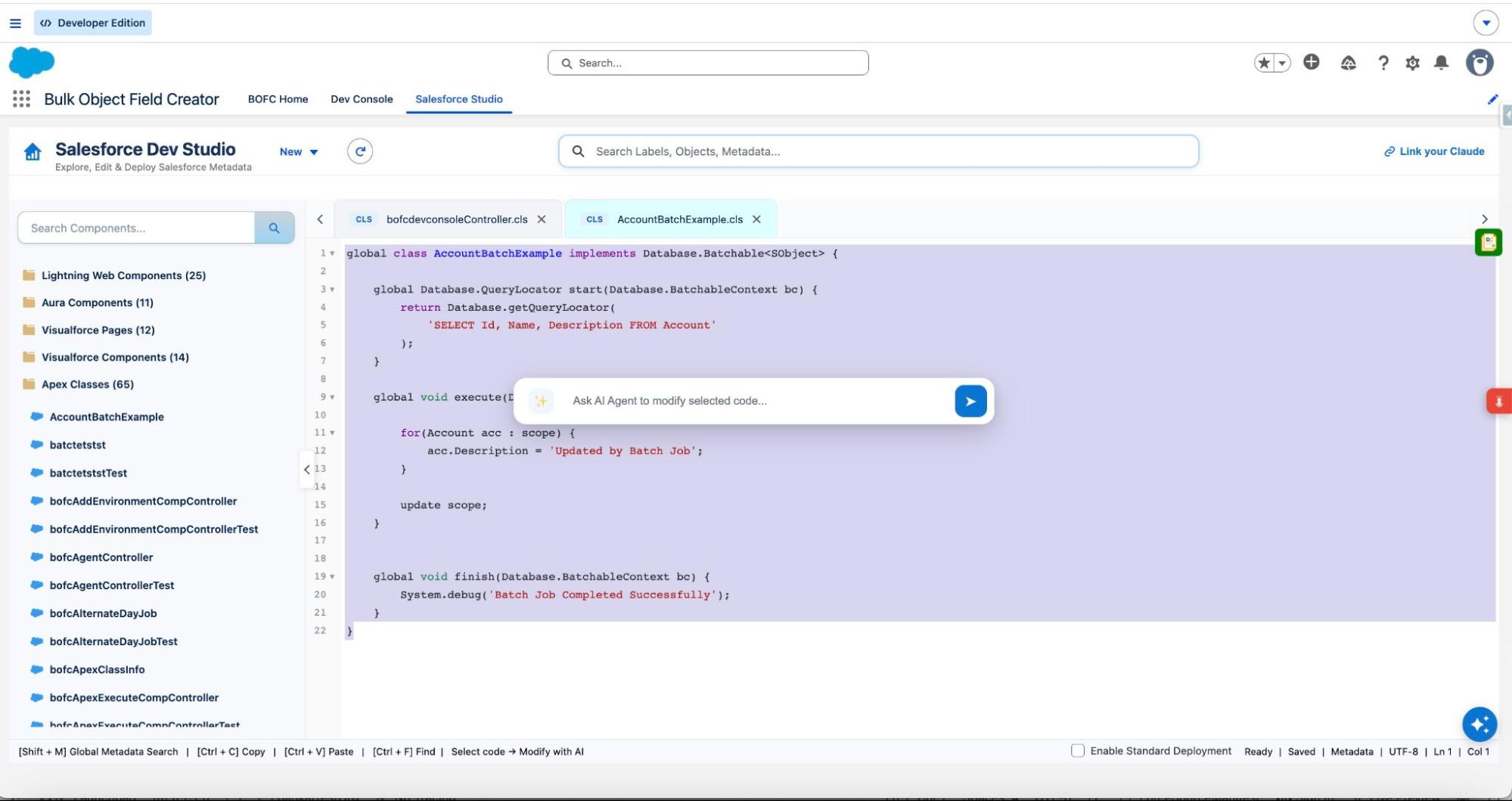
Or
By just select the code and AI helper is enabled automatically to help on the selected code
How to Use AI in Dev Studio — Real Examples
Example 1: Generate a New Apex Class
You type:
“Write an Apex class that queries all Accounts with AnnualRevenue greater than 1 million, and sends an email to the Account Owner.”
Claude responds: A complete, well-structured Apex class with SOQL query, email messaging logic, and appropriate error handling — ready to apply directly to a new Apex Class file in Dev Studio.
Example 2: Fix an Existing Bug
You type:
“I am getting the error: ‘Attempt to de-reference a null object’ on line 14 of this trigger. Here is the code: [paste code]”
Claude responds: An explanation of why the null reference is occurring, the specific line causing it, and a corrected version of the trigger with null checks added — with an Apply option to update the open trigger file directly.
Example 3: Ask a Salesforce Best Practice Question
You type:
“Should I use a Flow or Apex trigger to update related records when an Opportunity is closed?”
Claude responds: A detailed, balanced answer covering when to use Flow vs Apex, governor limit considerations, maintainability factors, and a recommendation based on the described use case — no code required.
Example 4: Optimise Existing Code
You type:
“Can you refactor this Apex class to avoid SOQL queries inside loops?”
Claude responds: The refactored version of the class with SOQL queries moved outside the loop, a brief explanation of why the original was at risk of hitting governor limits, and an Apply option to replace the current class content.
Example 5: Ask a General Question
You type:
“What is the difference between a synchronous and asynchronous Apex method?”
Claude responds: A clear, developer-friendly explanation of synchronous vs asynchronous Apex — covering @future, Queueable, Batch, and Schedulable<>/strong — with examples of when to use each.
How to Enable AI in BOFC Dev Studio — Step by Step
3
step 3
Open Dev Studio → Click AI → Enter API Key → Select Model → Save
4
step 4
Start building with AI
Learn more at www.bofc.io
For support or enquiries, contact the BOFC team at support@bofcapp.io
BOFC — The smarter & secure way to manage Salesforce Metadata & Code. One Suite. Everything Admins Automate, Everything Developers Build.
Summary
BOFC Dev Studio is now the only native Salesforce IDE with built-in AI assistance — powered by Claude, configured in minutes, and available directly alongside your code editor without leaving the platform.
Connect your Claude API key, select your model, and you have an AI pair programmer that can generate new Salesforce code, diagnose and fix bugs, answer any development question, and apply suggestions directly to your open files — all inside your Salesforce Org, with no external tools and no context switching.
Setup takes under 2 minutes. The productivity impact starts immediately.