How to Search Text and Keywords Inside Salesforce Code?
Published: Nov 03 2026
Quick Answer:
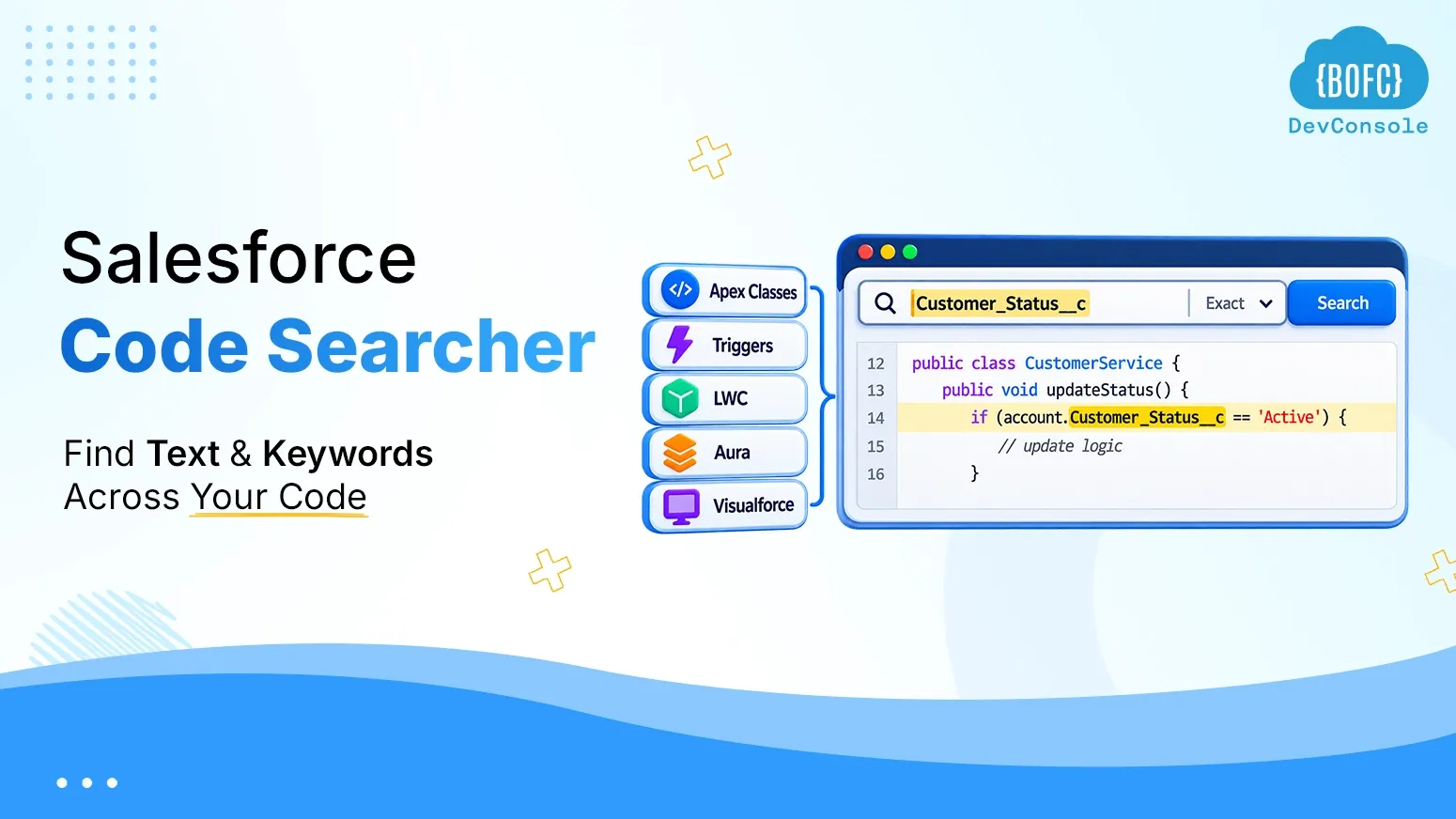
To search text or keywords in Salesforce code, use the Search feature in BOFC Dev Console. It works as a Salesforce Code Searcher across Apex, Triggers, LWC, Aura, Visualforce, and Email Templates. Enter your search term, select Exact or Fuzzy search, choose the component types, and run the search to find matching code with line-number references. Search directly inside Salesforce without retrieving metadata to a local IDE. Requires BOFC version 8.3490 or later.
Searching for a specific text, keyword, field API name, or string inside Salesforce code can be challenging, especially when it is referenced across multiple Apex classes, triggers, Lightning Web Components (LWC), Aura components, and Visualforce pages.
How do you search text in Salesforce code? You need a way to scan your Salesforce codebase, identify where a particular keyword appears, and locate the exact line containing that reference.
BOFC Dev Console makes this easier with its built-in Salesforce Code Searcher. It allows you to search text and keywords across supported Salesforce code components, including Apex, Triggers, LWC, Aura, Visualforce, and Email Templates, directly inside your Salesforce org.
With Exact and Fuzzy search modes and line-number references, you can quickly find code references without manually opening multiple files or retrieving metadata to your local machine.
In this guide, you’ll learn how to search text and keywords in Salesforce code, understand the difference between Exact and Fuzzy search, and use BOFC Dev Console to find code references in a few steps.
Why Is It Hard to Search Text Inside Salesforce Code?
A single field API name, label, or hardcoded value can be referenced in dozens of places across a mature org. For example:
- An Apex class or triggers that queries or assigns it
- An LWC component that binds to it
- An Aura component built years ago that no one remembers
- A Visualforce page that renders it
- An email template that hardcodes it into the body
Salesforce’s native tools don’t give you one place to search across all of these. Here is what each one covers:
- SOQL and SOSL search data records, not the code that makes up your components.
- The Tooling API’s LIKE queries can match a component’s name (e.g., an Apex class called InvoiceService), but not the text inside that class.
- Setup’s “Where is this used?” tool only works on custom fields, is capped at 2,000 results
Also, it doesn’t show you the exact line of code. It only shows that a component references the field somewhere.
In practice, this usually forces developers and admins to juggle several tools just to answer one question:
- Retrieve metadata locally and open it in VS Code (or another IDE) to run a text or regex search.
- Cross-check Setup’s dependency tool for whatever partial picture it can offer.
- Fall back to scripting against the Metadata API or Tooling API for anything the first two miss.
That is a lot of tool-switching for something as simple as “where does this string appear in my code?” It also gets worse the larger and older the org is.
Exact vs. Fuzzy Search in Salesforce Code
The same exact-vs-fuzzy thinking that applies to data and metadata search applies here too:
- Exact search: You know the precise string. It can be a field API name, a hardcoded Id, or a specific method or variable name. You want only components that contain that literal text, with no noise.
- Fuzzy search: You only remember part of the string. Perhaps you aren’t sure of the exact casing or spelling. Or you want a broader sweep across components without knowing the exact text upfront.
Native Salesforce tooling doesn’t offer this distinction for in-code text search at all. You either have it through an IDE’s find-in-files, which requires retrieving the metadata first, or you don’t have it natively. This is the gap BOFC’s new feature is built to close.
Salesforce Code Searcher: Search Text and Keywords with BOFC
BOFC (Bulk Object Field Creator) has added a Developer Suite called Dev Console. It lets you search for text or keywords directly across Apex classes, triggers, LWC, Aura, Visualforce pages and components, and email templates. You can do it in a few clicks, from inside the app. Also, no local metadata retrieval or IDE setup is required.
Here are the key things it gives you
- Exact search: returns only components containing the literal string you searched for.
- Fuzzy search: returns components with partial or approximate matches. This is useful when you’re not sure of the exact text.
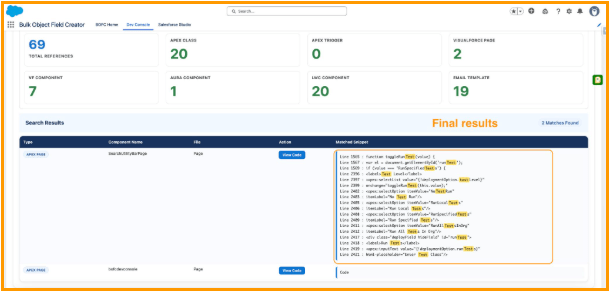
- Line-number references: every match comes back with the exact line it occurs on. So you can jump straight to the reference instead of scanning the whole file.
- One tool, all component types: Apex, LWC, Aura, Visualforce, and email templates are all searchable from the same place. You no longer switch between an IDE, Setup, and scripts.
How to Search Text in Salesforce Code Using BOFC?
Here is a general walkthrough of how to use the feature. If your version of BOFC’s UI differs slightly, the sequence below is the general flow to expect.
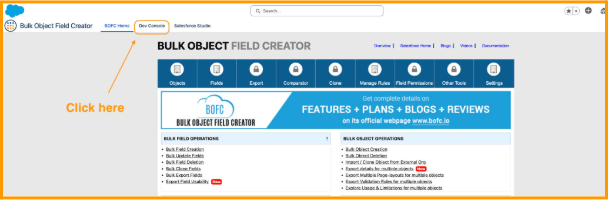
Step 1 : Open BOFC In Salesforce, click the App Launcher (nine dots) and search for “BOFC Home” Then click the “Dev Console” tab next to it. (Requires BOFC version 8.3490 or later.)
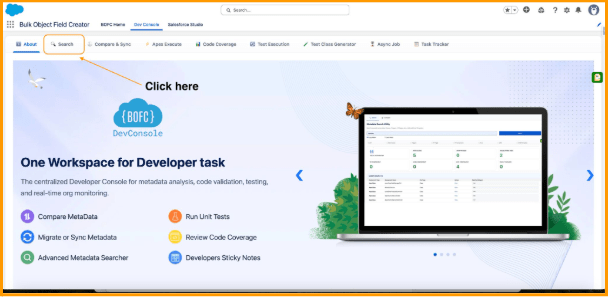
Step 2 : Navigate to the text/keyword search feature From the BOFC Dev Console menu, go to the “Search” tab.
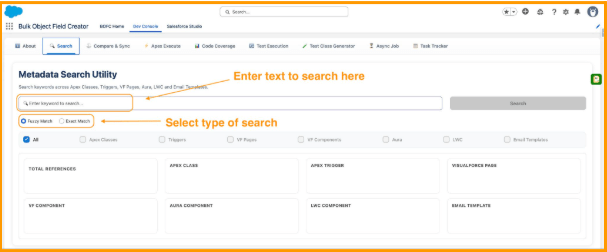
Step 3 : Enter your search term Type the keyword, field API name, or string you’re looking for and Choose Exact or Fuzzy mode Select Exact if you know the precise string and want only literal matches, or Fuzzy if you only have a partial term or aren’t sure of exact spelling/casing.
Step 4 : Select the component types to search Choose which component types you want included in the search — for example, Apex Classes, Triggers, LWC only, or all supported types (Apex, LWC, Aura, Visualforce, email templates) at once
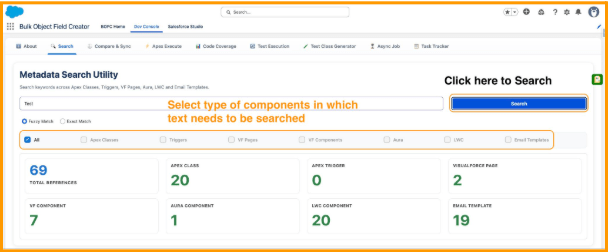
.Step 5 : Run the search Click “Search”. BOFC scans the selected component types for matches.
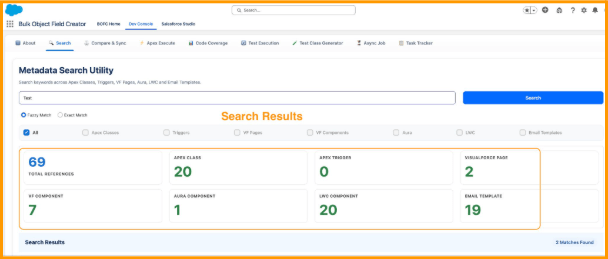
Step 6 : Review results with line-number references Results are returned as a list of components, each showing the exact line number(s) where the match occurs — so you can go straight to the relevant line instead of opening and scanning the full file.
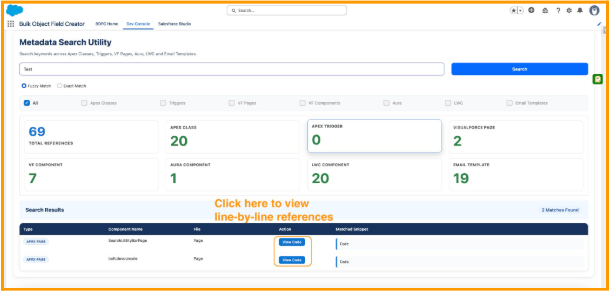
Step 7 : Act on what you find Use the results for impact analysis, cleanup, or troubleshooting — e.g., confirm it’s safe to rename a field, find hardcoded values that should be custom labels, or trace where a piece of logic is duplicated.
When Should You Search Keywords in Salesforce Code?
-
Before Renaming or Removing a Custom Field: Search for a field API name across Apex Classes, Triggers, and Lightning Components to identify potential code references before making changes.
-
Finding hardcoded values: Search for hardcoded IDs, URLs, labels, or configuration values scattered across your Salesforce source code to identify areas that may need improvement.
-
Troubleshooting Apex and Lightning Components: When investigating an issue, search for a method name, variable, error message, or specific string to locate the components where it appears.
-
Reviewing Code Dependencies:Identify where a particular method, field, or keyword is referenced across supported Salesforce components before modifying existing logic.
-
Auditing and Maintaining Existing Salesforce Orgs:Search older codebases to locate duplicated logic, outdated references, and hardcoded values that may need attention.
Wrapping Up
Finding a field name, label, or hardcoded string across Apex, LWC, Aura, Visualforce, and email templates used to mean juggling several tools. You needed an IDE, Setup’s limited dependency tool, and ad hoc API scripts. Even then, you would rarely get an exact line reference. BOFC’s text/keyword search closes that gap with a single, in-app tool. It supports both exact and fuzzy matching and returns line-level references. As a result, you can go from “where is this used?” to the actual answer in a few clicks.