How to Find and Delete Unused Fields in Salesforce?
Published: Oct 26 2026
Quick Answer:
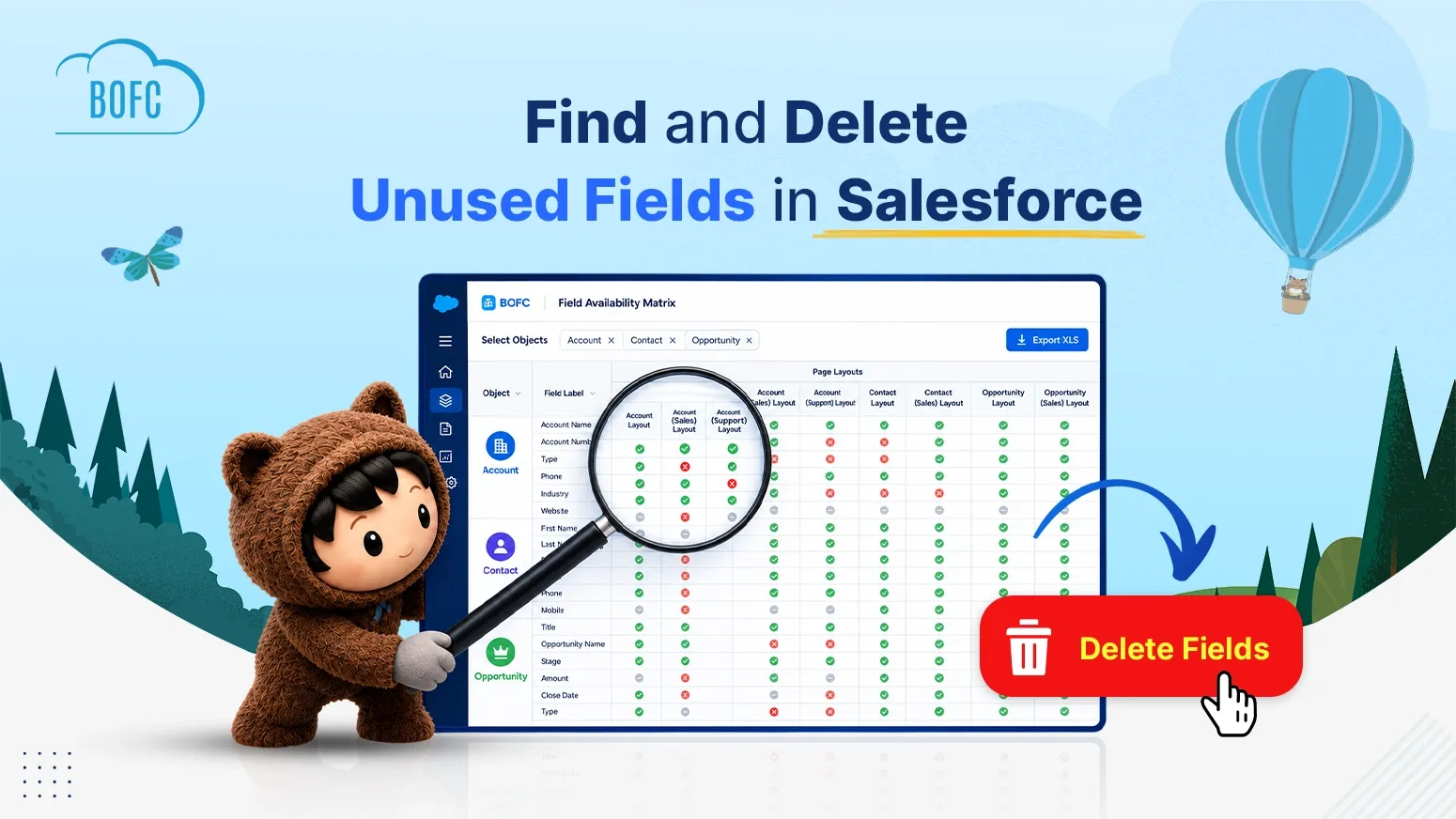
To find unused fields in Salesforce, count how many records hold a real value in each field, check what depends on it with Where is this used?, and confirm that users cannot see it on any page layout. Then remove field access, back up the data and delete the approved fields in bulk. BOFC’s Export Field Usability shows how fields are used across an object, and Bulk Field Deletion removes many custom fields in one run.
Every Salesforce org collects fields it no longer needs. A field is added for a campaign, an integration or a one-off report, and then it stays. Years later, users scroll past dozens of fields to find the five they use, reports carry columns nobody trusts, and people guess which field to fill, so the same information ends up in three places.
A cleanup fixes this. Shorter page layouts help users enter data faster, cleaner reports build confidence in the numbers, and a smaller data model is easier to migrate, document and maintain. Salesforce also caps the number of custom fields on each object, so freeing space matters if an object is close to its limit.
This guide walks through how to find unused fields, how to confirm they are safe to remove, and how to delete them in bulk instead of one at a time.
What Counts as an Unused Field?
A field can look busy and still be dead weight. When you review an object, expect to find four kinds:
- Never populated: no record has ever had a value in it.
- Always the same value: the field is filled in, but only because of a default or a habit, so it carries no information.
- Abandoned: it was used in the past, but nobody has filled it in for a long time.
- Invisible: it is not on any page layout and no profile can edit it, so users cannot reach it anyway.
The first three show up in your data. The fourth shows up in your metadata. A thorough cleanup looks at both.
Step 1: Start With a Short Candidate List
You do not need to audit every field on day one. Pick the objects that cause the most complaints, usually Account, Contact, Lead, Opportunity and Case, and shortlist the fields you suspect are dead: fields created years ago, fields that always look empty in reports, or fields a user once called “never used”.
Keep everything in one spreadsheet from the start. It will become your review list, your approval record and, later, your deletion list.
Step 2: Measure How Much Each Field Is Used
The number that matters is how many records hold a meaningful value. A field that is 100% filled with its default value is not really in use, so count real entries, not just non-empty ones.
For a single field, a SOQL query gives you the count:
SELECT COUNT(Id) FROM Account WHERE Your_Field__c != nullTo exclude a default value, add it to the filter:
SELECT COUNT(Id) FROM Account WHERE Your_Field__c != null AND Your_Field__c != 'Default Value'Two cautions apply. Checkbox fields are never null, so count them with
Your_Checkbox__c = trueinstead. Long text area fields cannot be filtered in a WHERE clause at all, so they need a different method, such as a report or an export.
To spot fields that are fading out, add a date filter and compare the result with the all-time count:
SELECT COUNT(Id) FROM Account WHERE Your_Field__c != null AND CreatedDate = LAST_N_YEARS:2Keep one limit in mind. This uses the record’s created date, so it tells you when the record was created, not when the field was last edited. Treat it as a strong hint rather than proof, and explain that to your stakeholders.
Analyze Many Fields at Once With BOFC
Running a query per field works for ten fields. For a few hundred, it does not. BOFC’s Export Field Usability feature analyzes how every field on an object is used and gives you the result as an Excel report you can sort and filter. You create an analyzer for each object you want to review, optionally scope it with a SOQL query (for example, to records created in the last two years), and start the analysis. BOFC runs it in the background and emails you when it finishes, so you can keep working. It can also analyze picklist values, which helps you find unused values as well as unused fields.
Sort the report by the least-used fields and copy those into your candidate spreadsheet. The step-by-step guide to exporting a field usage report covers the full process.
Step 3: Check What Depends on Each Field
Usage tells you whether people enter data. Dependencies tell you whether something else needs the field. A field with no data can still sit inside a flow, a validation rule, an Apex class, an email template or a report, and Salesforce will not let you delete a field that is still referenced.
For each candidate, open it in Object Manager and click Where is this used? to see the layouts, flows, email templates, Apex code and other components that reference it. Record the results in your spreadsheet next to the field, along with:
- Field label and API name
- Data type
- Created date and last modified date
- Who owns or requested the field, if you can find out
- Where it is referenced
This is also the point to check visibility. A field that is on no page layout and that no profile can edit is a very strong candidate. The same sheet then answers the question your stakeholders will ask first: what breaks if we remove it?
Step 4: Decide What Is Safe to Delete
A field that fails all three checks (little or no real data, nothing depends on it, nobody can see it) is a strong candidate. Before it goes on the deletion list, rule out the empty fields that still have a job:
- Fields filled by automation: if one is empty, a flow or integration may be broken, and deleting the field would hide the problem.
- Recently added fields: users may not have access or training yet.
- Period-end fields: a field built for quarter-end or year-end will be empty until that period closes.
- Temporary fields: some processes fill a field briefly and clear it afterward.
Label these in your spreadsheet (Integration, New, Period-end) so they are not flagged again in the next review. For fields that held useful data in the past, ask your data governance owner how long the history must be kept before you delete anything.
Step 5: Remove Fields Without Surprises
Deleting a field cannot be undone for long, so use a staged process:
- Share the list. Send stakeholders the candidate fields with their dependencies and give them a window to object.
- Remove access first. Take the field off profiles and permission sets by removing field-level security. Wait a week or two. If nobody complains, the field is not missed.
- Test in a sandbox. Delete the fields in a sandbox to see what breaks in flows, Apex, reports and dashboards.
- Back up the values. Export the data from every candidate field so you can restore it if someone needs it later.
- Clear the references. Remove the fields from reports, dashboards, flows, validation rules, email templates and code.
- Delete. Once the references are gone, delete the fields.
Step 6: Delete the Fields in Bulk
In Setup, custom fields are deleted one at a time. Go to Object Manager, select the object, open Fields & Relationships, and delete each field individually. That is fine for five fields and painful for fifty, because Salesforce has no native option to delete several custom fields at once.
BOFC’s Bulk Field Deletion lets you remove the whole approved list in one run. You select the objects, then either view their custom fields in a table or download them as a spreadsheet. If you use the spreadsheet, filter it down to the fields you approved and upload it back, so the file you reviewed is the same one that drives the deletion. Tick the fields, click Delete Fields, and BOFC shows a Success or Error status beside each row, so you know exactly what was removed and what needs another look.
A field that is still referenced somewhere is a typical reason for an error. Clear the reference and run that field again. Only custom fields can be deleted this way. The guide to mass deleting custom fields in Salesforce has the full walkthrough with screenshots.
After the Deletion
Salesforce keeps deleted custom fields in a Deleted Fields list for 15 days, and you can restore one from there if something turns out to depend on it. After that period the field and its data are removed permanently, which is why the backup in Step 5 matters. Check your key reports and flows a few days after the cleanup to make sure everything still runs as expected.
Unused Field Cleanup Checklist
- Shortlist suspect fields on your busiest objects
- Count real usage, excluding defaults, and compare with the last two years
- Run Export Field Usability to analyze whole objects at once
- Check dependencies with Where is this used?
- Rule out automated, new, period-end and temporary fields
- Share the list, then remove field-level security and wait
- Test in a sandbox and back up the field data
- Clear references in reports, dashboards, flows and code
- Delete in bulk with Bulk Field Deletion and review each row’s status
Conclusion
Finding unused fields comes down to four checks: how much real data a field holds, how recently it was used, whether anything depends on it, and whether users can see it. Once you have a reviewed list, the removal does not have to take days. BOFC’s Export Field Usability and Bulk Field Deletion take the repetitive work out of the two steps that usually take the longest, so you can spend your time on the decisions instead of the clicking.
Ready to clean up your org? Install BOFC or Contact us to see Bulk Field Deletion in action.