How to Add Multiple Custom Fields to Report Types in Salesforce?
Published: Apr 30 2026
Last Updated: Nov 04 2026
Quick Answer:
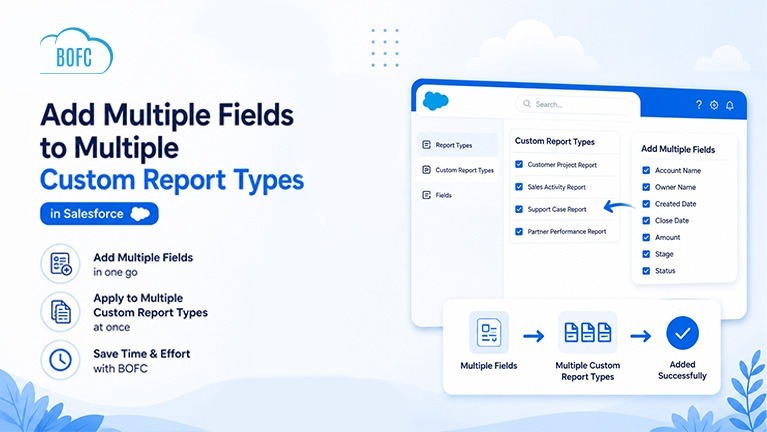
BOFC (Bulk Object Field Creator) lets Salesforce admins add multiple fields to multiple Custom Report Types at once, instead of updating them one by one. Select an object, choose the fields, and apply them across all related Report Types in a few clicks, no manual repetition required.
Salesforce reporting becomes more powerful when your Custom Report Types contain the right fields. But as your org grows, maintaining Report Types manually can turn into a repetitive, time-consuming admin task.
Imagine needing to add the same custom field across 20, 50, or even 100+ Report Types. With standard Salesforce functionality, admins have to open each Report Type individually, search for the required field, add it manually, and repeat the same process over and over. Not only is this tedious, it also increases the risk of missing updates or creating inconsistencies across reports.
Unfortunately, Salesforce does not provide a native way to bulk-manage fields across Report Types. That’s where BOFC (Bulk Object Field Creator) comes in. It lets Salesforce admins add multiple fields to multiple Custom Report Types in just a few clicks, removing the need for repetitive manual work.
To put that in perspective: manually adding a single field across 20 Report Types can take a Salesforce admin well over an hour once you factor in navigation, searching, and verification. With BOFC, the same update takes a few minutes.
Here’s what switching to BOFC actually gets you:
Benefits of using BOFC App
- Add multiple fields to multiple Report Types in one click
- Perform bulk updates across Report Types
- Support both Standard and Custom Objects
- Simplify metadata management with a point-and-click UI
- Reduce manual effort and repetitive tasks
- Improve Salesforce admin productivity
Ready to put this into action? Here’s how to add multiple fields to your Custom Report Types using BOFC.
Steps to Add Multiple Fields to Custom Report Types
Step 1: Open the BOFC Home > Click “Add / Remove Report Types”
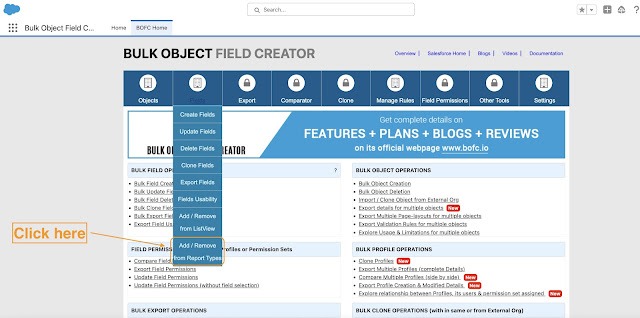
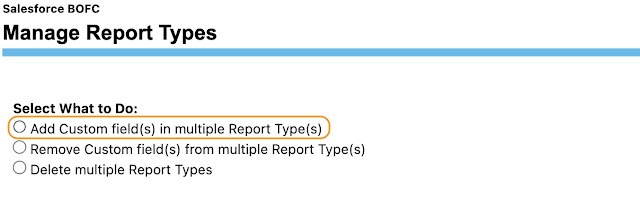
Step 2: It will open below screen to manage report types. Select the type of action as “Add” option as highlighted in radio button.
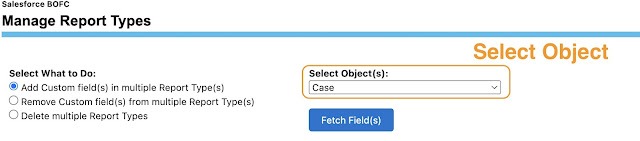
Step 3: Select the Object from the dropdown and click “Fetch Field(s)” button to fetch all the existing fields of selected object. It will also fetch the list of the custom reports types related to selected object.
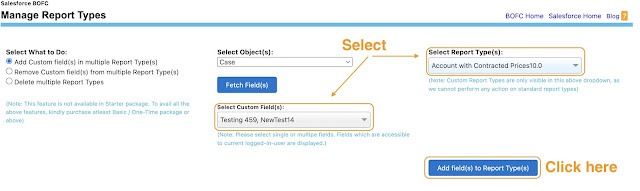
Step 4: Select the single or multiple fields which needs to be added to selected custom report types. Once ready, click on “Add Fields to Report Type(s)” button to initiate the process.
Step 5: Once the “Add Fields to Report Type” buttons is clicked, it will update the status against each selected Report Types
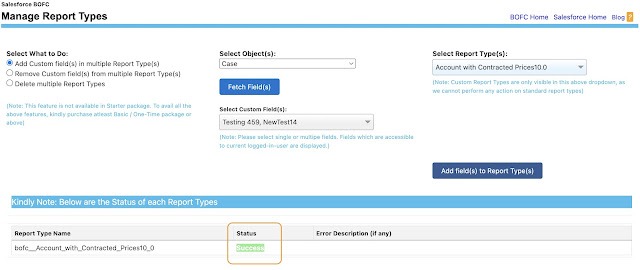
Status Indicators
- 🟢 Green → Report Type updated successfully
- 🔴 Red → Error occurred during the update process
This makes it easy to verify successful updates and identify any Report Types that require additional review.
Final Thoughts
As your Salesforce org grows, keeping Report Types updated field by field just doesn’t scale. BOFC turns a task that once took hours of manual clicking into a process you can complete in minutes, with fewer errors and no repetitive work.
If your team manages Report Types regularly, this is one of the simplest ways to save admin time and keep your reporting metadata consistent across the board.