How to Convert All Non-Converted Leads in Salesforce?
Published: Apr 10 2020
Last Updated: Oct 19 2026
Quick Verdict:
To convert all non-converted leads in Salesforce, open Bulk Lead Conversion in BOFC and select Show All Leads which are not Converted. Then either display the list, choose the leads and the Account, Opportunity and owner options, and convert them, or skip the list and convert every non-converted lead in one run. No report or file is needed.
A growing lead list leaves you with a backlog of unconverted leads, and converting them one by one with the Convert button is slow and repetitive. If you want to convert all of them, you do not need a report or a file.
This guide shows how to convert all non-converted leads straight from BOFC. You can display the leads and choose which to convert, or skip the list and convert every non-converted lead in one run. For other ways to start, read our guide to mass convert leads in Salesforce.
What You Can Control When Converting All Leads
BOFC is a native Salesforce app installed in your org. For your non-converted leads, you can:
- See every lead that has not been converted, in one list
- Attach leads to an existing Account or create a new one
- Create an Opportunity or skip it
- Choose the lead owner for one or many leads
- See error and validation messages, with descriptions
- Work with columns that show or hide based on the options you choose
To avail this feature, kindly make sure you have installed the latest version of the application. You can upgrade your package using either of two ways:
- In Salesforce, go to “BOFC Home > Settings > App Version > Click to Upgrade” — or —
- Refer the below button to quickly upgrade your package to the latest version and explore its complete benefits:
Steps to Convert All Non-Converted Leads in salesforce
1. Goto BOFC Application and open “Bulk Lead Conversion” page
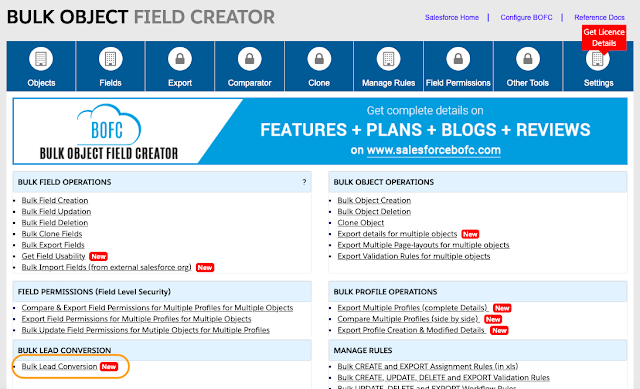
2. It will open this page for Lead conversion

3. Select “Show All Leads which are not Converted”. Once selected, it will display two options to proceed further:
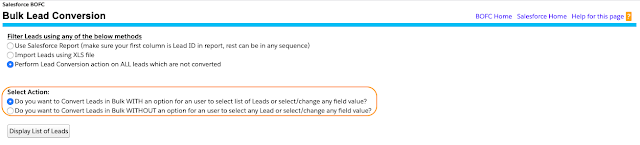
- Do you want to Convert Leads in Bulk WITH an option for a user to select list of Leads or select/change any field value? —– In this option, the application which display list of leads which are listed in the report and will allow user to select any specific Leads, or change account options (create new or use existing), or allow user to (create or not create) new opportunities, or align new owner. (Refer steps 4 to 8)
- Do you want to Convert Leads in Bulk WITHOUT an option for an user to select any Lead or select/change any field value?—– In this option, the application which won’t display list of leads which are listed in the report and but it assumes that all the Leads needs to be Converted. In this option user have account options (create new or use existing), or allow user to (create or not create) new opportunities, or align new owner. (Refer steps 9 to 10)
We will go through both the options one by one.
4. Once User selects first action, click on “Display List of Leads” button.
Once button is clicked, it will display below screen with Lead records (in form of table)
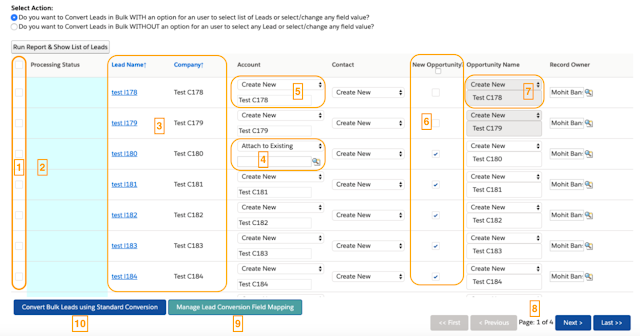
Above image has few features (each number has its description as below):
- User needs to select lead rows once all the mandatory fields are filled
- This column display the status for lead conversion
- Lead columns (Lead name and Company)
- User can avoid creating new account and can attach lead to existing account.
- User can create request for new account at lead conversion
- Creating Opportunity is Optional. If selected, it will create opportunity at the time of lead conversion.
- If “New Opportunity” is checked, then Opportunity name field is enabled, otherwise it will be disabled.
- Pagination: Each page shows 80 lead records. User can navigate to next or previous or first or last pages using this navigation
- When lead is converted, lead fields are mapped to Account, Contact and Opportunity fields. In order to review or modify field mappings, click this button and it will display the Standard Lead mapping page.
- Once user has selected the lead rows, it can click “Convert Bulk Leads using Standard Conversion” button to convert all the selected lead rows
5. Select lead rows & verify all the details in required columns or remove error(if any).
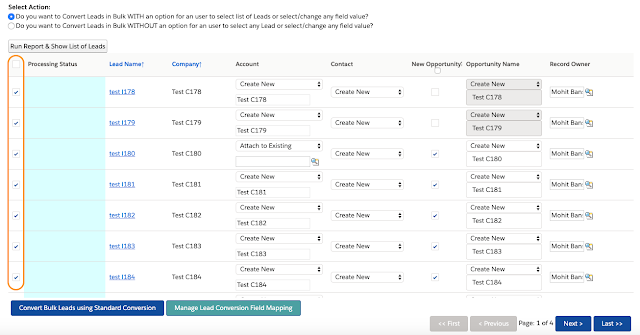
6. Click “Convert Bulk Leads using Standard Conversion” button to convert selected lead row records. Once clicked, it will show a status popup:
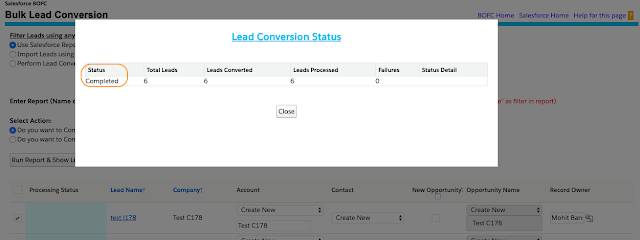
In this popup, it shows stats for “how many records are to be processed, how many are converted, failed. Once the status is completed, click on Close button.
7. Once the close button is clicked, it will show “Success or Error” status message in-front of each row.
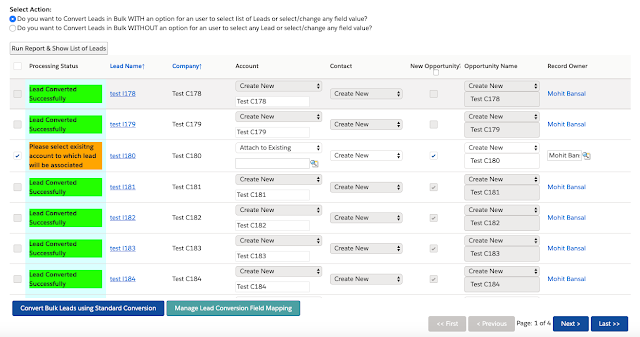
Green means – Lead row converted successfully
Red means – Lead row error out with some error message
8. Once User selects Second action, it will display few questions for user to answer.
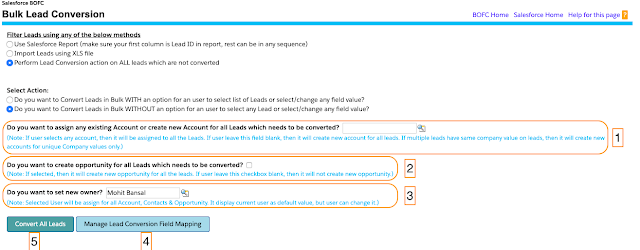
Above image has few features (each number has its description as below):
- User can select the account to which new leads will be attached to, or they can leave it blank in order to create new account
- Creating Opportunity is Optional. If selected, it will create opportunity at the time of lead conversion.
- User can assign new Owner for new Accounts, Contacts and Opportunity. If left blank, it will assign current logged in user.
- When lead is converted, lead fields are mapped to Account, Contact and Opportunity fields. In order to review or modify field mappings, click this button and it will display the Standard Lead mapping page.
- Once ready, click on “Convert Bulk Leads using Standard Conversion” button to convert all the lead records.
9. Click “Convert Bulk Leads using Standard Conversion” button to convert selected lead row records. Once clicked, it will show a status popup:
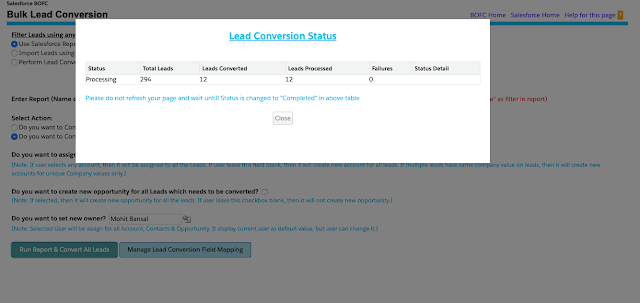
In this popup, it shows stats for “how many records are to be processed, how many are converted, failed. Once the status is completed, click on Close button and your leads are converted.
Conclusion
Converting all non-converted leads from BOFC takes a few clicks and needs no report or file. Use the list when you want control over which leads convert, and the no-list option when you want the backlog cleared in one run.
Prefer to start from a report? See how to convert leads from a Salesforce report. Working from a spreadsheet? See how to convert leads from an Excel or CSV file. To see the whole feature, visit Bulk Lead Conversion in Salesforce.